

Microsoft 365 for a Small Business: What Do You Actually Need?
Microsoft 365 can provide email, calendars, Office applications, cloud storage, file sharing, video meetings, security features, and administrative tools under one business platform. The challenge for a small company is that the ecosystem can look much larger than the problem it is trying to solve. A business with five employees does not need to use every Microsoft service simply because it is included or available.
The better approach is to start with the work the business needs to do. Most small companies need reliable email, appropriate Office applications, organized file storage, sensible account security, and a repeatable way to add or remove users. Everything beyond that should solve a real operational need rather than become another system to maintain.
Start With Professional Business Email
For many small companies, email is the first reason to adopt Microsoft 365. Exchange Online can host email using the company’s domain, with calendars, contacts, mobile access, and Outlook in the same business environment. Centrally managed accounts also give the organization control when employees join or leave. Business email should belong to the business, use a domain the business controls, and have administrative access that does not depend entirely on one person.
Outlook Is Useful, but the Business Has Options
Microsoft 365 users do not all have to work in Outlook the same way. Some employees may prefer the desktop application, while others are comfortable with Outlook on the web or the mobile app. Desktop Outlook can suit heavier email and shared-mailbox workflows, while browser access can suit employees who move between computers. What matters is that the underlying business account remains centrally managed and employees know where their email, calendar, and contacts belong.
Word, Excel, and PowerPoint May Be the Main Value
Many businesses choose Microsoft 365 because they already depend on Word, Excel, and PowerPoint for proposals, reports, spreadsheets, presentations, financial work, and customer documents. If employees exchange Office files every day, access to the desktop applications can be a major part of the value. Not every role needs the same software, so licensing should follow the work rather than assuming every user requires the most feature-rich option. Compatibility with customers and suppliers should also influence the decision when Microsoft Office files are a regular part of business communication.
Excel Requirements Deserve Special Attention
Excel can be one of the strongest reasons to remain within Microsoft’s ecosystem. Small businesses may use spreadsheets for pricing, estimating, budgeting, inventory, scheduling, forecasting, reporting, or industry-specific calculations, and more advanced workbooks can depend on features that are easiest to preserve in Excel. Review the spreadsheets the business actually uses before choosing licences or moving people to browser-only workflows, particularly when macros, external data connections, complex formulas, or specialized formatting are involved. At the same time, do not buy advanced capability merely because Excel offers it if ordinary spreadsheet work already meets the business need.
OneDrive Is Best for Individual Working Files
OneDrive is commonly used for files associated with an individual Microsoft 365 user. It can synchronize documents between a computer and Microsoft’s cloud services, making files available across devices and reducing dependence on one physical machine. Because OneDrive is tied to a user account, it is generally better suited to a person’s working files than to the company’s entire shared document library. The business should decide where individual work ends and organizational information begins.

SharePoint Is Useful for Shared Company Files
SharePoint provides the underlying storage for many shared Microsoft 365 experiences, including files surfaced through Teams. For a small business, one of its most useful roles is simply providing a company-controlled location for procedures, templates, shared project files, marketing material, and other documents that belong to the organization. SharePoint can support much more elaborate structures, but complicated intranets and custom workflows should solve a real problem before they are introduced. A clean shared file structure with understandable permissions often provides most of the value a small company needs.
OneDrive and SharePoint Should Have Different Jobs
Confusion often begins when employees do not know whether a file belongs in OneDrive, SharePoint, Teams, a local folder, or an email attachment. A simple rule helps: individual working files can stay in OneDrive, while documents the organization depends on should live in an appropriate shared location. Employees can still work privately on drafts until collaboration or organizational ownership becomes important. This distinction also makes employee departures easier because shared business information is less likely to disappear into an abandoned personal workspace.
Teams Is Optional, Even If Microsoft Promotes It Heavily
Microsoft Teams can combine messaging, meetings, channels, files, and collaboration in one application. It can be valuable when several employees need ongoing internal communication or project-based workspaces, but it can also add complexity to a business that mainly needs email and shared files. Before adopting it broadly, decide what Teams is supposed to replace or improve and establish a simple structure for channels and workspaces. Collaboration works best when employees understand where conversations and files belong.
Teams Meetings Do Not Require a Full Teams Culture
A business can use Teams for video meetings without making it the centre of internal communication. Employees may schedule meetings through Outlook or Teams while continuing to use email for most other work. This can be a sensible arrangement when customers already use Teams but the company has little need for channels or constant internal chat. The same principle applies throughout Microsoft 365: use the components that solve real problems and leave unnecessary features alone.
Microsoft 365 Does Not Replace Good File Organization
Cloud storage can make files easier to access without automatically making them easier to find. Random folders, duplicate documents, inconsistent names, and unclear shared locations remain confusing even after they move into Microsoft 365. Start with a simple structure that reflects recognizable areas of the business, such as customers, projects, administration, finance, and templates. A small number of clear locations is usually easier to maintain than a deep folder hierarchy employees eventually work around.
Cloud Storage Still Needs Recovery Planning
OneDrive and SharePoint provide useful recovery capabilities such as synchronization, version history, and deleted-file recovery. Those features can protect against many common mistakes and simplify computer replacement, but they should not automatically be treated as a complete backup strategy. Files can be deleted or overwritten, permissions can change, and important information may exist outside Microsoft 365 entirely. Our guide to whether OneDrive or Google Drive is a backup explains why the business should understand Microsoft’s current recovery features and decide whether important data needs another independent layer.
Multi-Factor Authentication Should Be Standard
Business email accounts can provide access to customer communication, company files, password-reset messages, and other important services. Multi-factor authentication adds another layer beyond the password and should normally be part of the standard account setup. Employees need to understand how authentication works and what happens when a phone is replaced, lost, or unavailable, so recovery should be planned at the same time. Security is more reliable when MFA and recovery procedures are built into onboarding rather than added inconsistently later.

Administrative Access Needs Its Own Plan
Someone needs appropriate administrative control of the Microsoft 365 environment to manage users, licences, security settings, and recovery. The business should know who holds that access and how control can be recovered if the primary administrator is unavailable. Avoid making a former employee, outside contractor, or personal account the only route into the tenant, even when external support legitimately has administrative access. Ordinary employees also do not need administrator rights simply to perform normal work, so powerful permissions should remain limited and understandable.
User Accounts Should Be Created Deliberately
A new employee should receive their own business account rather than sharing another person’s credentials. Individual accounts make email, permissions, password resets, audit history, and eventual departures much easier to manage. Setup should follow the person’s role and include the required email, Office applications, shared files, collaboration tools, printers, and other business services, with MFA enabled from the beginning. A repeatable onboarding process is safer and easier to support than reinventing account setup every time someone joins.
Offboarding Is Just as Important
When an employee leaves, access should be reviewed promptly and the company may need to disable sign-in, preserve email, transfer important files, end sessions, and recover company equipment. The process is easier when business data already lives in organizational locations rather than only inside the departing employee’s personal working space. Shared contacts, documents, and other company information should have a clear ownership path so they remain accessible after the account changes. A short offboarding checklist helps a small company remember important steps even when departures are infrequent.
Shared Mailboxes Can Be Useful
Addresses such as info@, support@, sales@, or billing@ often belong to a business function rather than one employee. Shared mailboxes can allow appropriate staff to access those addresses without sharing one password, while preserving the address and message history when responsibilities change. They can also allow several employees to work from the same business mailbox when the workflow requires it. A three-person company does not need a shared mailbox for every imaginable department, so use them where the function genuinely belongs to the organization.
Distribution Lists and Groups Can Simplify Communication
Sometimes one address simply needs to deliver a message to several employees. Distribution lists or appropriate groups can make that easier, but Microsoft’s different collaboration options can become confusing if they are added without a clear purpose. Choose the simplest tool that matches the requirement rather than creating groups, shared mailboxes, and Teams spaces for the same function. Document whether an important address is a mailbox people read directly or a list that distributes messages so future administrators understand how it works.
Calendars Can Solve More Than Scheduling
Microsoft 365 calendars can support individual schedules, shared calendars, meeting rooms, and other coordination needs. A small company may need only basic calendar sharing, while more structured scheduling can become useful as the organization grows. Avoid creating several overlapping calendars without a clear purpose because employees quickly lose confidence when they are unsure which one is authoritative. Calendar permissions should also match the business need rather than giving every user unnecessary access to everyone else’s schedule.
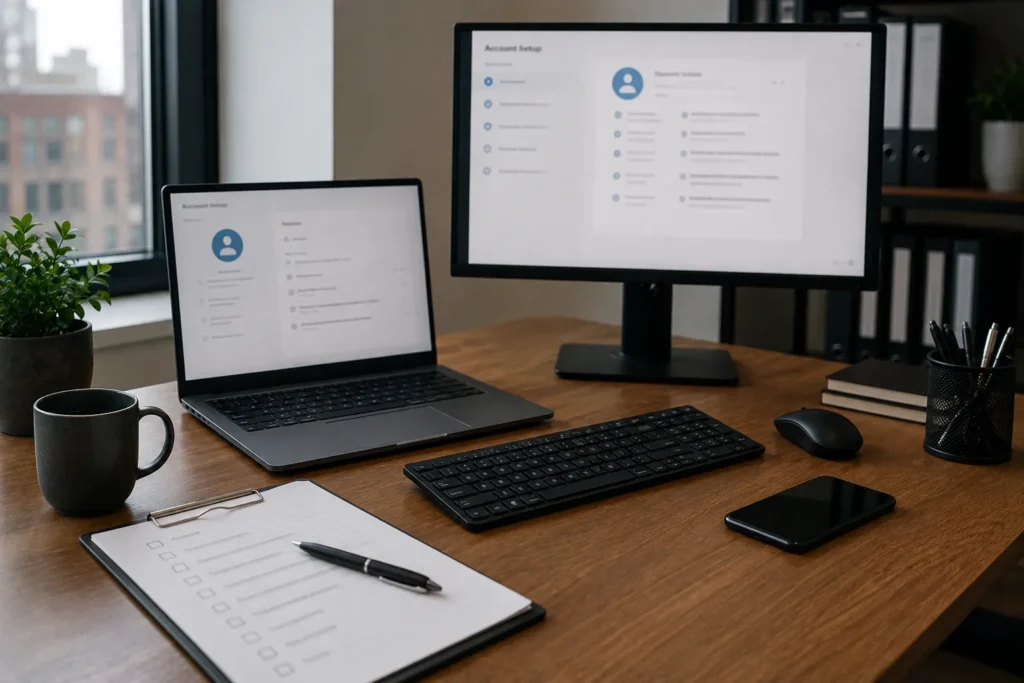
Microsoft 365 Can Help Standardize Employee Computers
Using the same productivity platform across employee computers can make setup and support more repeatable. Outlook, OneDrive, Office applications, Teams, and shared company resources can be configured around a known baseline while still allowing different hardware or specialist software for different roles. The useful consistency is in business accounts, file locations, security practices, and core applications rather than making every computer physically identical. As the company grows, that standardization can make onboarding and troubleshooting considerably easier.
Device Management Can Wait Until the Need Is Real
Microsoft provides increasingly capable tools for managing computers, applications, policies, and security, and those tools can become valuable as device counts or remote work increase. A very small company may not need advanced device management if computers are easy to configure manually and employees work in a simple environment. The decision should follow a real operational or security problem, such as inconsistent remote devices or growing difficulty maintaining a standard setup. Enterprise-style controls add administration, so complexity should earn its place.
Do Not Ignore Domain Ownership
Microsoft 365 email depends on the company’s domain and DNS configuration, which means losing control of the domain can eventually affect email even when the Microsoft tenant itself is healthy. The business should know where the domain is registered, who controls the registrar account, when renewal occurs, and how recovery works. DNS changes should be made carefully because service records and email authentication can depend on them. Domain ownership and basic documentation are therefore part of Microsoft 365 resilience rather than a separate website concern.
Email Authentication Deserves Attention
Business email should be configured so receiving systems can evaluate mail sent from the company’s domain, and technologies such as SPF, DKIM, and DMARC commonly form part of that process. The setup becomes more complicated when newsletters, website forms, accounting platforms, customer systems, or other services also send mail using the domain. Those legitimate senders need to be considered carefully, and DNS records should not be changed casually without understanding the existing configuration. A small business does not need to become an email-authentication expert, but it should know which services are authorized to send mail and keep changes documented.
Consider Whether Every User Needs Desktop Office Applications
One easy way to overspend is to assume every employee needs identical Microsoft 365 capabilities. Some roles may work mainly in email, browser applications, and shared online documents, while others depend heavily on desktop Word, Excel, PowerPoint, or Outlook. Review each role before assigning licences, and check current Microsoft plan details before purchasing because plan names and included features can change. The durable principle is to buy the capabilities each employee actually uses rather than automatically giving everyone the most expensive option.
Avoid Paying for Features You Do Not Use
Microsoft 365 includes enough services that small businesses can become distracted by what is available instead of what they need. Advanced security, device management, automation, analytics, and collaboration features can be valuable in the right environment, but each additional capability also creates configuration, ownership, documentation, and sometimes training work. If the real problem is disorganized files or inconsistent onboarding, a more expensive licence may not solve it. Review actual business needs before upgrading and keep the environment as simple as reliability and security allow.
Microsoft 365 Still Depends on Reliable Internet
Much of Microsoft 365 is cloud-based, so email, Teams, SharePoint, browser applications, and cloud-only files depend on internet connectivity. Desktop Office applications and locally synchronized files can continue working in some situations, but the full environment works best with reliable access to the internet. Businesses that depend heavily on Microsoft 365 should therefore consider an appropriate fallback, ranging from a smartphone hotspot for one person to dedicated cellular backup for a larger office. Our guide to internet backup options for a small business or home office covers those choices, while backup power may also matter when the internet equipment itself loses electricity.
Backup and Business Continuity Still Matter
Microsoft 365 can improve resilience by keeping information away from individual computers and allowing employees to sign into replacement devices. It does not eliminate the need for backup, recovery testing, account planning, administrator recovery, or broader continuity procedures. The business should understand Microsoft’s recovery features, identify important information, and decide where an independent backup is justified. Resilience also includes people and credentials because perfectly healthy cloud data is not very useful if nobody can regain administrative access to it.
When Professional Microsoft 365 Help Makes Sense
A small business can often handle basic Microsoft 365 use without ongoing technical administration. Professional help becomes useful when email needs migration, domains require configuration, several employees need structured accounts, file sharing is becoming confusing, permissions need review, or onboarding needs to become repeatable. East Toronto Tech provides Microsoft 365 and small-business technology support for Toronto organizations, including account administration, email setup, OneDrive and SharePoint organization, MFA, user onboarding, device setup, and practical guidance on useful Microsoft 365 capabilities. A good review should begin with how the business works today and simplify the environment rather than adding services simply because they exist.
Use Microsoft 365 as a Business Tool, Not a Feature Collection
Most small businesses do not need every part of Microsoft 365. They need a reliable combination of business email, the Office applications appropriate for each role, sensible file storage, secure user accounts, and a straightforward way to manage employees as the company changes. Teams, SharePoint, device management, and other capabilities should be used when they solve specific business problems rather than because they are available.
Start with the workflows that matter and give each Microsoft service a clear job. Employees should know where email lives, where individual files belong, where shared company information belongs, and which collaboration tools the business actually uses. A well-organized environment should eventually become unremarkable: people sign in, email works, files are easy to find, shared information belongs to the business, and new users can be added without reinventing the setup.