How to Make Video Calls More Reliable at Home
Video calls can fail in ways that are surprisingly difficult to diagnose. The picture freezes, audio becomes robotic, the microphone cuts out, the call drops, or everything works normally until someone starts sharing a screen. Because all of those problems appear inside the meeting application, it is easy to assume that Zoom, Teams, Google Meet, or the webcam itself is responsible.
In reality, video calls depend on several parts of the home-office setup working together. A weak internet connection, unreliable Wi-Fi, an overloaded computer, poor audio hardware, background uploads, or a software setting can all create similar symptoms. The best way to improve video-call reliability is to identify which part of the setup is struggling before replacing equipment or changing several settings at once.
Start With the Connection From the Room Where You Take Calls
A fast internet package does not guarantee a stable video call in every room. If the home office is in a basement, upstairs bedroom, addition, or another area far from the router, the wireless connection may be the real limitation even though ordinary browsing still feels normal. Test the connection from the exact desk where meetings happen, using the same computer and normal working conditions. A speed test can provide useful information, but consistency matters more than producing one impressive number. If calls improve noticeably when the same laptop is moved closer to the router, Wi-Fi coverage deserves attention, and our guide to why Wi-Fi can be slow in some rooms looks at those patterns in more detail.

Use Ethernet When the Workstation Stays in One Place
For a stationary home-office computer, Ethernet is often worth considering. A wired connection removes the Wi-Fi link between the computer and router, which can improve consistency during long calls, screen sharing, remote desktop sessions, and other work that depends on a steady connection. Ethernet does not increase the speed supplied by the internet provider, but it removes one possible source of instability inside the home. If an Ethernet jack already exists near the desk, test it before buying additional networking equipment, because a noticeably better call while wired is a strong clue that the wireless connection needs attention.
Look at What Else Is Using the Internet Connection
Video calls share the internet connection with everything else in the home. Large cloud backups, game downloads, high-resolution streaming, software updates, or several people using demanding online services at once can all affect call quality, particularly when upload capacity is limited. If calls become unreliable only at certain times, pay attention to what else is happening on the network and temporarily pause a large backup or download to see whether the meeting improves. You do not need to disconnect every device in the house, because the goal is simply to determine whether call quality changes when network demand changes.
Give the Computer Enough Breathing Room
A computer that has been running for days with many applications open may have fewer resources available for a meeting. Browsers with dozens of tabs, cloud-sync software, creative applications, virtual machines, spreadsheets, and other background processes can all compete for memory and processor time. Restarting before an important call can clear temporary problems, particularly if the computer recently installed updates or has been behaving strangely. Close applications you do not need during the meeting, especially when using demanding features such as high-resolution video, virtual backgrounds, screen sharing, noise suppression, or recording. If the machine also struggles during ordinary office work, our guide to deciding when an older Windows PC should be replaced provides a broader framework for judging its condition.
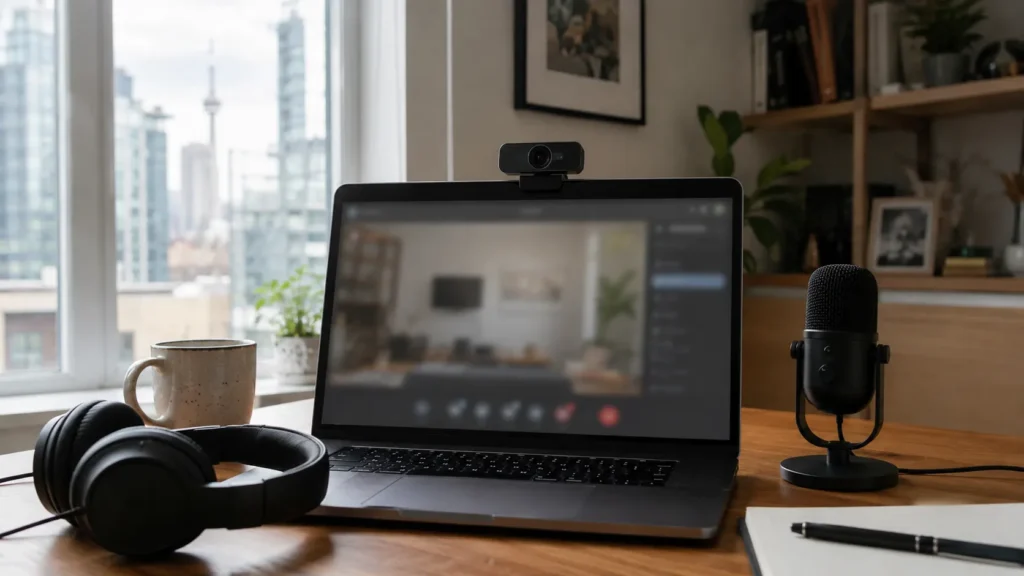
Test the Camera, Microphone, and Speakers Before the Meeting
A few minutes of testing can prevent many common video-call problems. Open the meeting application and confirm that the correct camera, microphone, and speakers are selected, especially when a laptop, dock, headset, monitor, webcam, and Bluetooth device all create separate audio options. Use the application’s test feature where available, speak normally, listen to the playback, and confirm that the camera image remains stable. If something sounds or looks wrong, it is much easier to correct before the meeting begins than after several people are already waiting.
Prioritize Clear Audio
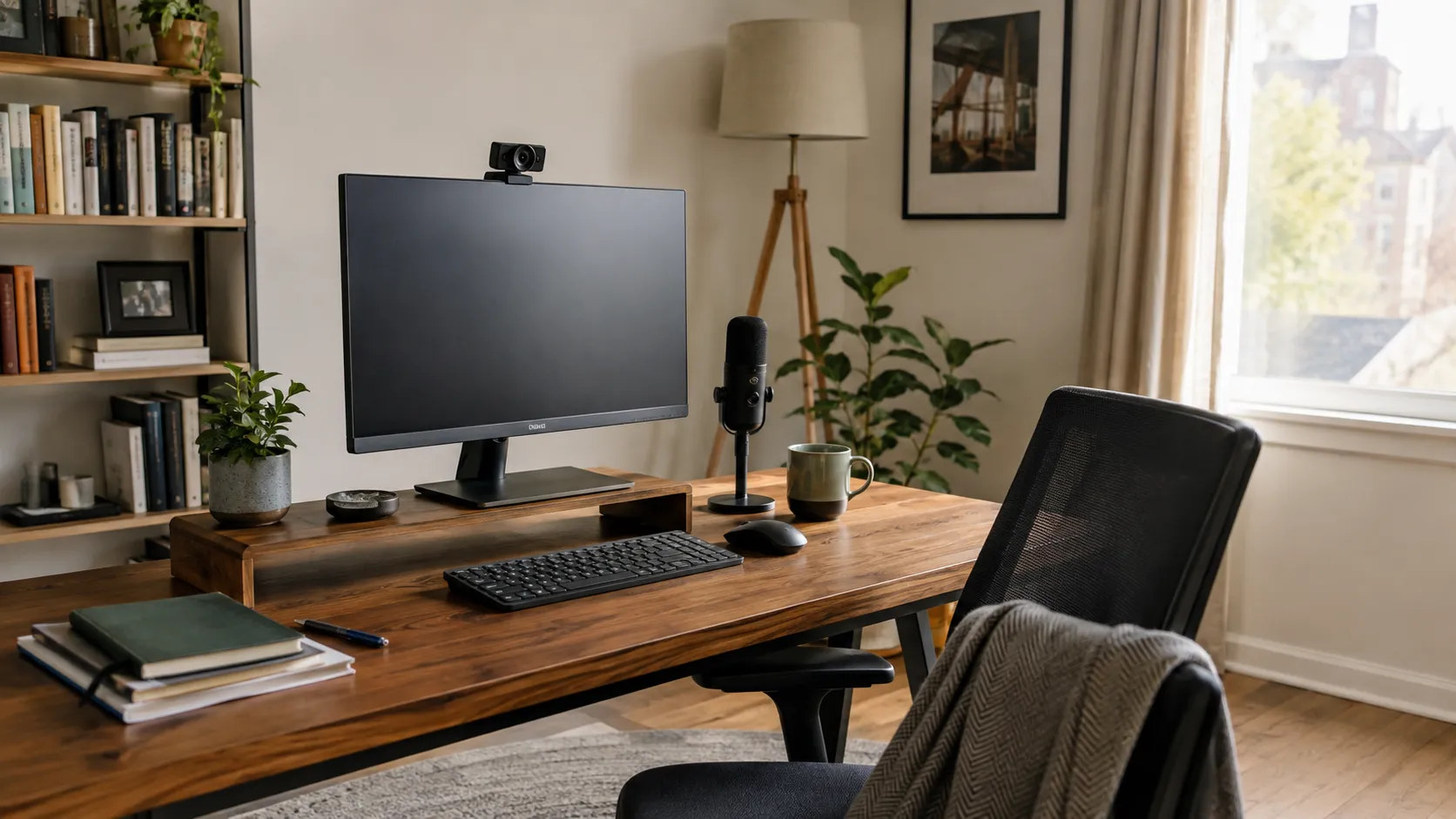
A slightly soft camera image is usually tolerable, while poor audio can make a conversation difficult very quickly. If people regularly ask you to repeat yourself, check the microphone, your distance from it, and the room around you before assuming new equipment is required. A headset can provide more consistent microphone placement and may reduce echo when speakers are otherwise feeding sound back into the microphone. External microphones can be useful for people who spend much of the day in meetings, but a simple setup used properly can sound better than expensive hardware configured poorly. Reduce obvious background noise and avoid placing the laptop beside a loud fan, open window, or another constant source of sound.
Treat Bluetooth as Another Part of the System
Bluetooth headsets are convenient, but they introduce another connection that can fail. A headset may connect to the wrong device, switch profiles, run low on battery, or temporarily lose its connection during a call. If audio trouble happens only while Bluetooth is being used, compare the same setup with the computer’s built-in audio or a wired headset to separate a headset problem from a network or conferencing problem. For important meetings, make sure the headset is charged and connected beforehand, and consider a wired option when reliability matters more than mobility.
Improve Lighting Before Replacing the Camera
Poor lighting can make a perfectly good webcam look much worse than it is. A bright window directly behind you can cause the camera to darken your face, while a dim room may produce grainy video because the camera has very little light to work with. Natural light from in front of or slightly beside the workstation often improves the image substantially, and a thoughtfully placed lamp can help when the room is consistently dark. Try to avoid extreme differences between the brightness behind you and the light on your face, because the camera will have an easier time producing a usable image.
Put the Camera at a Comfortable Height
Camera position affects both appearance and comfort during long meetings. A laptop sitting low on a desk can create an awkward upward angle and encourage poor posture, while raising it slightly or using an external webcam near eye level can make the setup feel more natural. If you use an external monitor, place the webcam close to the screen you normally look at during meetings rather than far above or beside your working position. You do not need perfect eye contact with the camera throughout the call, but the arrangement should remain comfortable enough to use for several hours.
Keep the Meeting Software and Drivers Current
Video-call software changes frequently, and Teams, Zoom, browsers, Windows, and device drivers all receive updates that can address compatibility and performance problems. If an issue appears suddenly, check whether the meeting application and operating system are current. Drivers can also matter for webcams, audio devices, docks, Bluetooth hardware, and graphics. Use Windows Update or the hardware manufacturer’s official support resources rather than random driver-download websites. Routine updates are best handled before they become urgent, so avoid installing a major update immediately before an important meeting when a restart or changed device setting could create another problem.
Review the Meeting Application Settings
Modern conferencing applications include features that can increase system load. High-definition video, background blur, virtual backgrounds, noise suppression, and other enhancements all require additional processing, so temporarily disabling unnecessary effects is a useful test when the computer struggles. Virtual backgrounds are a good example because the computer must continuously analyze and process the image, while a clean real background with reasonable lighting may place less demand on the system. Use the features that genuinely improve the call and leave the rest alone.
Pay Attention to Problems That Appear During Screen Sharing
A meeting may work normally until screen sharing begins because sharing a desktop or application adds work for the computer and requires additional data to be transmitted. If calls become unstable specifically during screen sharing, consider both the computer and the network rather than assuming the meeting application itself is failing. Close unnecessary applications and test again to see whether reducing the workload helps. Where possible, share only the application or window that is actually needed rather than the entire desktop, which can also make the meeting easier for everyone else to follow.
Watch for Cloud Backups and File Synchronization
Cloud storage and backup tools can upload substantial amounts of data in the background. If a large backup, photo upload, or file synchronization begins during a meeting, call quality may deteriorate even though nothing obvious has changed on screen. Check OneDrive, Google Drive, Dropbox, backup software, and similar tools when the connection suddenly becomes unstable, and pause or reschedule large transfers if necessary. You do not need to disable these services permanently, because the goal is simply to avoid asking a limited connection to handle a large upload and an important meeting at the same time.
Test the Setup Under Real Conditions
A successful ten-second camera preview does not prove that the whole setup is reliable. If video meetings matter to your work, make a longer test call from the room where meetings normally happen and use the camera, microphone, and screen sharing as you would during a real meeting. Ask the person on the other end whether the audio remains clear and the picture stays stable. Pay attention to whether the computer becomes slow, Wi-Fi deteriorates, Bluetooth disconnects, or the call struggles only when another application is running. Those repeatable patterns are much more useful than a general impression that the meeting software is unreliable.
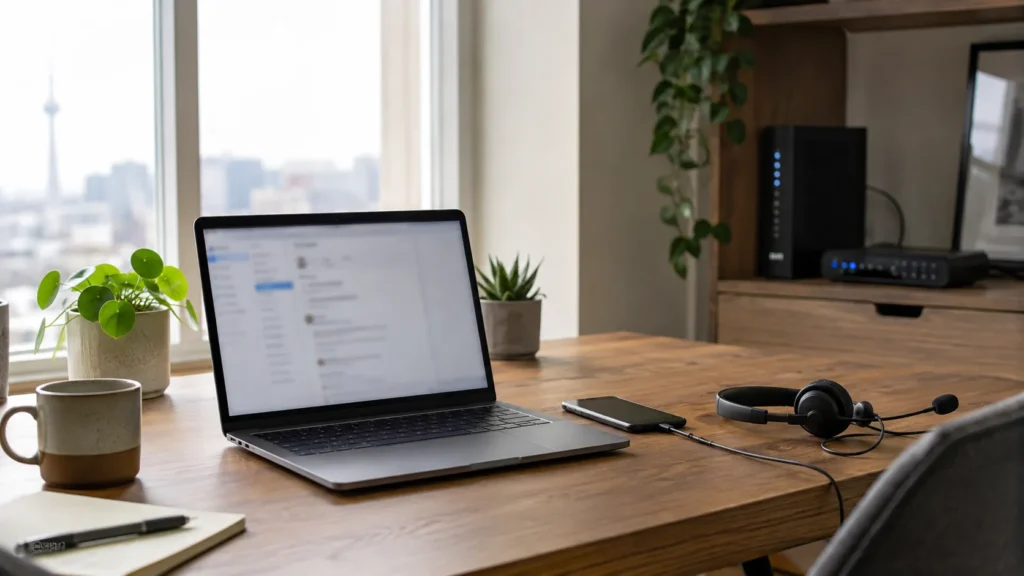
Have a Simple Backup Plan for Important Calls
Even a well-designed home office can have an occasional failure. For an important meeting, know what you will do if the primary setup stops working, such as joining from a smartphone or using a phone hotspot when the cellular plan and signal are suitable. A spare wired headset can also be useful if Bluetooth audio suddenly becomes unreliable. The backup plan does not need to recreate the entire office, because it only needs to keep the conversation going until the main problem can be fixed.
When Professional Help Makes Sense
Video-call problems can become difficult to diagnose because several parts of the setup overlap. A freezing picture may come from Wi-Fi coverage, the internet connection, an overloaded computer, background uploads, meeting software, or the camera itself. Professional help becomes useful when calls remain unreliable after basic testing or when dependable conferencing is essential to daily work. East Toronto Tech provides home-office technology support for Toronto professionals and small businesses, including Wi-Fi troubleshooting, computer performance assessment, video-conferencing setup, peripheral support, and connectivity improvements.
Make the Call Setup Predictable
Reliable video calls come from removing uncertainty. Use a stable connection, keep the computer comfortably within its limits, test the microphone and camera, and avoid unnecessary background activity during important meetings. When a problem appears, change one thing at a time and look for a repeatable pattern so you can determine whether the weak point is the network, computer, peripherals, or software. Once the cause has been identified and corrected, joining a video call should become another ordinary part of the workday.