What Should Happen When a New Employee Gets a Computer?
Giving a new employee a computer should involve more than opening the box and handing over a password. The device needs updates, security, company services, and a setup matched to the employee’s role. Good preparation also makes future support and offboarding easier.
For a small business, this does not need to become a complicated deployment project. A repeatable checklist can cover the important pieces without unnecessary administration. The goal is a computer that is ready, understandable, secure, and connected to the right business systems. Most of that work should happen before the first active workday.
Start With the Employee’s Role
Start by identifying what the employee actually needs to do. Their role determines the applications, files, mailboxes, printers, cloud services, and other resources they should receive. This avoids both excessive access and missing tools. Include any monitors, docks, webcams, headsets, scanners, or other hardware required for normal work.
Make Sure the Computer Is Appropriate for the Job
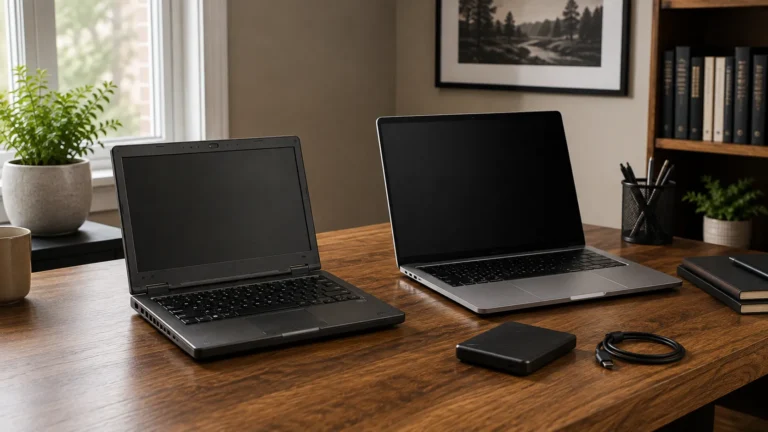
Match the hardware to the workload rather than simply buying the newest model. Email, Office applications, and video calls need less than design software, large spreadsheets, or other demanding work. Consider memory, storage, processor performance, ports, battery life, and peripherals. Using fewer known models can also simplify support and replacement.
Record the Device Before It Is Deployed
Record the manufacturer, model, serial number, assigned employee, purchase date, warranty details, and important accessories. A controlled spreadsheet may be enough for a small business. Update the record whenever equipment changes hands so ownership stays accurate.
Install Operating-System Updates First
A new computer may already be months behind on updates. Install current Windows or macOS updates before deployment. Allow the required restarts to finish. Check relevant firmware and drivers too, especially for Wi-Fi, docks, graphics, and batteries. Starting current is better than making the employee spend the first day catching up.
Remove Unnecessary Trial Software
New computers often include promotional apps, games, trial utilities, or duplicate security products. Remove obvious clutter while keeping legitimate manufacturer tools used for drivers, firmware, or diagnostics. Avoid deleting unfamiliar components casually. A cleaner starting point reduces unnecessary troubleshooting variables.
Create the Employee’s Own Business Account
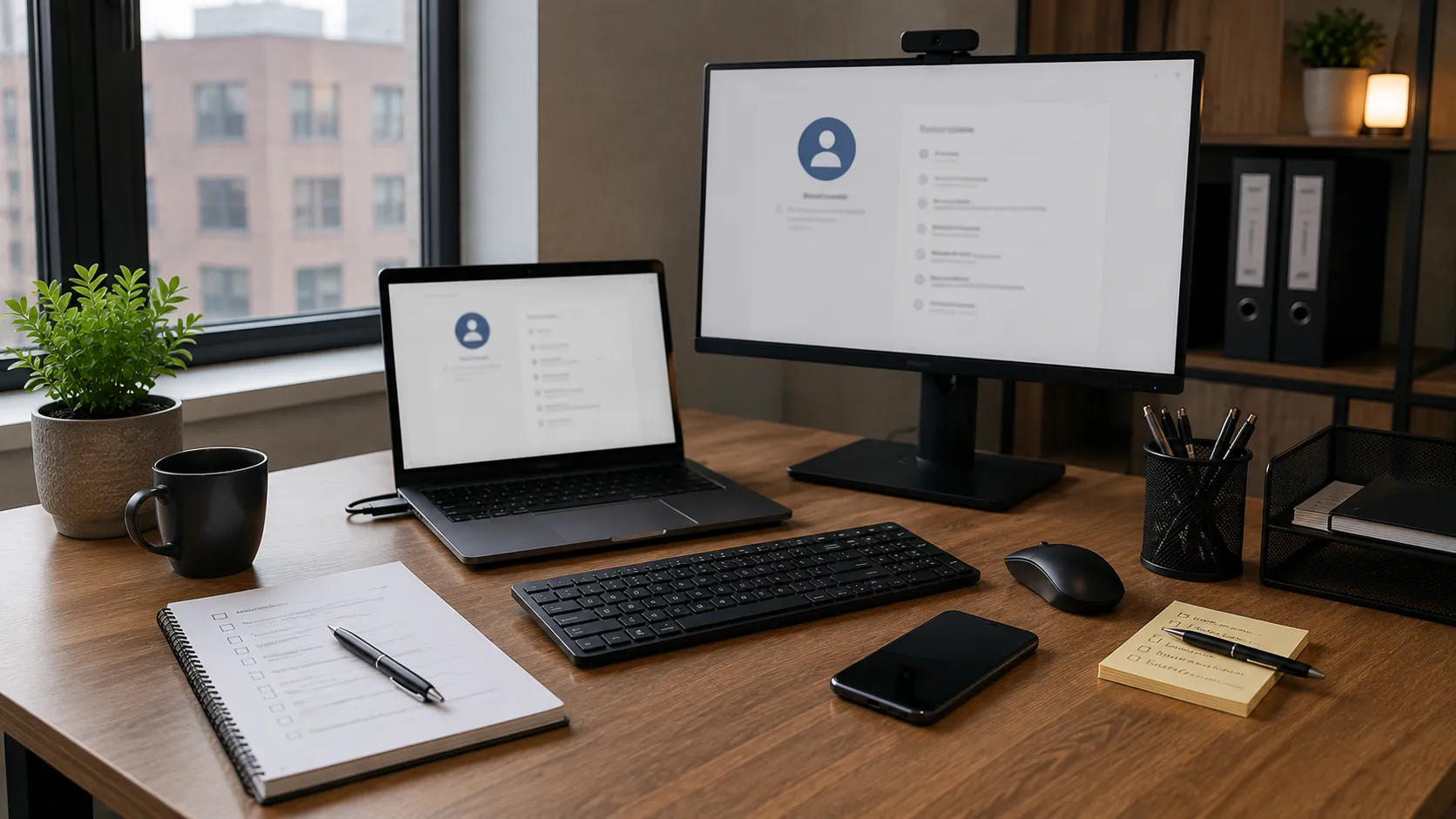
Each employee should normally receive their own business account rather than sharing credentials. Create the user in Microsoft 365, Google Workspace, or other company systems and assign the services required for the role. Individual accounts simplify email, MFA, permissions, licensing, password resets, and departures. Follow the company’s naming convention where practical.
Set Up Business Email Properly
Configure the employee’s company email and confirm that sending and receiving work before handoff. Add any shared mailboxes, groups, delegated addresses, or calendars required by the role. Keep business communication inside accounts the organization controls. Our business email guide covers domain ownership, shared addresses, MFA, and authentication in more detail.
Enable Multi-Factor Authentication
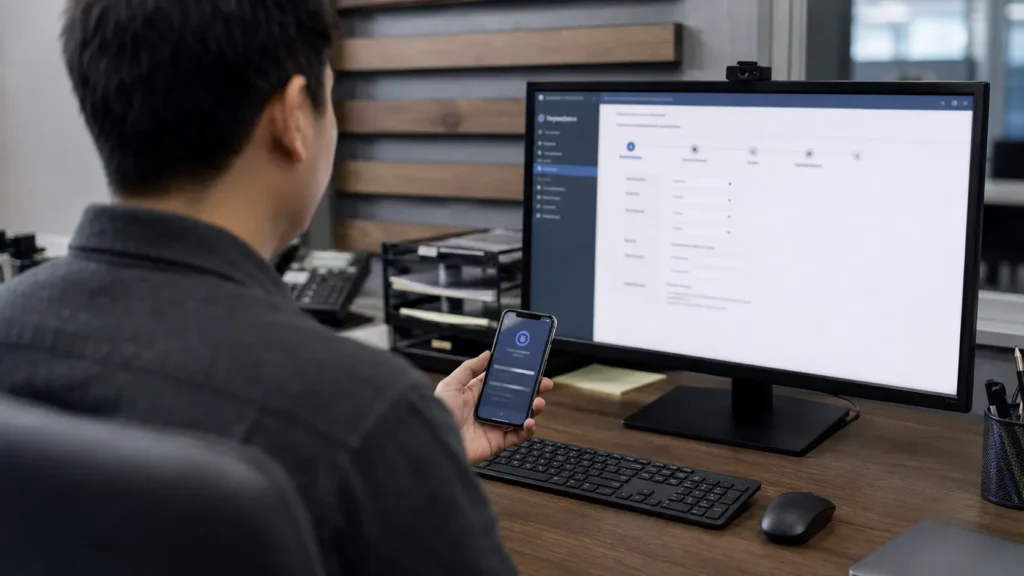
Configure MFA when the employee account is created rather than leaving it for later. Confirm the chosen method works and explain what the prompts mean. Plan recovery at the same time so a lost or replaced phone does not create an avoidable lockout.
Use Strong, Unique Passwords
Employees should use unique passwords for business accounts instead of reusing personal credentials. A suitable password manager can generate and store strong passwords without relying on predictable variations. Provide initial credentials through a controlled process rather than ordinary email or notes.
Decide Whether the Employee Should Be a Local Administrator
Employees do not automatically need local administrator rights for everyday work. Limiting those privileges can reduce accidental changes and some security risks. Specialist software may justify more control, so the decision should follow the role. The business still needs an administrator or support process for maintenance that requires elevated access.
Install Only the Applications the Role Requires
Install the applications the role actually needs, such as Microsoft 365, browsers, accounting software, PDF tools, VPN software, or specialist systems. Avoid loading every program the company owns onto every computer. Unused software creates clutter, updates, and more troubleshooting paths. Record applications that require separate licences or activation.
Configure Microsoft 365 or Google Workspace Around the Role
A Microsoft 365 user may need Outlook, OneDrive, Teams, SharePoint, and Office applications, while a Google Workspace user may need Gmail, Drive, shared drives, and Meet. Give access according to the job instead of exposing every shared location. This keeps the environment clearer and limits unnecessary access. Our Microsoft 365 guide explains this role-based approach further.
Connect the Right Shared Files
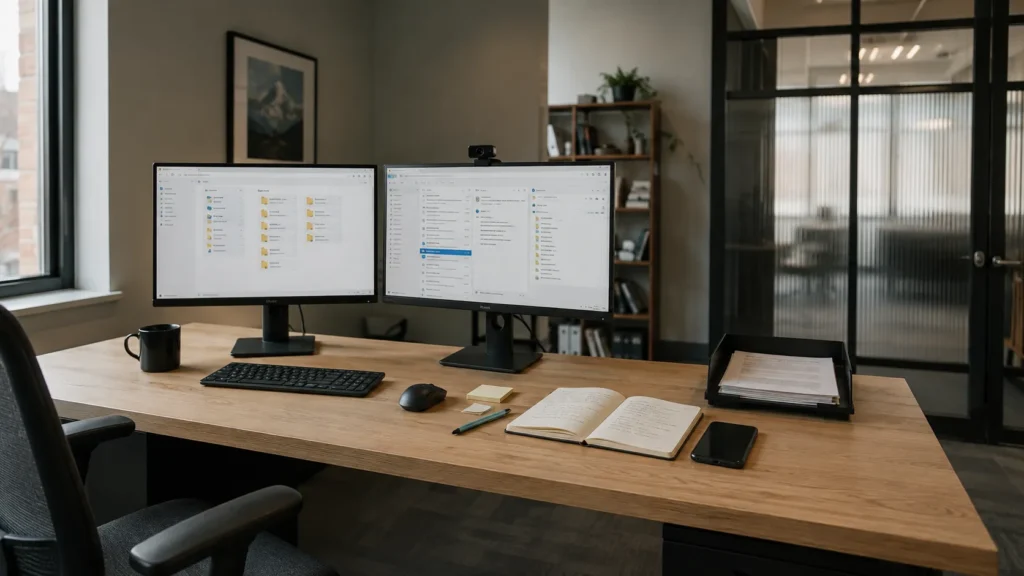
The employee should know where company files belong from the first day. Configure the appropriate SharePoint, OneDrive, Google Drive, NAS, or other shared locations and verify that access works. Explain where customer files, templates, shared documents, and individual working files should live. Local desktop folders should not quietly become competing homes for company information.
Make Sure Cloud Files Are Synchronizing Correctly
If OneDrive or another sync service is used, confirm it is signed in and working without warnings. Check that expected folders are present and recent changes synchronize normally. Explain the difference between locally available and cloud-only files. Our OneDrive and Google Drive backup guide explains why synchronization and backup are different.
Configure Printers and Scanners Before They Are Needed
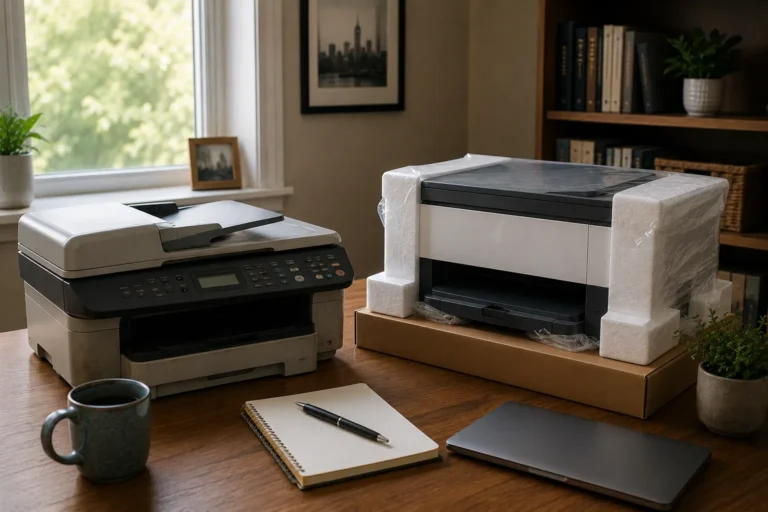
Install the printers and scanners relevant to the employee’s location and role. Run a basic print or scan test before the workstation is considered complete. If scanning sends files to email or a network folder, verify that workflow too.
Test the Webcam, Microphone, and Headset
Check video-call equipment before the employee joins an important meeting. Confirm the camera, microphone, speakers, or headset work inside the applications the business uses. Check the workspace too, since equipment can work technically while still producing poor audio or an awkward image. Our video-call guide covers broader network and equipment issues.
Connect the Computer to the Correct Network
Connect the workstation to the correct business Wi-Fi or Ethernet network and confirm stable internet access. Test required local resources such as printers or shared storage at the same time. If guest and internal networks are separated, use the correct one without sharing infrastructure credentials. For remote employees, checking the home connection can help distinguish Wi-Fi issues from computer problems.
Set Up Any Required VPN or Remote Access
If the role requires a VPN or other remote access, install and test it before the first remote session. Explain when the connection is required and confirm it works from an appropriate external network. Do not add broad remote access simply because other businesses use it.
Install Remote Support Tools Where Appropriate
A remote-support tool can make future troubleshooting faster, especially for employees working away from the office. If the business uses AnyDesk, install it according to the support process. Explain its purpose. The employee should know who can connect and under what circumstances. Remote access should remain controlled and transparent.
Check Security Software
Confirm that the intended security protection is active, current, and not conflicting with trial software. If the business uses another security product, install and verify it properly. Updates, MFA, sensible permissions, account recovery, and good user practices remain part of the wider security baseline.
Enable Device Encryption Where Appropriate
Device encryption can help protect business information if a laptop is lost or stolen. Verify whether it is actually active on supported Windows or macOS devices instead of assuming it is enabled. Store the recovery key securely under business control.
Make Sure Important Recovery Keys Are Stored
Encryption keys, recovery codes, device-management information, and licence details may matter long after onboarding. Keep them in a secure business-controlled location such as an appropriate password manager. Ordinary shared documents should not hold high-value credentials. Review the records whenever a computer changes owners.
Confirm the Backup Process Includes the New Computer
A new workstation should not become an unprotected island of business information. Identify important local files, cloud data, and specialist application data that may sit outside normal shared storage. Confirm that those locations are covered by the company’s backup process. Our guide to what a small business should back up provides a broader framework.
Test a Real File Workflow
A useful deployment test goes beyond checking whether applications open. Create a document, save it in the correct shared location, reopen it, and confirm another authorized user can access it where appropriate. Repeat practical checks with email, printing, shared mailboxes, and other routine tasks. Real workflows often reveal configuration problems that a software checklist misses.
Set Up Browser Profiles Properly
Many business applications now live inside the browser, so the browser profile is part of the work environment. Configure the business profile and useful bookmarks without mixing in personal history, credentials, or extensions. Saved passwords should follow the company’s password policy. Install only browser extensions that have a clear business purpose.
Configure the Default Applications
Set sensible defaults for PDFs, email links, web pages, spreadsheets, documents, and other common file types. This prevents repeated prompts or files opening in applications the business does not support. Standardize where it improves compatibility and support. Leave harmless personal preferences flexible.
Check Time Zone, Language, and Regional Settings
Incorrect regional settings can create confusing calendar, keyboard, and date problems. Confirm the correct time zone, language, keyboard layout, and regional format before deployment. This matters especially for remote employees because several systems can hold separate settings.
Make Sure the Employee Can Access Their Calendar
Working email does not automatically mean the calendar is configured correctly. Confirm that the employee can create meetings, receive invitations, and access the shared calendars required for the role. Permissions should match the job. If the company uses Teams or Google Meet, create a test meeting to verify the calendar and conferencing workflow together.
Configure Shared Mailboxes and Groups
Employees handling sales, billing, support, or customer enquiries should receive access to the appropriate shared mailbox or group. Confirm that messages appear correctly and replies use the expected business address. Explain the difference between the employee’s own mailbox and shared business addresses. Our business email guide covers shared addresses in greater depth.
Prepare the Physical Workspace
Technology deployment includes the desk as well as the computer. Position monitors sensibly and connect the keyboard and mouse. Provide the right charger or dock and keep frequently used ports accessible. Cable routing should avoid hazards and unnecessary confusion. Backup power may also be appropriate for desktops or important network equipment.
Explain Where Support Comes From
The employee should know what to do when something stops working. Provide a clear support contact or process instead of encouraging random utilities or informal workarounds. A useful report should include what they were trying to do, which application was involved, and any visible error message or appropriate screenshot.
Give the Employee a Short Orientation
Do not assume a new employee understands how the company has organized its technology. Show where shared files belong, which email addresses they manage, how MFA works, which applications are standard, and how support is requested. Keep the orientation focused on the tools they will actually use. Clear explanations at the beginning improve both productivity and security.
Document What Was Assigned
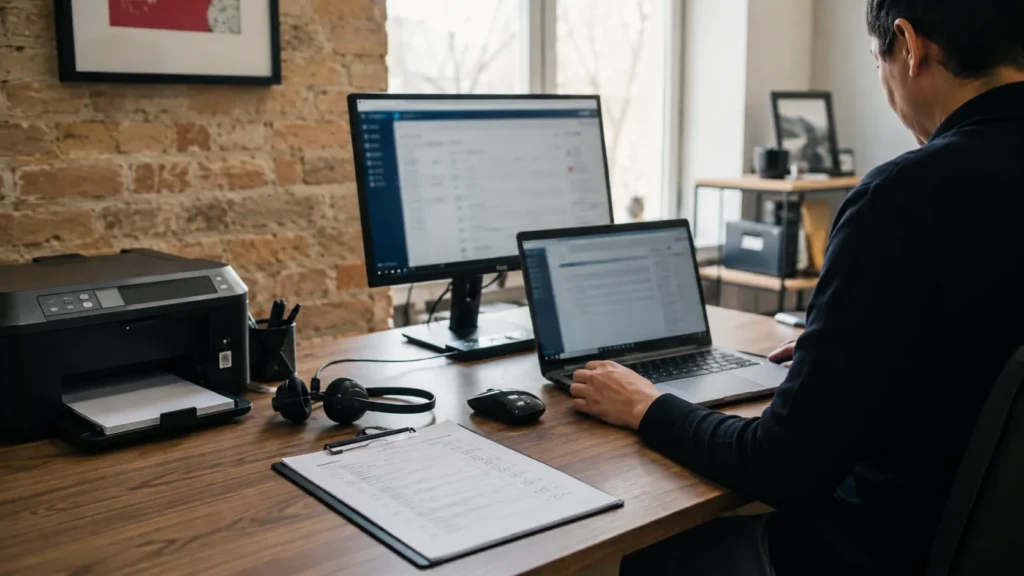
Record the computer, accessories, accounts, applications, and other assets assigned to the employee. Include specialist software, unusual permissions, or role-specific equipment relevant to future support or offboarding. Keep passwords outside the deployment record. For a small company, a consistent checklist is often enough.
Do Not Make the First Day the Test Day
Prepare and test the workstation before the employee arrives whenever possible. Their first morning should not be spent waiting for updates or troubleshooting accounts nobody tested. Email, files, applications, internet access, printing, meetings, and authentication should all perform the basic tasks required by the role. A repeatable process makes this easier with every new hire.
Review the Setup After the Employee Starts
Some requirements only become obvious once the employee begins doing the job. A shared folder may be missing, a specialist application may have been overlooked, or the workspace may not suit the actual workflow. A brief follow-up after the first few days can address those gaps. It is also a good time to correct early habits such as saving shared files only on the desktop.
Plan for the Computer’s Entire Lifecycle
The setup should make eventual repair, replacement, reassignment, retirement, and offboarding easier. Business files should live in known locations, licences stay under company control, recovery keys remain available, and device ownership stays documented. Avoid dependencies that only make sense while one particular employee uses the computer. Good onboarding and good offboarding are parts of the same lifecycle.
When Professional Employee Setup Makes Sense
Professional help becomes more useful when several employees use Microsoft 365 or Google Workspace, shared files and mailboxes are involved, remote workers need access, or computer setups are becoming inconsistent. East Toronto Tech provides new-device setup, account administration, Microsoft 365 and Google Workspace assistance, and small-business technology support for Toronto organizations. That can include preparing computers, configuring access, testing workflows, documenting devices, and establishing a repeatable onboarding process.
A New Computer Should Be Ready for Work
The best employee computer setup is one where technology does not dominate the employee’s first day. The device is updated and the correct accounts already exist. Email works, shared files are accessible, and necessary applications are installed. Security, recovery, backup, peripherals, and support have been considered. The employee understands the workflow and knows where to get help.
A short checklist makes the process repeatable. Start with the role and configure only what is needed. Test real workflows before handoff and document what was issued. Follow up after the employee begins working while the setup is still new. Over time, support becomes easier and staffing changes become less disruptive.