
Is OneDrive or Google Drive a Backup?
OneDrive and Google Drive are excellent tools for keeping files available across devices, sharing documents, and reducing dependence on a single computer. They can also provide useful recovery features when a file is deleted or changed accidentally. That leads to an understandable question: if your files are already in OneDrive or Google Drive, do you still need a separate backup?
The answer depends on what you mean by backup and which risks you are trying to protect against. Cloud synchronization can protect you from several common problems, but it is not identical to maintaining an independent backup copy. Understanding that distinction makes it easier to decide whether your current setup provides enough protection.
What OneDrive and Google Drive Actually Do
At their core, OneDrive and Google Drive are cloud storage and synchronization services. Files placed in synchronized locations are copied to the provider’s systems and can then be made available on other computers, phones, tablets, or through a web browser. Changes made on one connected device can also be synchronized to the others. This makes the files far less dependent on one physical computer.
If a laptop fails, is lost, or needs replacement, cloud-stored files can often be accessed from another device simply by signing into the same account. That provides meaningful resilience compared with keeping the only copy of important documents on one hard drive. Microsoft 365 and Google Workspace can also make collaboration easier by allowing several people to work with shared files and permissions. Those capabilities overlap with backup in some ways, but they serve a broader purpose.

Why Cloud Sync Can Feel Like a Backup
From the user’s perspective, cloud synchronization often behaves exactly the way a backup is expected to behave. A file exists on the computer, another copy exists online, and losing the original computer does not necessarily mean losing the document. That is real protection and should not be dismissed.
Both ecosystems also provide recovery features that can help with accidental deletion or unwanted changes. Deleted files may remain recoverable for a period of time, while version history can allow earlier versions of certain files to be restored. These tools can resolve many ordinary mistakes without a separate backup system. The important distinction is that synchronization and independent backup respond differently when the problem affects the data itself.
Synchronization Can Copy Mistakes Too
A synchronization service is designed to keep different copies of a file consistent. If you intentionally edit a document on one computer, that change should appear elsewhere. The same principle can apply when a change was accidental.
If a user deletes files from a synchronized folder, the deletion may also be reflected in the cloud environment and on other synchronized devices. If a file is overwritten with incorrect information, the unwanted change can be synchronized as well. Recovery features may still help, but the working copy and synchronized copy are not completely independent. A separate backup can preserve another recovery point that is not simply mirroring every change made to the active files.
Version History Is Valuable, but It Has Limits
Version history can be one of the strongest recovery features in cloud storage. If an important document is changed accidentally, an earlier version may still be available through OneDrive, SharePoint, Google Drive, or the application that created it. This can turn a serious mistake into a relatively simple recovery.
The limits depend on the service, account type, file type, and current provider policies. Retention can also differ between personal accounts, Microsoft 365 business environments, Google Workspace organizations, and administrator-managed systems. Avoid building a backup strategy around assumed recovery periods. If a specific recovery window matters, verify it against current provider documentation and the actual account configuration.
Recycle Bins Help With Accidental Deletion
OneDrive and Google Drive both provide ways to recover deleted files under many circumstances. This is useful because accidental deletion is one of the most common forms of data loss. A user can often restore a file without involving a technician or retrieving an older backup.
Recycle bins are still temporary recovery mechanisms rather than permanent archives. Files can eventually be removed permanently, retention can vary, and administrator actions or account changes may affect what remains available. A business that assumes every deleted file can always be recovered may discover those limits too late. More important data may therefore justify another independent recovery option.
A Compromised Account Can Affect the Cloud Copy
Cloud storage depends heavily on account security. If someone gains unauthorized access, they may be able to view, change, delete, or share files depending on the permissions available. Strong passwords, multi-factor authentication, and current recovery settings therefore form part of the data-protection strategy.
An independent backup can provide another layer when the cloud account itself becomes part of the problem. That layer is most useful when it is genuinely separated from the compromised credentials or active environment. A backup connected permanently to the same computer and account may provide less independence than expected. Protecting the account and protecting the files should therefore be considered together.
Ransomware and File Corruption Complicate the Picture
Malware or ransomware can sometimes affect files stored in synchronized folders. If encrypted or corrupted versions are saved locally, those changes may be synchronized to the cloud. Provider recovery tools and version history may help, but relying on them as the only recovery option concentrates a great deal of trust in one system.
Independent backups can improve resilience by preserving copies that are separated from the active working environment. The strongest arrangements make it difficult for one compromised account, computer, or network event to damage every available copy at the same time. No backup system guarantees immunity from ransomware or corruption. The goal is to reduce the chance that one event removes every usable recovery option.
OneDrive May Not Be Protecting Every Folder You Think It Is
A Windows computer can contain important files outside the folders synchronized by OneDrive. Users often have documents in Downloads, custom project folders, application-data locations, secondary drives, or directories created manually over many years. Those files may remain entirely local even while OneDrive is running normally.
OneDrive can also be configured differently from one computer to another. Desktop, Documents, and Pictures may be included in some setups while other folders remain outside synchronization. Seeing the OneDrive icon on the taskbar does not prove that everything important is protected. Our guide to what a small business should back up looks more broadly at the places important business information can be stored.
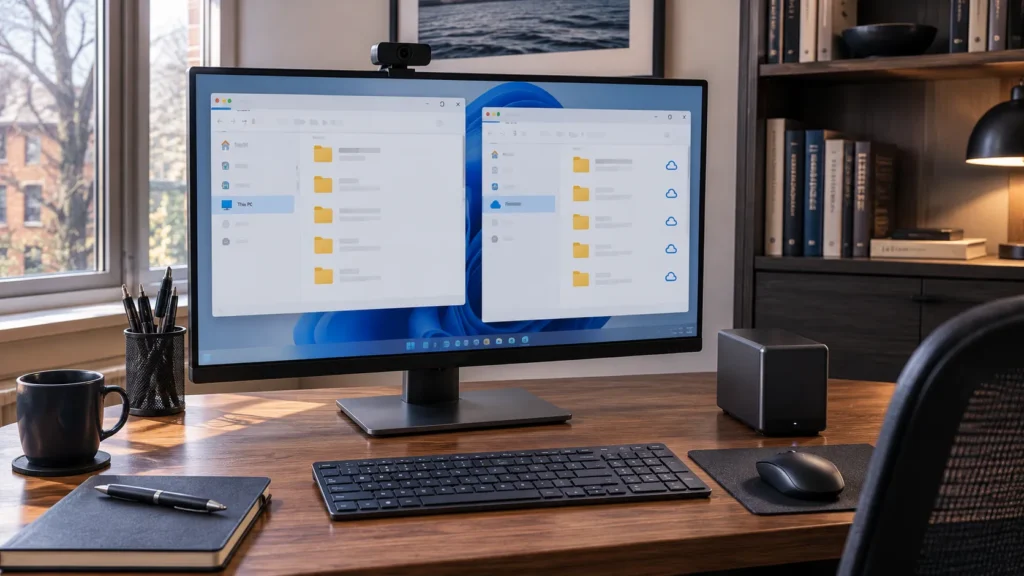
Google Drive Can Have the Same Blind Spots
Google Drive provides excellent cloud storage, but it does not automatically mean every important file on a computer is stored there. The result depends on how Google Drive for desktop is configured and where users actually save their work. Files outside synchronized locations can remain local.
This becomes especially important when employees have developed different habits. One person may save everything in a shared Drive folder while another keeps business documents on the Desktop and uploads only selected files. Both may appear to “use Google Drive,” even though their levels of protection are very different. A useful backup review therefore looks at actual file locations and working habits rather than simply checking which software is installed.
Cloud Storage Does Not Automatically Protect Application Data
Many business applications store important information outside normal document folders. Accounting programs, databases, creative software, estimating tools, browser profiles, email archives, and specialist applications can each have their own storage locations or cloud platforms. OneDrive or Google Drive may protect none of that information unless the application is specifically configured to use them.
Copying an application’s program folder into cloud storage usually does not create a usable backup either. Software may depend on databases, services, configuration files, licences, and other components that require a documented export or recovery process. Important application data should therefore be reviewed according to the vendor’s guidance. Protecting cloud-synced documents is valuable, but it does not automatically protect the entire working environment.
Cloud Storage Can Still Be an Important Part of the Backup Plan
The distinction between synchronization and backup should not lead to abandoning OneDrive or Google Drive. Both provide valuable redundancy, easier device replacement, collaboration, version history, and recovery from many common mistakes. For many small businesses, they are an important part of a sensible data-protection strategy.
The stronger approach is to understand which role the service is playing. Cloud storage can be the primary working location while another system creates an independent backup, or the business may combine local working files with cloud protection. There is no requirement that every organization use the same architecture. The design should reflect the importance of the data, number of users, rate of change, and amount of disruption the business could tolerate.
Should You Also Use an External Drive?
An external drive can provide a useful additional copy, particularly for a home office or small business with a manageable amount of data. It can be fast, relatively inexpensive, and independent from the cloud when used appropriately. A local backup can also make restoring a large collection of files faster than downloading everything again.
External drives have limitations of their own. They can be lost, stolen, damaged, or affected by the same physical event as the computer, and a drive left connected permanently may be reachable by malware or accidental deletion depending on the setup. Manual backups also depend on someone remembering to perform them. External storage works best when it forms part of a deliberate process involving appropriate separation, automation where useful, and occasional recovery testing.
Should You Use a Dedicated Cloud Backup Service?
A dedicated cloud backup service usually serves a different purpose from a synchronization platform. Instead of acting primarily as a shared working location, backup software is designed to preserve selected information and maintain recovery copies over time. Retention, encryption, versioning, and recovery features vary between providers, so those details should be reviewed before choosing a service.
This can provide useful independence from OneDrive, Google Drive, or the computer itself. A business might work primarily in Microsoft 365 while using another backup system to protect selected cloud or local information. More backup services are not automatically better, because each one adds cost, credentials, monitoring, and recovery procedures. The objective is enough independent protection for the business risk without creating unnecessary complexity.
Microsoft 365 and Google Workspace Environments Need Special Attention
Business versions of Microsoft 365 and Google Workspace introduce administrative controls that ordinary personal accounts do not have. Shared drives, SharePoint sites, shared mailboxes, permissions, retention settings, and administrator-managed users can all become part of the organization’s information structure. This makes understanding recovery more important as the environment grows.
A company may have excellent cloud collaboration while still lacking a clear plan for deleted files, terminated users, compromised accounts, or information that must be retained for operational reasons. Administrators should understand the recovery tools included with current subscriptions and where additional protection may be justified. Provider capabilities can change over time, so current documentation should be checked before making assumptions. Small organizations do not need enterprise complexity, but they should understand what happens when an important account or file becomes unavailable.

Test Recovery Instead of Assuming It Works
The easiest way to understand a cloud-storage recovery process is to test it before anything important disappears. Choose a non-critical file and learn how version history, deletion recovery, or an independent backup process works. That small exercise can reveal whether the setup behaves the way you expected.
Testing also makes recovery less stressful later. Someone who has already restored a file from OneDrive, Google Drive, or another backup system is better prepared than someone learning the process during an outage. Simple documentation can record the essential steps so the process does not depend entirely on memory. Our guide to knowing whether your backup is actually working goes deeper into recovery verification.
Decide Based on the Importance of the Data
For low-value files that could easily be recreated, cloud synchronization and built-in recovery features may provide enough protection. Important business records, customer files, creative work, financial information, or other irreplaceable data may justify another independent backup layer. The decision should reflect the consequences of losing the information rather than following a universal rule.
A two-person business with a small amount of cloud-based work may need a relatively simple arrangement. A growing company with several employees, shared storage, accounting systems, and years of client information may need stronger separation and more formal recovery procedures. Both can still use OneDrive or Google Drive as part of the design. The useful question is whether the current setup leaves another usable copy when the failure you are concerned about actually occurs.
When Professional Backup Review Makes Sense
Cloud-based environments can look simpler than they really are. Files may be divided between local computers, OneDrive, SharePoint, Google Drive, email, application databases, and personal folders without anyone having a complete picture. A backup review can help identify those gaps before additional software is chosen.
Professional assistance can also help when the business is unsure what Microsoft 365 or Google Workspace already protects. East Toronto Tech provides backup planning and technology-resilience support for Toronto small businesses and home offices, including cloud-storage reviews, identification of important local data, and practical recovery and verification planning. The objective is to understand the existing setup first and add another layer only when it addresses a real risk.
Use Cloud Sync for What It Does Well
OneDrive and Google Drive provide real protection against several common problems. They reduce dependence on one computer, make files accessible across devices, and provide useful tools for recovering deleted or changed documents. Those capabilities make them valuable parts of a modern home-office or small-business environment.
They should still be understood as synchronization and cloud-storage platforms rather than assumed to cover every backup requirement automatically. Important files may exist outside them, synchronized mistakes can propagate, and built-in recovery features have limits. Know where your important information lives, understand what the cloud service already protects, keep another independent copy where the consequences justify it, and test that you can actually recover the files when needed.