

What Should a Small Business Back Up?
Most small businesses know they should back up their data, but the harder question is what actually needs protection. Important information can be spread across computers, Microsoft 365 or Google Workspace, cloud applications, shared folders, external drives, accounting systems, phones, websites, and email accounts. Protecting one obvious folder while overlooking the rest can create a false sense of security. A useful backup plan starts by identifying what the business depends on and where that information actually lives.
Think about the information, accounts, and tools the organization would struggle to operate without if a computer failed, an account became inaccessible, or files were accidentally deleted. That review should include data that is difficult to recreate as well as information needed to restore normal operations. Once those dependencies are understood, the backup strategy becomes much easier to design and maintain.
Start With the Files the Business Cannot Easily Recreate
Every business has information that would be difficult, expensive, or impossible to reconstruct. That may include client documents, contracts, financial records, project files, photographs, design assets, spreadsheets, databases, quotations, invoices, reports, or years of internal documentation. These files should receive priority because losing them can affect current work and the historical record of the business. A downloaded installer is usually replaceable, while a custom client proposal or project archive may exist nowhere else.
If the data matters, it should exist in more than one place. That principle becomes useful only when the business knows which information actually matters and where it is currently stored. Start with the information that would cause the greatest disruption or cost if it disappeared. The backup technology should follow that assessment rather than define it.
Know Where Those Files Are Stored
Small-business information rarely lives in one tidy location. Staff may save documents to the Desktop, Documents folder, OneDrive, Google Drive, a shared network location, an external drive, or inside a business application. Some information may exist only in email attachments or in folders created years ago that nobody else understands. Unknown storage locations are difficult to protect reliably because they can sit outside the backup process without anyone noticing.
Before choosing or reviewing a backup system, map the places where active business information is stored. Someone should be able to explain where important files live and who normally uses them. This exercise often exposes unnecessary duplication or inconsistent storage habits as well. Simplifying the working file structure can make collaboration easier while also making backup coverage easier to verify.
Back Up Important Local Computer Data
Files stored only on an individual computer deserve particular attention. A failed drive, damaged laptop, accidental deletion, or Windows problem can make locally stored information unavailable immediately. Review the Desktop, Documents, Downloads, Pictures, and any custom folders created for business work. Downloads is especially easy to overlook because useful PDFs, invoices, exports, and attachments often remain there long after they were downloaded.
Application-specific folders may also contain business information that would not appear in an ordinary document review. Do not assume every folder is already included in OneDrive or another cloud service simply because synchronization is enabled somewhere on the computer. Check which locations are actually synchronizing and which remain local. Important business data that exists only on one device should be brought into the backup plan deliberately.

Microsoft 365 and Google Workspace Need to Be Understood Properly
Cloud services provide excellent availability and reduce dependence on any one physical computer. Email, files, calendars, contacts, and collaboration data may already live in Microsoft 365 or Google Workspace instead of solely on local devices. That is a major advantage, but it does not eliminate the need to understand recovery. Files can still be deleted, overwritten, affected by account problems, or subject to retention limits.
The useful question is not simply whether the business “uses the cloud.” Determine what information is stored there, what recovery features are available, how long deleted information can be recovered, and whether anything important remains outside those services. Provider features and retention options can change, so current documentation should be checked when recovery requirements matter. Cloud hosting and backup planning should complement one another rather than be treated as interchangeable.
Email May Contain More Business History Than Expected
Email often becomes an informal archive of business activity. Messages may contain approvals, agreements, client instructions, invoices, attachments, project decisions, and years of correspondence that would be difficult to reconstruct. Hosted email services normally keep mailbox data online, but locally stored archives, older Outlook data files, exported mailboxes, and legacy systems may require separate attention. Shared mailboxes and former employee accounts can also contain information the business still needs.
The business should decide which email history requires long-term preservation rather than assuming every mailbox should be kept indefinitely. Retention decisions should reflect operational needs and any professional or legal advice relevant to the organization. Once those requirements are known, backup and retention arrangements can be designed around them. The important point is to know what business history lives in email before access to it is lost.
Accounting and Financial Records Deserve Their Own Review
Accounting data is one of the clearest backup priorities for most small businesses. Bookkeeping records, invoices, receipts, payroll information, tax documents, expense records, and financial reports can be difficult to reconstruct accurately after a loss. The way those records should be protected depends on the accounting platform and whether the primary information is stored locally or online. Cloud accounting and desktop accounting software can require very different recovery approaches.
Determine how the accounting system stores its information and what backup, export, or recovery options the vendor provides. Exports of important financial reports can sometimes provide another useful layer of resilience, depending on the business and software involved. Accountants or bookkeepers may also have requirements for particular records. Current vendor documentation should guide the technical process rather than assumptions about how the software works.
Back Up Business Application Data
Some of the most important business information may live inside applications rather than ordinary folders. Customer databases, estimating software, point-of-sale tools, project-management platforms, creative applications, and specialist industry software can each store information differently. Copying the Documents folder will not necessarily protect any of that data. The applications that would seriously disrupt operations if their information disappeared deserve their own review.
Determine whether each important application stores data in the cloud, on the local computer, on a server, or in a vendor-managed database. Some programs require a supported export, database backup, licence transfer, or dedicated migration procedure. Follow the vendor’s documented recovery method when one exists rather than improvising with file copies. The objective is to preserve information in a form that can actually be restored and used again.
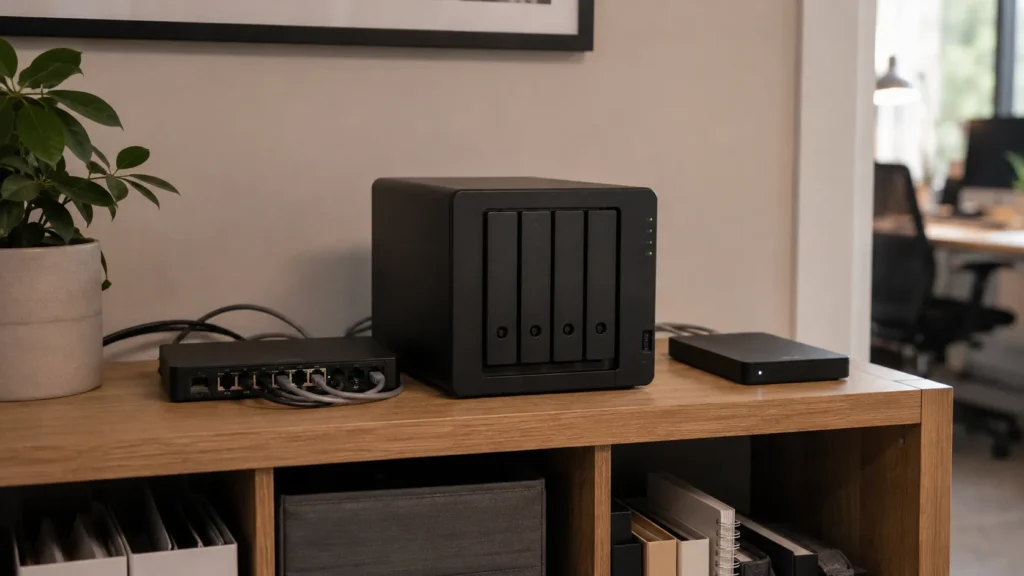
Protect Shared Folders and Network Storage
Businesses often centralize files on a shared drive, NAS, server, or other network storage device. Central storage can improve collaboration and reduce the amount of important information scattered across individual computers. It can also make it easier to define which business folders require protection. Centralization alone, however, does not make the data backed up.
A NAS is still storage, and redundant drives inside it do not replace an independent backup. Hardware failure, accidental deletion, theft, malware, or a site-level event can still affect the primary storage. The business should know where another copy exists and how the shared data would be restored if the main device became unavailable. That recovery path should be understood before an outage rather than discovered during one.
Do Not Forget Websites and Web-Based Assets
A business website may contain much more than public pages. A WordPress site can include media libraries, forms, configuration, enquiries, ecommerce information, custom code, databases, and content that took years to create. Hosting companies may provide backups, but the business should understand what those backups include, how long they are retained, and how restoration works. An independent website backup can provide another recovery option when the site changes frequently or supports important business activity.
Website databases and uploaded files both deserve consideration because one without the other may not be enough for a complete restoration. Domain registration, DNS settings, hosting access, and administrative ownership should also be documented even though they are not traditional backup files. Losing control of those accounts can create a serious recovery problem of its own. Basic ownership and configuration records can save significant time if the website ever needs to be rebuilt or moved.
Keep Copies of Important Configuration and Documentation
Some information is valuable because it helps rebuild the technology environment rather than because it contains client work. Network details, device inventories, software licences, printer settings, vendor information, recovery procedures, and account ownership records can save considerable time when equipment fails or needs replacement. These details are often ignored until the moment they become essential. Basic documentation turns remembered knowledge into something the business can actually use.
Small businesses frequently depend on one person who knows how everything is connected. That knowledge can disappear if the person is unavailable, leaves the company, or simply cannot remember a setting configured several years earlier. Documentation should explain the environment without exposing passwords in ordinary files. Credentials belong in an appropriate password-management system with recovery arrangements the business understands.
Include Mobile Devices When They Hold Business Data
Phones and tablets can contain contacts, photographs, downloaded documents, text messages, authentication apps, and access to important business services. Some of that information may synchronize through Microsoft, Google, Apple, or another provider, while other information may remain only on the device. The distinction should be understood before the device is lost, damaged, or replaced. Mobile devices deserve attention whenever losing one would interrupt normal business operations.
Authenticator applications are especially important because they may control access to email, cloud services, banking, and administrative accounts. The business should know how authentication can be recovered if the primary phone is unavailable. Recovery codes, secondary methods, and administrative access can all form part of that plan. The same principle applies to tablets and other mobile devices used for field work or specialized applications.
Back Up Before Replacing or Repairing Equipment
Major computer changes are common moments for data loss. Drive replacement, Windows reinstallation, hardware repair, computer migration, and device retirement can all affect files if preparation is incomplete. A current backup should exist before destructive or potentially disruptive work begins. The same applies when an older computer is becoming unreliable.
Waiting until a machine can barely start makes backup more difficult and increases the chance that some information will already be unreadable. Planned replacement provides a safer opportunity to protect files first and verify that they can be accessed elsewhere. Our guides to preparing a new computer and moving to a new computer without losing important files cover that transition in more detail. The transfer itself should never become the only remaining copy of important business data.
One Backup Copy Is Usually Too Fragile
A backup stored beside the original system can still be affected by the same event. A laptop and its external backup drive can be stolen together, while local servers and local backups can both be affected by fire, water, electrical problems, or other site-level failures. Keeping another independent copy elsewhere reduces the chance that one incident removes everything at once. This is the reasoning behind common multi-copy backup strategies.
The familiar 3-2-1 principle is one useful framework: maintain three copies of important data, use two types of storage, and keep one copy separate from the primary location. Not every small business needs to implement that structure in exactly the same way. The level of resilience should reflect the importance of the information and the cost of losing access to it. A simple consulting business and a company with several employees and operational systems may reasonably need different arrangements.
Encryption and Access Matter Too
Backup data can contain the same sensitive information as the original systems. External drives, cloud backup accounts, and network storage should therefore be protected appropriately. Encryption may be useful for backup media that could be lost or stolen, but it introduces another responsibility because a lost recovery key or password can make the backup inaccessible. Recovery credentials need protection of their own.
Access permissions also matter. A backup that every employee can freely alter or delete may provide less protection against accidental or malicious changes than one with controlled access. The exact safeguards depend on the technology, business requirements, and sensitivity of the information. The objective is to keep backups recoverable while protecting them from unnecessary exposure or modification.
Automated Backups Reduce Dependence on Memory
Manual backups can work, but they depend on someone remembering to perform them. A process that requires an employee to connect a drive every Friday will eventually be skipped, especially during busy periods. Automated backups reduce that human dependency and make routine protection more consistent. They are particularly useful for data that changes frequently.
Automation does not mean the backup can be forgotten. Storage can fill up, credentials can expire, software can stop running, and new folders can fall outside the backup set after workflows change. Someone still needs to review alerts and confirm that the process is operating as expected. A strong backup system combines automation with monitoring and periodic verification.

A Backup Is Only Useful if It Can Be Restored
A successful backup status message is helpful, but it is not the same thing as a successful recovery. Software may report completed jobs while missing folders, broken permissions, damaged archives, or lost encryption credentials remain undiscovered. Periodically restoring a file can confirm that the backup contains what the business expects and that someone understands how recovery works. Larger recovery tests may be appropriate for especially important systems.
Testing also provides information about how long recovery might take. Restoring one document is very different from rebuilding a shared file system or a primary work computer. Our guide to knowing whether a backup is actually working will cover verification and recovery testing in greater detail. Backup and recovery should be treated as two parts of the same process.
Decide How Quickly the Business Needs the Data Back
Backup planning should include the question of time. If a business can operate for a day without a particular archive, recovery can be relatively relaxed, while a missing shared project folder, accounting database, or customer system may stop work immediately. This distinction helps determine which information needs the strongest protection. It can also influence how frequently different data should be backed up.
Files that change constantly may require more frequent protection than records updated once a month. Systems central to daily operations may need a faster recovery path than historical archives. The goal is not to make every file instantly recoverable. Protection should match the operational impact of losing the information and the amount of downtime the business can realistically tolerate.
Document Who Is Responsible
A backup plan can fail simply because everyone assumes someone else is checking it. Responsibility for reviewing backup status, responding to alerts, testing recovery, and updating the plan should be assigned clearly. In a very small company, that may be the owner, an employee, or an external technology provider. The title matters less than making the responsibility explicit.
Someone should know what to look for, what a failed backup alert means, and how the first recovery steps would begin. The plan should also survive that person being unavailable. Basic documentation should explain what is protected, where backups are stored, what accounts control them, and where recovery information can be found. That turns backup from an individual habit into a business process.
Review the Plan When the Business Changes
Backup requirements change as a company grows. A new employee may begin saving files in another location, the business may adopt Microsoft 365, install a NAS, add a website, or introduce a new accounting or customer-management platform. Each change can create information the existing backup process does not know about. New technology should therefore trigger a review of what needs protection.
It is also worth reviewing the broader backup plan periodically even when nothing obvious has changed. Small businesses tend to accumulate technology gradually, which can leave the backup arrangement several years behind the environment it is supposed to protect. A backup plan should describe the business as it operates now. New systems should be included deliberately rather than assumed to be covered automatically.
When Professional Backup Planning Makes Sense
Basic backup can be straightforward when a business has one computer and a small amount of well-organized data. It becomes more complicated when information is spread across several computers, Microsoft 365 or Google Workspace, network storage, accounting systems, websites, cloud applications, and mobile devices. The important question is whether someone understands how those pieces fit together and what would happen if one became unavailable.
Professional assistance can help identify what actually needs protection, reduce unnecessary duplication, and consider recovery alongside backup. East Toronto Tech provides backup planning and technology-resilience support for Toronto small businesses and home offices, including reviews of important data, existing backup arrangements, verification, and recovery processes. The aim is to build something the business can understand and maintain rather than add complexity for its own sake.
Protect the Business, Not Just the Computer
A small-business backup plan should follow important information wherever it lives. That may include computers, cloud services, email, accounting systems, shared storage, application data, websites, mobile devices, and documentation needed to rebuild the working environment. Protecting only the obvious folders on one computer can leave significant gaps elsewhere.
The strongest plans also consider recovery, responsibility, and change over time. They verify that important files can be restored, identify who responds when something goes wrong, and evolve as the business adds new technology. Backing up everything indiscriminately is rarely necessary. Protect what the business genuinely depends on, keep independent copies where the risk justifies them, and make sure someone knows how to recover the information when it is needed.