A Practical Technology Checklist for a Home Office
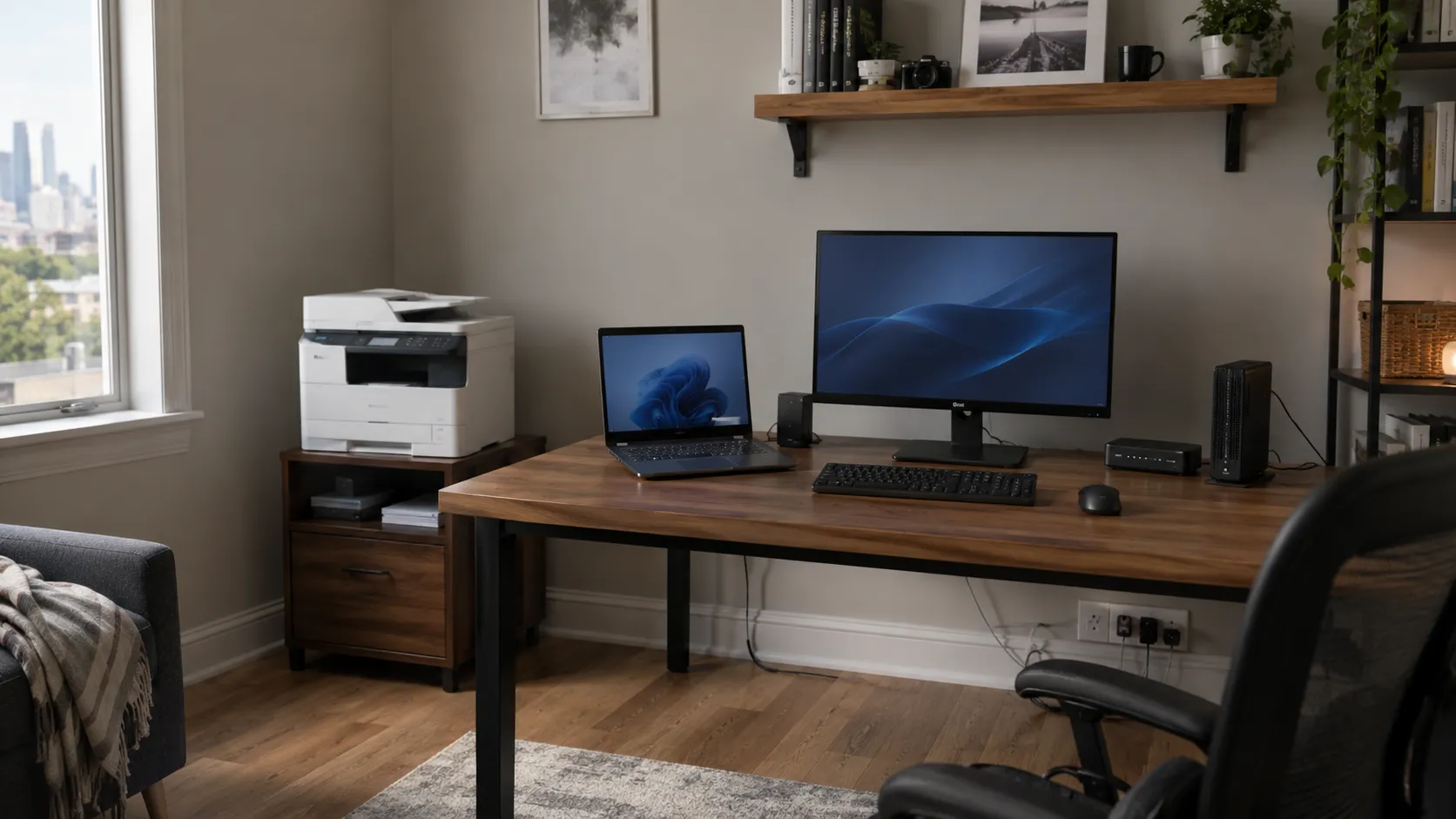
A home office does not need to be elaborate to work well. It does need to be dependable. Unreliable Wi-Fi, an aging computer, unclear backups, forgotten account recovery details, printer trouble, or power and internet interruptions can each become surprisingly disruptive. A short technology review can catch many of those weak points before they become work-stopping problems.
This checklist is designed for ordinary home-office users who want a practical way to assess what they already have. You do not need to replace functioning equipment or redesign the whole workspace. The goal is to identify anything that could interrupt your work and decide whether it needs attention.
Check the Internet Connection From the Desk
Start where you actually work and use the internet normally from the desk. Browse websites, open cloud files, use remote applications, and join a video call if possible so you are testing the connection under realistic conditions. A fast connection beside the router means little if the office is upstairs, in the basement, or at the opposite end of the house and performs poorly there. If Wi-Fi is noticeably worse in the office than elsewhere, investigate coverage before upgrading the internet plan because distance, walls, floors, interference, and router placement can all affect one room more than another. Our guide to setting up a reliable home office and the Wi-Fi troubleshooting articles provide a more detailed path when coverage is inconsistent.
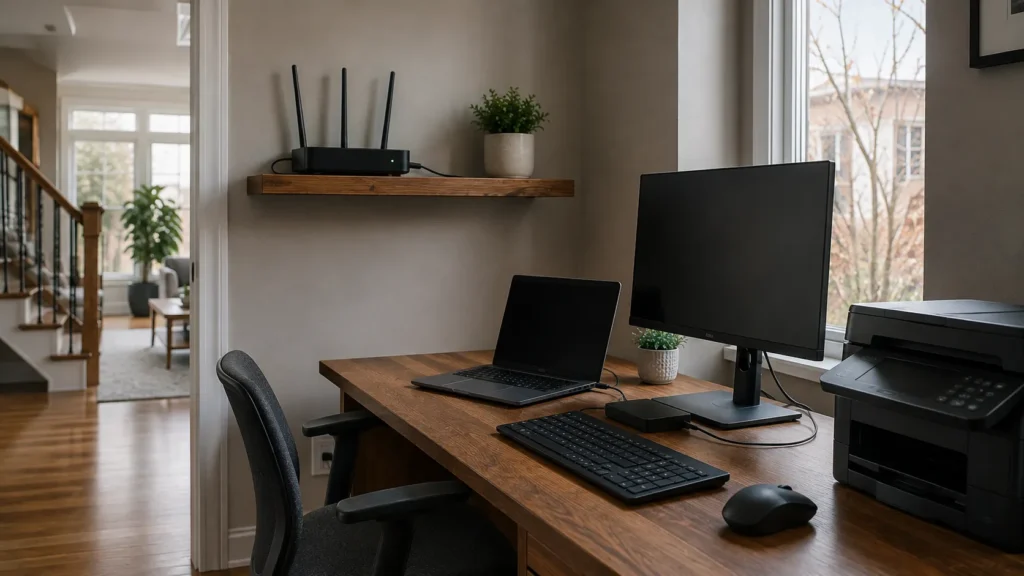
Confirm the Router Is in a Sensible Location
Take a quick look at where the router or Wi-Fi equipment actually sits. It should ideally have open space around it and be reasonably central to the areas where connectivity matters most. A router hidden inside a cabinet, placed behind a television, or left at the far end of the home may be creating avoidable coverage problems. Do not relocate internet-provider equipment without understanding the cabling first, because Ethernet, an access point, an extender, or a mesh system may be a better solution than moving the gateway. The important part is recognizing whether the current placement is helping or hurting the network.
Test the Main Computer Under a Normal Workload
A computer can appear fine when little is happening and become frustrating as soon as the workday begins. Open the programs you normally use together, such as a browser with several tabs, email, Teams or Zoom, spreadsheets, cloud storage, accounting software, and other business applications. Pay attention to freezing, excessive delay, repeated crashes, overheating, unusual fan noise, or applications that regularly become unresponsive. A slow computer does not automatically need replacement because storage problems, unnecessary startup software, limited memory, or other fixable issues can make an otherwise usable machine feel much worse than it is. If the computer is becoming difficult to rely on, assess whether repair, upgrade, or planned replacement makes more sense before it fails at an inconvenient time.
Check Available Storage
Running very low on storage can cause problems and make routine maintenance harder. Open the storage settings and check how much space remains on the main drive, keeping in mind that the disk does not need to be mostly empty to be healthy. Look for large collections of downloads, old installers, duplicate files, unused applications, or other data that no longer needs to remain on the primary drive. Do not delete important files simply to free space, especially business records, photos, or project data. If files need to move elsewhere, decide where they should live and make sure they are backed up before reorganizing them.
Verify the Backup
Identify what protects the important files on the computer and make sure you understand what is actually included. If you use an external drive, confirm that backups are still running, and if you use a cloud service, check whether the folders you care about are being protected rather than assuming everything on the computer is included. If the data matters, it should exist in more than one place. Open a few backed-up files from the backup destination if practical because the ability to recover information matters more than a reassuring status message. If nobody can explain where the backup is, what it contains, or how to restore a file, the backup plan needs clarification.
Check Cloud Storage and Local Files
Home-office files often end up split between the computer and several online services. Identify where active work actually lives, whether that is OneDrive, Google Drive, Dropbox, local folders, external storage, or a shared business drive. There is nothing inherently wrong with using several locations, but the arrangement should make sense and you should know which copy is current. Make sure important files are not quietly accumulating in Downloads or on the Desktop without protection. Confirm that cloud synchronization is working where you rely on it, while remembering that cloud sync should not automatically be treated as a complete backup.
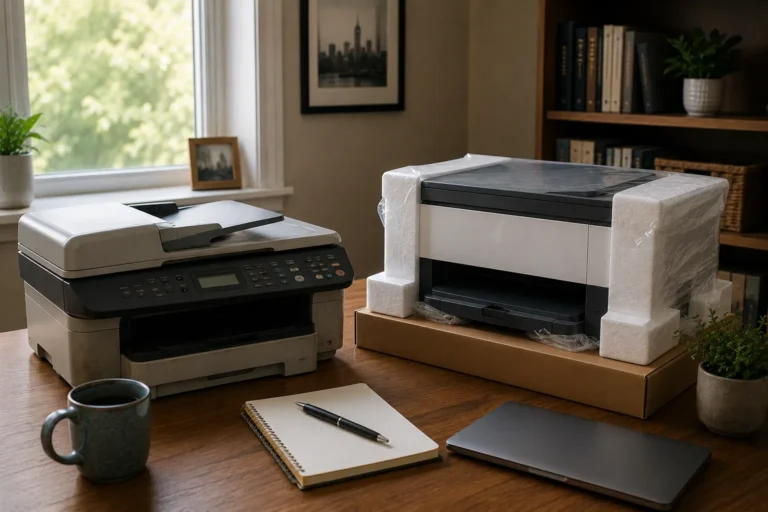
Test the Printer and Scanner
Do not wait until an urgent document needs printing to find out whether the printer still works properly. Print a page and, if the device includes a scanner, scan something back to the computer, then confirm that the printer is consistently available from the computer you actually use. If several people depend on the same printer, test access from more than one device. A printer that frequently appears offline may have a network or software problem rather than a mechanical fault, while repeated jams, poor print quality, or unreliable scanning may point toward maintenance or replacement. Printers work best when they remain boring, so a device that regularly becomes part of the workday deserves attention.
Check the Webcam, Microphone, and Speakers
Open the meeting software you normally use and check that the correct camera, microphone, and speakers are selected. Make a short test recording or use the application’s built-in audio and video test where available. Listen for echo, distorted audio, a microphone that is too quiet, or an unreliable Bluetooth connection, and check that the camera framing and lighting are reasonable. The quality does not need to resemble a studio, but it should support a clear conversation without technical distractions. If video calls regularly freeze or disconnect, remember that network stability and computer performance may be just as important as the camera.
Review the Power Setup
Look under the desk and review the power bars, adapters, extension cords, chargers, docks, and other equipment that may have accumulated over time. Make sure cables are not under strain, important plugs cannot be kicked loose accidentally, and outlets or power bars are not overloaded. If you are unsure about the electrical safety of the setup, consult a qualified electrician rather than improvising. From a technology perspective, think about what happens during a short power outage because a laptop may keep running while the router, modem, monitor, desktop, and other equipment shut down immediately. If short interruptions would seriously disrupt work, a UPS may be worth considering for selected equipment.

Confirm Important Account Access
Email, cloud storage, Microsoft 365, Google Workspace, accounting tools, banking services, password managers, remote-access systems, and other accounts may all be essential to daily work. Make sure you know how to access the important ones rather than relying entirely on saved logins. If you use a password manager, confirm that you know the master password and that its recovery method is current. Check multi-factor authentication as well, because an old phone number or unavailable authenticator can turn a routine login into a much larger problem. Recovery email addresses and phone numbers should also be current.
Install Pending Updates
Computers, browsers, business applications, and other software should receive appropriate updates. Check Windows Update, restart the computer if updates have been waiting for completion, and update the browser and frequently used applications where appropriate. Do not apply major changes blindly to a computer that is unstable or showing signs of storage failure, because protecting important data should come first. Printers, routers, and other devices may also receive firmware updates that should generally be installed according to the manufacturer’s guidance rather than through random third-party utilities. Keeping supported software current removes many avoidable compatibility and security problems.
Check the Devices You Plug In
Test external monitors, docks, USB devices, external drives, webcams, card readers, and other peripherals that are part of your normal workflow. A cable that only works when held at a certain angle or a dock that randomly disconnects may not seem urgent until it interrupts an important meeting. Replace obviously damaged cables and identify adapters that are becoming unreliable. If several devices depend on one dock or hub, remember that one failure can affect the whole workstation. A simple, understandable setup is easier to diagnose than a chain of adapters whose purpose nobody remembers.
Know What You Would Do if the Internet Went Down
For many home offices, an occasional internet outage is inconvenient but manageable, while for others it stops work immediately. Think about what you would do if the connection disappeared for several hours, especially if online meetings, remote access, or cloud applications are central to the job. A smartphone hotspot may provide enough temporary connectivity for email and basic work when the cellular plan and signal are suitable. Some users may need a dedicated cellular backup or another connection because the business impact is greater. You do not necessarily need to buy backup internet, but you should know whether losing the primary connection would matter enough to justify one.
Make Sure Important Work Is Not Tied to One Device
A home-office computer can fail even when it has been perfectly reliable. Ask whether important work can still be reached from another device if necessary, using cloud-based email and file storage where the information is actually synchronized and account access is available. A verified backup can provide another path to important files. The goal is to avoid one failed laptop making every important document and account inaccessible at the same time. This becomes especially important for anyone whose income depends directly on the home office.
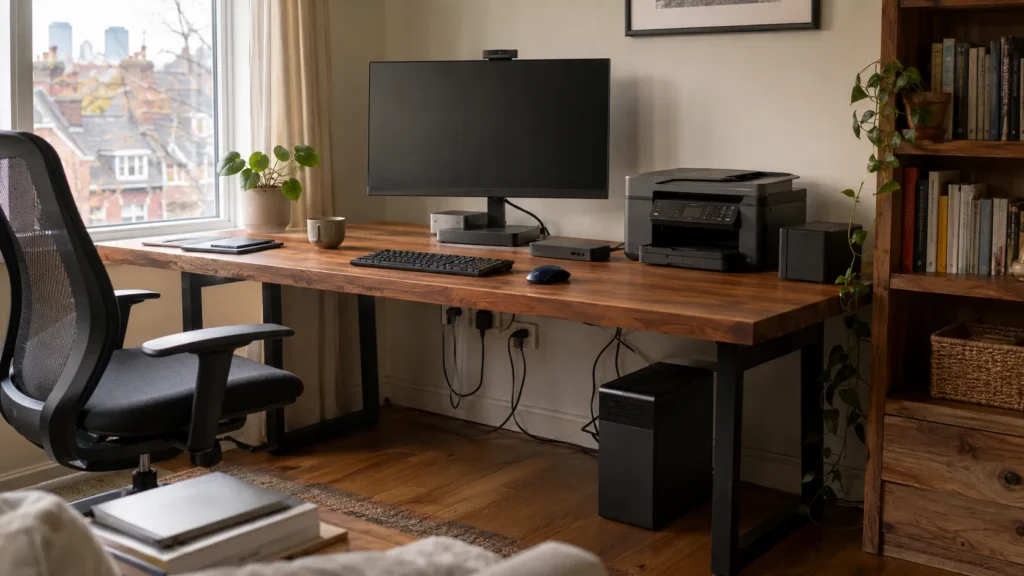
Keep the Workspace Understandable
Know which device provides internet access, where important files live, how they are backed up, which printer is actually in use, and which accounts control the services you depend on. Remove obsolete equipment when you are confident it is no longer needed, and label unusual cables or power adapters where doing so would make future troubleshooting easier. If the setup has grown over several years and nobody understands how the pieces fit together anymore, simplifying it may provide more value than adding new technology. A dependable setup does not need to be complicated. An understandable workspace is much easier to diagnose when something eventually fails.
Review What Would Stop Work First
The most useful final question is simple: what failure would prevent you from working tomorrow? For one person, the answer may be the internet connection, while for another it may be the main laptop, an accounting application, a printer, access to Microsoft 365, or files stored only on one drive. Start with the dependency whose failure would have the greatest impact and give it the most attention. East Toronto Tech provides home-office technology support for Toronto professionals and small businesses, including Wi-Fi troubleshooting, computer and peripheral setup, backup planning, and practical reliability improvements. The aim is to strengthen genuine weak points without replacing equipment that already does its job.
A Short Review Can Prevent a Long Interruption
You do not need to rebuild a home office every year. Check the connection, computer, storage, backup, peripherals, power, accounts, and the few systems that would interrupt work if they failed. Fix what is clearly weak and leave reliable equipment alone. A short review can uncover problems while they are still easy to address.
A home office works best when the technology is easy to understand and dependable enough to fade into the background. Small checks can prevent minor weaknesses from becoming work-stopping problems. If you can work without regularly thinking about the equipment around you, the setup is doing its job.