
Common Printer Problems and When Repair Is Worth It
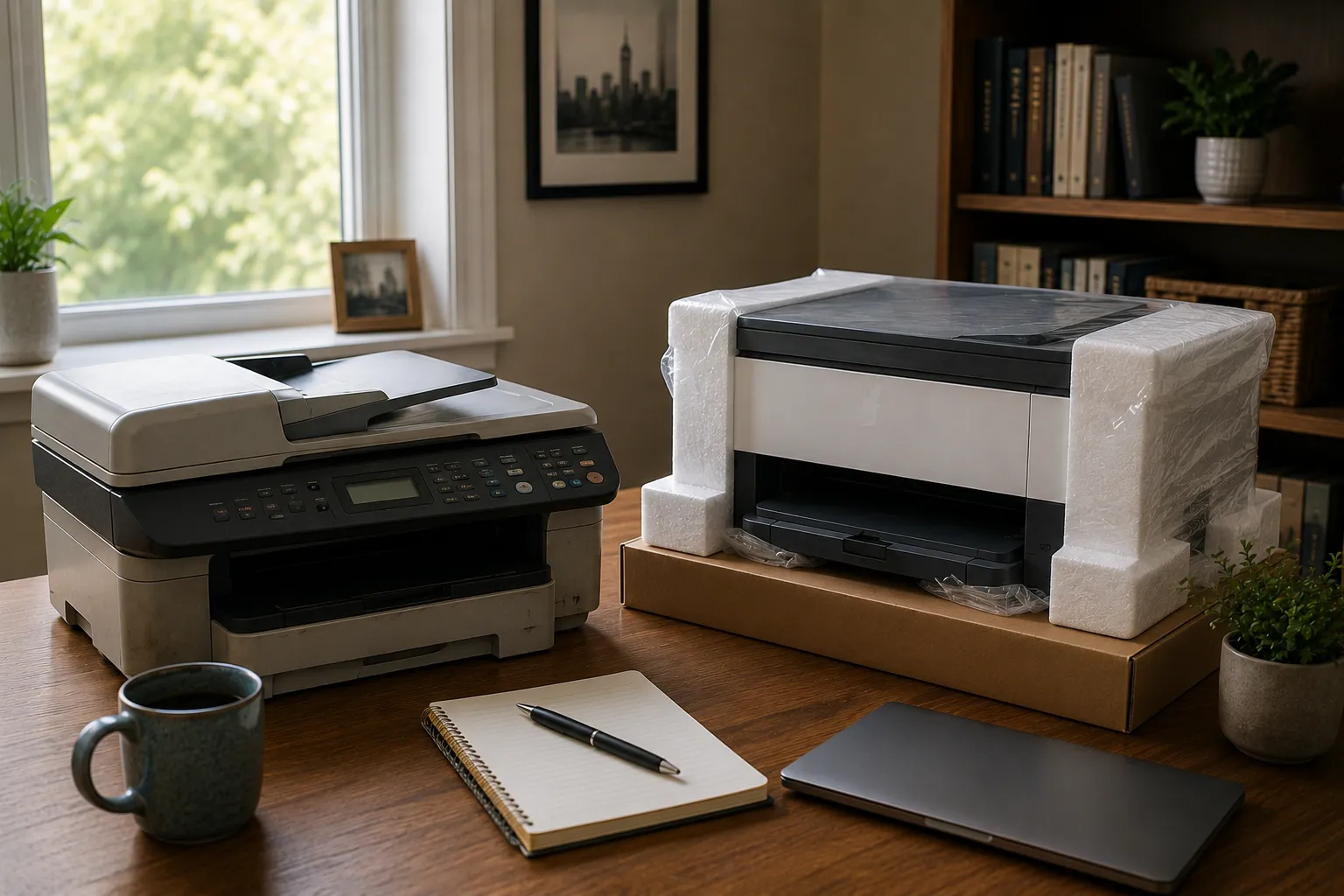
Printers have a reputation for becoming difficult at exactly the wrong moment. A document that printed yesterday suddenly refuses to appear, the computer says the printer is offline, or pages come out streaked, faded, or jammed. Some of these problems are minor, while others are signs that an older printer is becoming expensive or unreliable enough that replacement may make more sense.
The useful question is whether a repair is reasonable given the printer’s age, value, reliability, consumable costs, and how important it is to the person or business using it. A little troubleshooting can often separate an easy fix from a machine that is nearing the end of its practical life. Looking at the whole situation helps avoid both unnecessary replacement and repeated spending on a printer that no longer makes sense to keep.
Start With the Basic Connection
When a printer stops working, begin with the basic connection. Make sure the printer is powered on and is not showing a warning light or error message. If it uses USB, confirm that the cable is secure at both ends, and if it connects through Wi-Fi or Ethernet, check that it is still connected to the same network as the computer.
Wireless printers can be especially confusing because they may appear physically fine while no longer being reachable over the network. A router replacement, Wi-Fi password change, network reset, or move to a new home or office can leave the printer disconnected even though nothing is wrong with the printer itself. In those cases, reconnecting it to the current network may solve the problem. Confirm that the computer and printer can communicate before reinstalling software or replacing hardware.
Why Printers Show as Offline
The “printer offline” message is common and does not point to one specific cause. The printer may have lost its network connection, the computer may be pointing to an old printer entry, a print queue may have stalled, or the device may simply be asleep. Start by checking whether the printer itself appears connected and ready, including any network indicator or error message on its display.
Windows can also contain more than one copy of the same printer after reinstallations, network changes, or repeated setup attempts. Sending a document to an old or inactive entry can make the problem look more mysterious than it is. Restarting the printer and computer can clear temporary communication problems, while restarting the router may help if several network devices are having trouble. If everything else on the network works normally, focus on the printer connection first.
A Stuck Print Queue Can Stop Everything
Sometimes the printer is fine and one failed print job is blocking everything behind it. Windows keeps pending print jobs in a queue, and a corrupted or incomplete job can prevent later documents from printing. Open the queue and look for documents that have been sitting there for an unusually long time. Cancelling the stuck job may allow normal printing to resume.
If the queue will not clear, restarting the computer and printer can sometimes reset the situation. Repeated failures may require more advanced print-spooler troubleshooting or a closer look at the printer driver and connection. A single stuck document is common, while a queue that locks up regularly indicates a problem worth diagnosing. Clearing the queue repeatedly without finding the cause only postpones the next interruption.
Paper Jams Are Often About More Than Paper
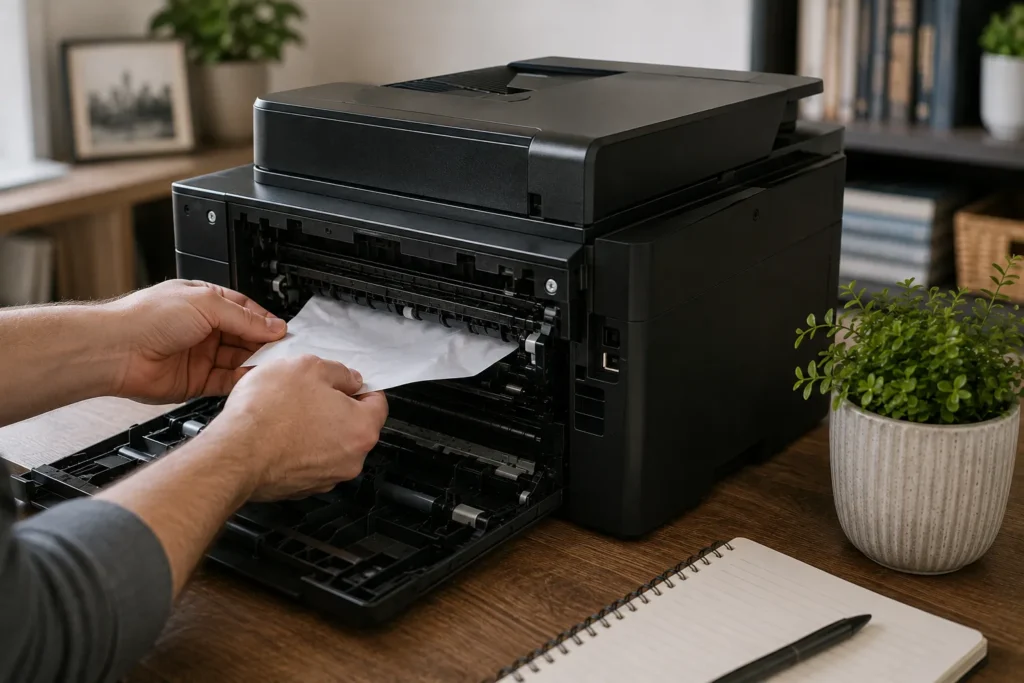
A paper jam is easy to recognize, but repeated jams can have several causes. Remove jammed paper carefully according to the manufacturer’s instructions because pulling aggressively in the wrong direction can leave torn pieces inside or damage rollers and sensors. Check that the paper is loaded evenly, the tray guides are adjusted correctly, and the tray is not overfilled.
Paper condition matters more than many people expect. Damp, curled, damaged, or very low-quality paper may feed poorly, and different thicknesses can require different tray or printer settings. If jams continue with good paper loaded correctly, worn pickup rollers or other internal feed components may be involved. One occasional jam is normal, while repeated jams in the same location point more strongly toward a mechanical problem.
Faded Printing Does Not Always Mean the Printer Is Failing
Faded pages can have different causes depending on whether the printer is inkjet or laser. An inkjet may have low ink, clogged print heads, dried nozzles, or a cartridge that is not delivering ink properly. Built-in print-head cleaning or nozzle-check functions are worth trying before assuming the printer itself is failing.
Laser printers may produce faded output because toner is low or because a cartridge or imaging component is wearing out. Consumables deserve careful attention because a full set of replacements can represent a substantial portion of the printer’s value. Before buying expensive cartridges for an older machine, consider whether it is otherwise reliable and still meets your needs. The cost of printing over the next few years matters more than the original purchase price alone.
Streaks, Lines, and Marks on the Page
Poor print quality often provides clues about what is wrong. Vertical streaks, repeating marks, smudges, missing colours, or lines can point toward cartridges, print heads, drums, rollers, or other imaging components. Run the printer’s built-in cleaning or maintenance tools first where appropriate, and use alignment or calibration functions when the manufacturer provides them.
Patterns can be useful when the same defect appears in exactly the same position on every page. A repeating mark may be associated with a rotating component inside a laser printer, while missing bands of colour on an inkjet may indicate clogged nozzles. Avoid running repeated aggressive cleaning cycles without checking the result because some inkjet procedures consume significant ink. If cleaning and fresh consumables do not solve the problem, the next step depends heavily on the printer model and the cost of replacement parts.
Wi-Fi Printing Problems Are Often Network Problems
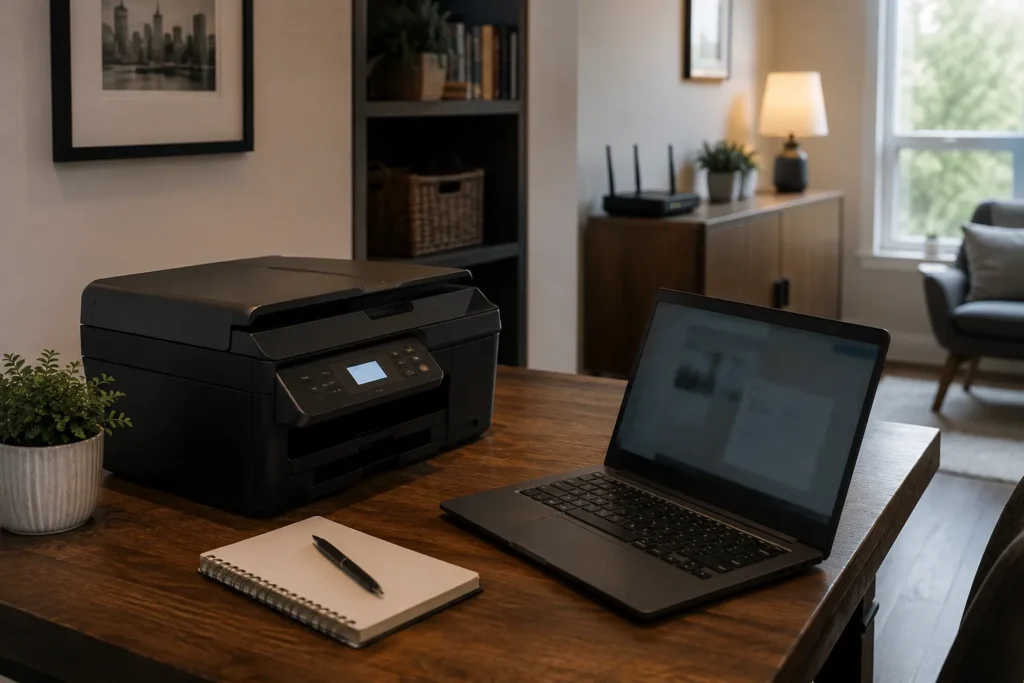
A printer that works by USB but frequently disappears over Wi-Fi may have a network problem rather than a printing problem. Printers are often kept for many years, so older wireless hardware may eventually be operating alongside newer routers, mesh systems, and security settings. The printer may also be sitting in a basement, back office, or cabinet where Wi-Fi coverage is weak.
If the printer regularly drops offline, compare its location with the rest of the wireless network. Ethernet can be useful when the printer supports it and cabling is practical because a wired connection removes Wi-Fi from the path while still allowing several computers to share the device. Before replacing an otherwise functional printer because of unreliable wireless behaviour, determine whether the network connection is the real source of the problem. Fixing coverage or moving to Ethernet can sometimes extend the useful life of the printer.
Driver Problems Can Appear After Updates or Computer Changes
Printers depend on software that allows Windows to communicate with them. A Windows update, new computer, operating-system change, or manufacturer software update can expose compatibility problems, particularly with older models. Windows can often install a basic driver automatically, but some printers need manufacturer software for scanning, duplex printing, advanced paper handling, ink monitoring, or other features.
If the printer stopped behaving normally after a computer change, check the manufacturer’s current support information for that model. Use Windows Update or the printer manufacturer’s official resources rather than downloading drivers from random third-party sites. An older printer that no longer has supported drivers for current operating systems can become difficult to justify in a working environment. Mechanical reliability matters less if the device can no longer integrate properly with the computers that need to use it.
Scanner Problems May Be Separate From Printer Problems
Multifunction printers combine printing and scanning into one device, but the two functions can fail independently. A printer may continue producing pages while the scanner is no longer detected because of driver software, network discovery, permissions, or the scanning application itself. Test the scanner using the manufacturer’s software or another supported scanning application before assuming the whole machine has failed.
If scanning is important to a business workflow, check the software side before replacing the entire printer. At the same time, repeated problems across both printing and scanning can make replacement increasingly reasonable, especially on an older machine. How important each function is to daily work should influence the decision. A device used mainly for printing can be judged differently from one that must scan documents reliably every day.
Inkjet Printers Can Suffer When They Sit Unused
Inkjet printers tend to be happier when they are used regularly. When they sit unused for long periods, ink can dry in the print head or nozzles and cause missing colours, streaking, or pages that appear almost blank. Built-in cleaning functions may restore normal printing, but severely clogged print heads can be difficult or uneconomical to repair.
This is one reason an inkjet can be a poor fit for someone who prints only a handful of pages every few months. A laser printer can sometimes suit occasional document printing better because toner does not dry out in the same way. The right technology depends on what you print, how often you print, whether colour matters, and what the consumables cost. A printer should fit the workload rather than simply have the lowest purchase price.
Cheap Printers Can Be Expensive to Keep
The least expensive printer on the shelf is not always the least expensive one to own. Some low-cost models rely on small or expensive cartridges, allowing heavy users to spend far more on ink or toner than they spent on the machine. When an older printer needs several new cartridges, a maintenance part, and troubleshooting at the same time, compare those costs with the cost of a suitable replacement.
Look beyond the purchase price of the new printer as well. Compare replacement ink or toner costs, expected page volume, cartridge capacity, and the features you actually need. A more expensive printer can sometimes cost less over time when its consumables are significantly more economical. Operating cost matters especially in a home office or small business where printing is frequent.
When Repair Is Usually Worth Considering
Repair makes the most sense when the printer is otherwise dependable and the problem is isolated. A relatively new machine with a worn roller, connectivity issue, clogged print head, software problem, or replaceable consumable may still have plenty of useful life. An inexpensive fix is easier to justify when the printer continues to suit the workload.
Higher-quality business printers can also justify repairs that would make little sense on a basic consumer model. Their replacement cost is higher, parts may be more available, and they may have been designed for a much larger workload. Usage matters as well because a printer handling hundreds of pages every week is more important than one used twice a year. Consider both the value of the machine and the consequences of losing it.
When Replacement Starts to Make More Sense
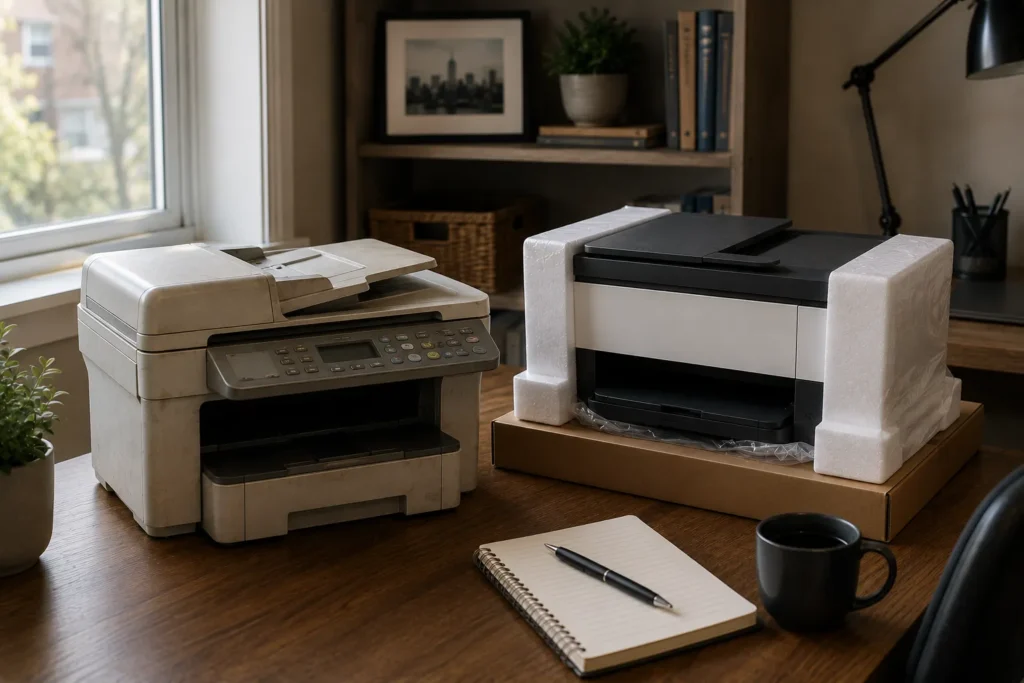
Replacement becomes increasingly reasonable when several problems appear at the same time. An older printer may need expensive cartridges, jam frequently, lose its network connection, have unreliable scanning, and no longer receive good driver support. Any one issue may be manageable, but several together can make continued troubleshooting frustrating and uneconomical.
Replacement is also worth considering when the printer no longer suits the workload. A small inkjet bought for occasional home use may become a poor fit after someone begins working from home and printing hundreds of pages each month. Compatibility can force the decision if an essential printer or scanner no longer works reliably with current computers and supported software. Condition, workload, operating cost, compatibility, and reliability matter more than the printer’s age alone.
Do Not Forget the Value of Your Time
Printer troubleshooting can become surprisingly expensive even when no parts are purchased. If a small business spends an hour every week reconnecting a printer, clearing jams, restarting software, or figuring out why scanning stopped, that lost time has value. The same is true in a home office where repeated interruptions can be more costly in practice than replacing an unreliable printer.
This does not mean every frustrating printer should be discarded. It means repair decisions should include the time required to keep the machine functioning, not just the price of parts or consumables. A printer that demands constant attention is imposing an operating cost of its own. Ideally, the device should support the work around it rather than become a recurring project.
Before You Buy a Replacement
If replacement appears to be the better choice, think about what caused frustration with the current printer. Consider how many people use it, how often you print, whether colour matters, whether scanning is required, and whether the printer needs Wi-Fi or Ethernet. The replacement should match the actual workload rather than simply duplicate the features listed on the old printer’s box.
Look at the cost and availability of ink or toner before purchasing the machine, and confirm that it supports the computers and operating systems currently in use. Home-office and small-business users should also consider downtime and the importance of the printer to invoicing, shipping, documentation, or other workflows. A printer central to daily work needs a different level of reliability from one used occasionally for personal forms. Choosing with those requirements in mind reduces the chance of repeating the same problems.
When Professional Printer Help Makes Sense
Many printer problems can be solved with basic troubleshooting, particularly when the issue involves a print queue, network connection, driver, or setup problem. Professional assistance becomes useful when the cause is unclear, several computers need access to the same device, the printer repeatedly disappears from the network, scanning is unreliable, or you are deciding whether further repair is worth the cost. It can also help when the printer is important enough that extended trial and error would disrupt work.
A useful assessment should determine whether the failure is actually inside the printer. Network problems, Windows configuration, drivers, and software can all produce symptoms that look like hardware failure. East Toronto Tech provides printer and peripheral support for Toronto homes, home offices, and small businesses, including connectivity troubleshooting, printer setup, scanning issues, and repair-or-replace guidance. The aim is to identify the real cause before recommending more equipment or further spending.
A Printer Should Be Boring in the Best Possible Way
A good printer is easy to forget about. You send a document, the page appears, and the device returns to the background. Start troubleshooting with the connection, print queue, paper, consumables, drivers, and network before assuming the hardware has failed.
If one identifiable problem can be fixed reasonably, repair may still make sense. When faults begin to stack up, consumables become expensive, compatibility becomes difficult, and the printer repeatedly interrupts work, replacement becomes more attractive. The right decision is the one that provides dependable printing without turning the printer itself into an ongoing source of work.