Why Is My Wi-Fi Slow in Some Rooms?
One common home Wi-Fi problem is also one of the most confusing: everything works well in one part of the house, then becomes slow or unreliable somewhere else. A laptop may be responsive in the living room but struggle in an upstairs bedroom, while a phone works in the kitchen yet drops calls in the basement. A home office can also feel inconsistent even though the internet package itself is fast.
This usually points to a problem with how Wi-Fi is reaching that part of the home rather than a simple lack of internet speed. Wireless performance depends on distance, physical obstacles, router placement, interference, equipment, and the capabilities of the individual device. Several can overlap, so the useful question is why the slowdown happens in some places and not others.
Start by Comparing the Good Rooms With the Bad Ones
The easiest way to begin is to test the same device in several parts of the home. Use a phone or laptop that normally performs well, then compare its behaviour close to the router with what happens in the problem room. Try the same activities in both locations so you are comparing similar conditions. If the device is responsive near the router and becomes noticeably worse as you move away, the network is giving you a useful clue.
If every device becomes slow only in the same part of the house, the location is probably important. If only one laptop struggles while other devices work normally, the device itself deserves attention. If everything is slow everywhere, including beside the router, the problem may have little to do with room-to-room Wi-Fi coverage. Avoid making several changes before this comparison because the pattern is easier to understand before extenders, new routers, and settings changes are introduced.
Distance Still Matters
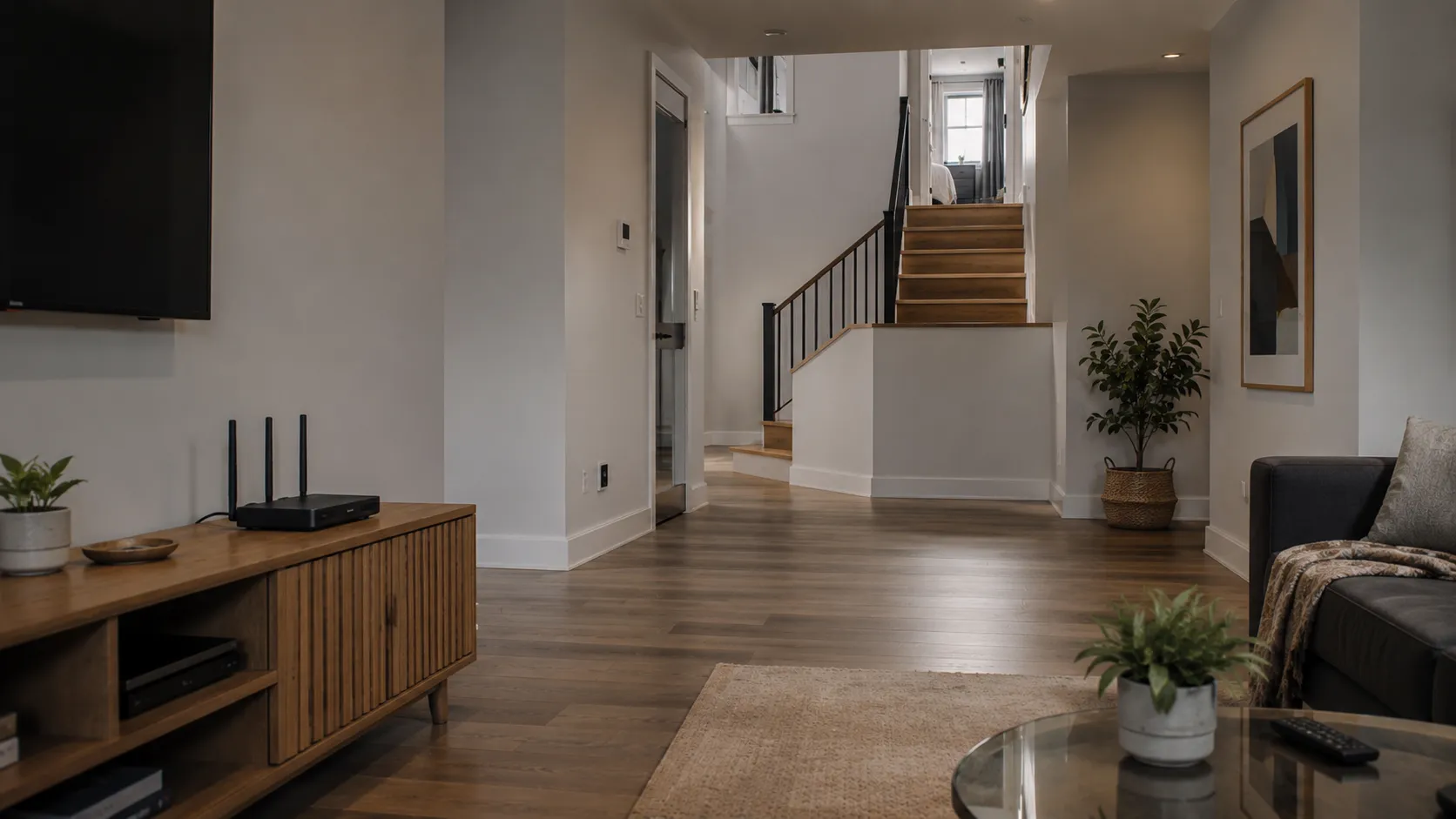
Wi-Fi signals weaken as they travel. A router that performs well nearby has to reach devices at the opposite end of the house or several floors away, where obstacles and interference can reduce signal quality. This is especially noticeable when the router sits at one extreme of the home. Internet equipment is often installed wherever the service enters the building, which may be far from ideal for whole-home coverage.
A router near the front of the main floor may need to reach a rear bedroom, basement office, and upper floor through several layers. Even a relatively powerful router has practical limits. Distance is not always the whole explanation, because what sits between the router and the problem room can matter just as much. Two rooms that appear equally far away can therefore behave very differently.
Walls and Floors Can Weaken the Signal
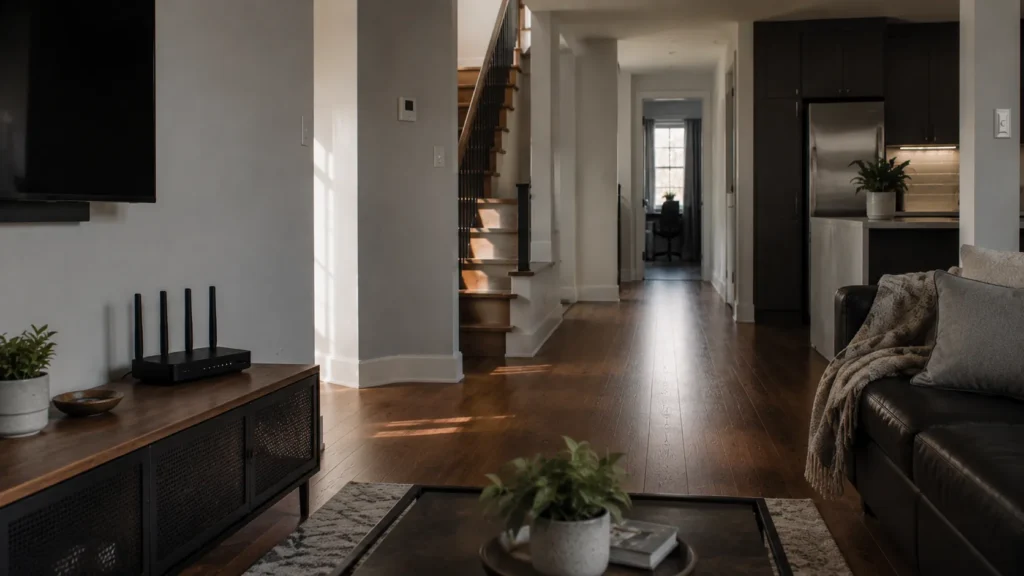
Wi-Fi passes through many common building materials, but not all of them equally well. Drywall is generally less challenging than dense masonry, concrete, metal, or multiple floors. Ductwork, appliances, fireplaces, plumbing, cabinetry, and other elements can also affect the path between the router and your device. This helps explain why two rooms at similar distances from the router can perform very differently.
One bedroom may have a relatively clear path through a hallway, while another requires the signal to travel through several walls, a bathroom, and mechanical equipment. The second room can have noticeably poorer Wi-Fi even though it looks close on a floor plan. Multi-storey homes add another complication because the signal has to travel vertically as well as horizontally. Basements and upper floors can become difficult when the router is low, far to one side, or surrounded by dense materials. You do not need to know exactly what every wall contains because the pattern of good and bad rooms can often reveal the effect.
Router Placement Can Create Uneven Coverage
A router does not have to be broken to be badly positioned. Placing it inside a cabinet, behind a television, on the floor, or at the far edge of the home can create coverage problems in certain rooms. The rooms closest to the router may still work well enough to hide the issue. Moving the router into a more open, central position can improve coverage without changing hardware.
If it can be moved safely, even a modest change in height or location may improve how the signal reaches surrounding areas. This is worth testing before buying an extender or mesh system. The perfect location is rarely possible in a finished home, so the goal is to remove obvious disadvantages and understand whether placement is the main limitation. Our router-placement guide looks more closely at how to choose a sensible position within a home network.
The Problem Room May Have More Interference
Distance and walls are not the only reasons one room can perform worse than another. Wi-Fi shares radio frequencies with other networks and devices, and a particular area may face more interference from neighbours, electronics, or the building layout. This can be especially noticeable in condos and other dense residential environments. Modern routers manage much of this automatically, but they cannot eliminate every environmental limitation.
Interference can also be inconsistent, with a room working reasonably well at one time and poorly at another. Certain devices may be more affected than others. Avoid jumping immediately into advanced router settings unless you have a clear reason to do so. Changing wireless channels, bandwidth settings, and other configuration options can be useful in the right situation, but basic placement and coverage should usually be investigated first. Changing several settings at once can make the problem harder to understand.
Check Whether the Device Is Part of the Problem
A slow connection in one room does not always mean the room itself is the problem. Different phones, laptops, tablets, and other devices have different wireless hardware. An older laptop may have a weaker Wi-Fi adapter, while outdated drivers, software problems, or power-saving settings may also affect performance. Testing more than one device is therefore valuable.
If three devices perform poorly in the same room, coverage becomes a stronger suspect. If two work properly and one consistently struggles, investigate the problem device before redesigning the network. Try restarting the device and confirming that its software and network drivers are current. If the problem continues, compare how it behaves in several locations. A device that performs poorly everywhere is telling you something different from one that only struggles far from the router.
Make Sure the Internet Connection Is Not Slowing Everything Down
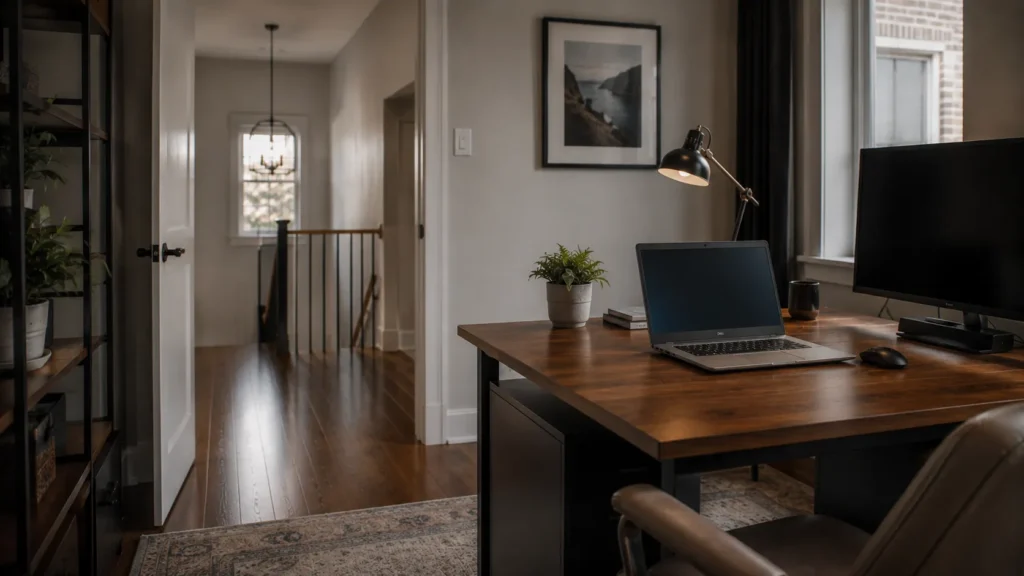
Wi-Fi and internet service are closely connected from the user’s perspective, but they are different parts of the connection. Your device connects wirelessly to the router, and the router then connects to the internet service. A problem at either stage can make websites load slowly or video calls become unstable. If the upstairs office feels slow but everything becomes fast again beside the router, Wi-Fi coverage is a reasonable suspect.
If the connection remains poor beside the router, the internet service, modem, router, or another network problem may be responsible. That distinction matters before you buy additional wireless equipment. A wired Ethernet test can help when available because it removes the room-to-room wireless connection from the test. The exact speed-test number matters less than the pattern. A healthy wired connection paired with poor performance in distant rooms points toward Wi-Fi coverage, while poor results everywhere suggest a broader problem.
Older or Overloaded Equipment Can Make Weak Areas Worse
An aging router may work well nearby while struggling to provide dependable performance farther away. This can become more noticeable as the household adds more phones, televisions, cameras, work computers, and smart-home devices. The effect depends on the equipment and how those devices are used. The answer is not automatically to buy the newest router available, because a modern router placed badly can still provide disappointing coverage.
Consider the router’s age and capability, the home’s layout, the number of connected devices, and whether the problem has worsened. Provider-supplied routers also change from one generation to another. If your equipment has been in place for many years, identify the model and whether the provider currently supports something newer before making an unrelated purchase. Replacement makes more sense when there is evidence that the existing equipment is part of the limitation.
One Bad Room Does Not Always Require Mesh Wi-Fi
A weak room often sends people directly toward mesh Wi-Fi, but the size of the problem should guide the solution. If the network performs well everywhere except one modest area, a router-placement improvement or carefully positioned Wi-Fi extender may be enough. Replacing the entire network could add cost and complexity without solving a whole-home problem. Mesh becomes more compelling when several rooms or floors have poor coverage and one router cannot reasonably serve them all.
A coordinated mesh system can distribute Wi-Fi more effectively than unrelated extenders. Existing Ethernet can change the decision as well because a wired access point may provide stronger and more predictable coverage in a problem room. Our Wi-Fi extender versus mesh guide looks at these options in more detail once you have established that inadequate coverage is genuinely the problem. Diagnose the weak area first and choose equipment second. That helps avoid giving a small problem more network than it needs.

Test Any Change in the Room That Actually Matters
It is easy to make a network change, run a speed test beside the router, and conclude that everything is better. That does not tell you whether the original problem has been solved. Test in the room and under the conditions that caused the trouble. If the upstairs office was unreliable, test there, and if the basement streaming device was the problem, use it under normal conditions after the change.
If video calls were failing in a bedroom, make a real call from that room rather than relying only on a speed-test result. Try to change one variable at a time. Move the router and test again before adding an extender, and compare the same devices and rooms after installing new equipment. This makes the results easier to interpret and avoids fixes whose effects are difficult to separate.
When It Makes Sense to Get Help
Room-specific Wi-Fi problems are often straightforward once the pattern is understood. Router placement, distance, or one poorly located device may explain everything. Professional assistance becomes useful when several factors interact or basic changes do not produce a reliable result. This may include difficult multi-storey layouts, basement offices, several dead zones, existing extenders that behave inconsistently, uncertainty about installed Ethernet, or a home-office connection that needs to be dependable every day.
A good assessment should identify where the signal is strong, where it weakens, what sits between those areas, and what equipment is installed. That information is usually more useful than immediately replacing hardware. East Toronto Tech provides Wi-Fi and connectivity support for Toronto homes and home offices, including diagnosing uneven coverage and helping determine whether placement changes, extenders, mesh Wi-Fi, wired access points, or equipment changes are appropriate. The recommendation should fit the actual problem rather than add equipment by default. That keeps the network easier to understand and avoids unnecessary cost.
Fix the Cause, Not Just the Slow Room
Wi-Fi that works well in one room and poorly in another usually has a reason. Distance, walls and floors, router placement, interference, device limitations, and older equipment can all affect the result. Start by comparing the same device in several locations, then look for a repeatable pattern. Once you understand where the connection begins to deteriorate, the next step becomes much easier to choose.
Sometimes the solution is a small placement change, while other situations call for extending the network or redesigning how Wi-Fi reaches different parts of the home. The important part is knowing what problem you are solving before adding more equipment. A network that matches the actual cause of the problem is easier to maintain and less likely to accumulate unnecessary hardware.