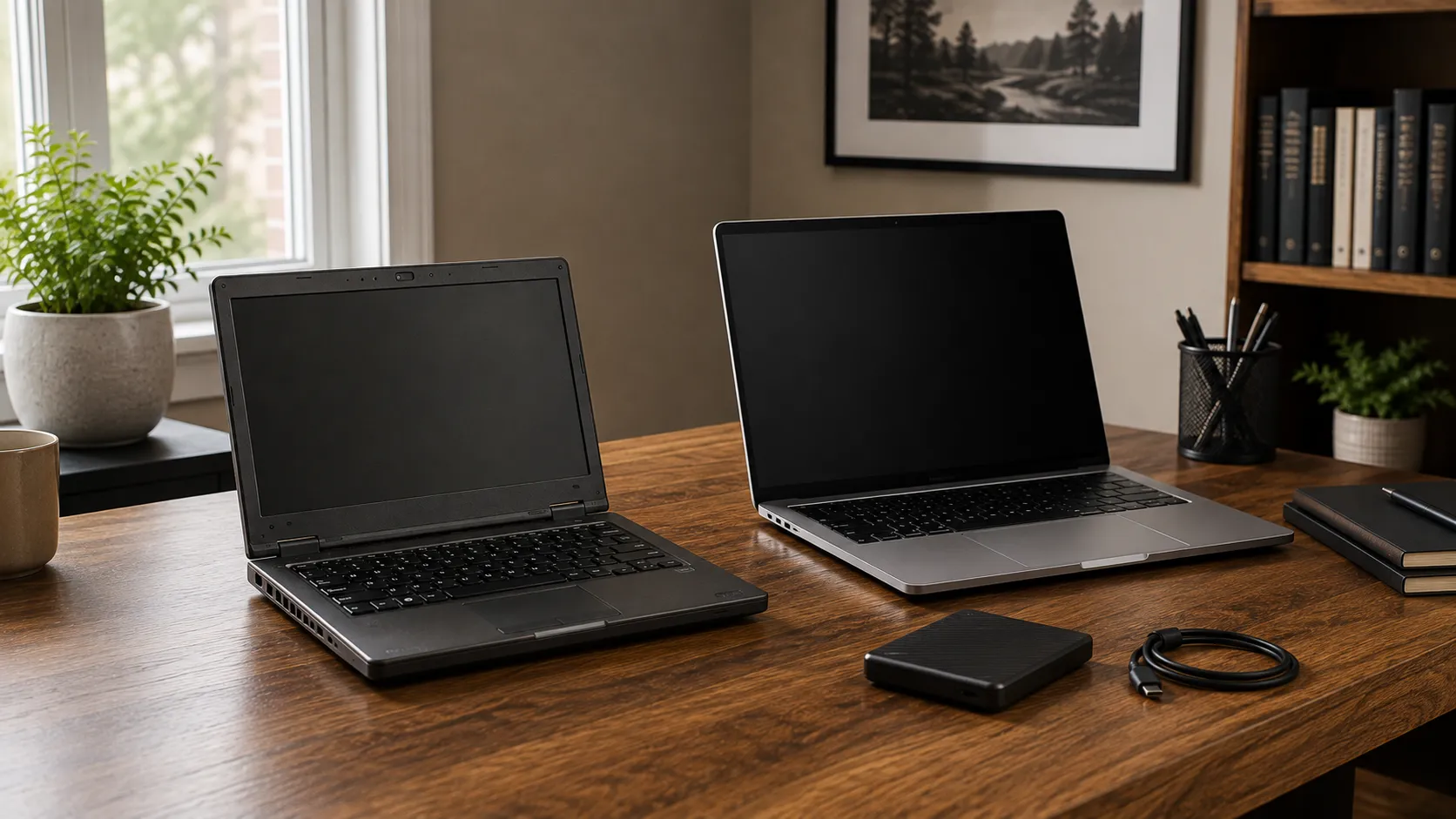
What to Do Before Setting Up a New Computer
Getting a new computer is usually the easy part. The harder part is making sure everything you rely on moves over cleanly. A rushed setup can leave behind important files, saved passwords, browser data, email settings, software licences, printer configurations, or small utilities you only notice after the old computer has been wiped or put away. Most are avoidable if you prepare before the new machine becomes your main computer.
The goal is to understand what matters, protect it, and make the transition in a controlled way. If the old computer is still working, you can verify files, accounts, applications, and settings before anything is removed. Use that advantage before the migration begins.
Start by Backing Up Important Files
Before changing anything, make sure important data exists somewhere other than the old computer. Documents, photos, business records, project files, spreadsheets, and other files difficult to recreate should be copied to a reliable backup location. That may include an external drive, cloud backup, or another storage device. If the data matters, it should exist in more than one place.
Do not assume a backup is complete simply because backup software is installed. Check that the files you expect to protect are actually included and confirm that you can access them. Cloud synchronization deserves particular attention because OneDrive, Google Drive, Dropbox, and similar services may not contain everything on the computer. Downloads, local application data, archived email, and other folders may sit outside the areas being synchronized.
Make a List of the Programs You Actually Use
Computers accumulate software over time. Some applications are used every day, while others were installed once and continue taking up space for years. A new computer is a good opportunity to separate essential programs from software you no longer need.
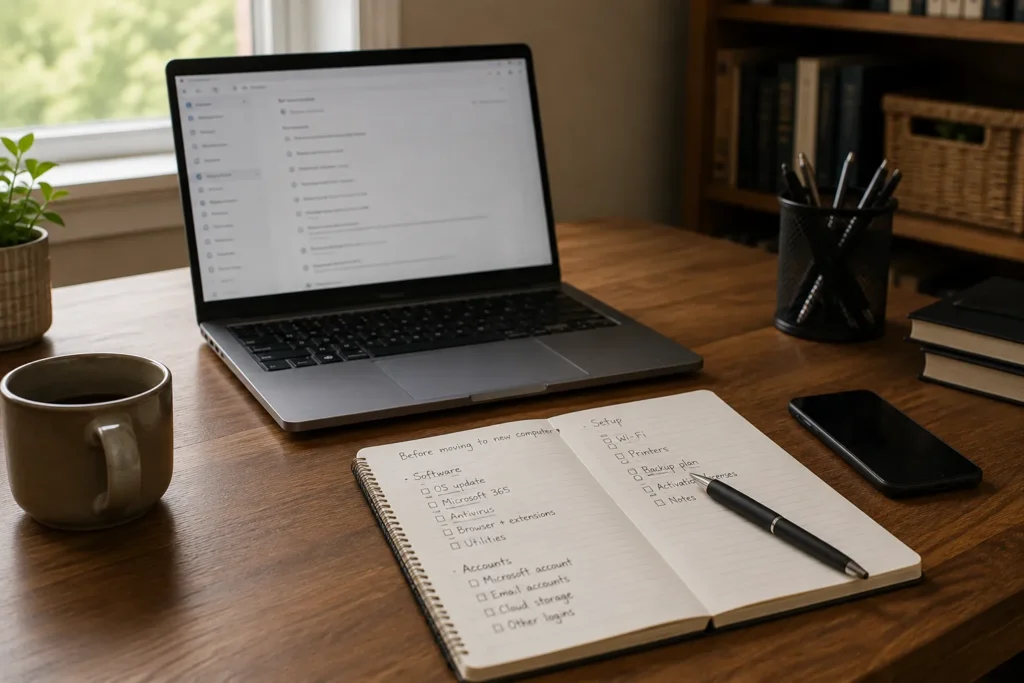
Your list might include Microsoft 365, accounting software, browser extensions, remote-work tools, VPN software, printer utilities, password managers, specialist applications, or creative tools. The aim is to rebuild the useful working environment without carrying unnecessary clutter forward. For paid software, identify whether it uses an online account, licence key, activation code, or device limit. If activation is limited, check whether the old computer should be deactivated first.
Confirm Your Important Account Access
A new computer will ask you to sign into many of the services you already use. That becomes a problem when a password has been saved automatically for years and nobody remembers it. Before the move, confirm access to important accounts such as Microsoft, Google, email, Microsoft 365 or Google Workspace, banking, cloud storage, business software, and remote-work tools.
If multi-factor authentication is enabled, make sure the second factor still works through your phone, authenticator app, hardware key, or other recovery method. Account recovery information matters as well, especially for accounts that control access to other services. Confirm that backup email addresses and phone numbers are current. A new-computer setup is a poor time to discover that an old phone number is still the only recovery option on an important account.
Check Your Password Manager Before You Need It
If you use a password manager, confirm that you know the master password and can sign into it independently. A password manager can make a new-computer transition much easier because most account credentials become available once the manager is installed and unlocked. The password manager itself becomes one of the most important accounts to access correctly.
If you have relied on biometric login, browser autofill, or an already-authenticated session, verify the actual credentials before shutting down the old system. Check any recovery codes or emergency access methods as well. Doing this while the old computer is available gives you a safer way to resolve access problems.
Review Your Email Setup
Email can be simple or surprisingly complicated depending on how it is configured. With Microsoft 365, Gmail, Outlook.com, or another modern cloud-based mail service, most messages may reappear automatically after you sign into the new computer. Older or custom setups can include local data that may not follow you.
Some users have archived email files, manually configured accounts, signatures, special folders, rules, or address books stored partly on the old computer. If you use Outlook, determine whether important data is stored locally, particularly archived mail or folders outside the main cloud mailbox. Business users should also know whether email comes through Microsoft 365, Google Workspace, web hosting, or another provider. Understanding the current setup makes it easier to reproduce correctly.
Check What Your Browser Is Syncing
Browsers have become part of the working environment. Bookmarks, saved passwords, history, extensions, open tabs, and settings may all be useful when moving to a new computer. Chrome, Edge, Firefox, and other browsers offer account-based synchronization, but that only helps when synchronization is enabled and current.
Check the browser you actually use and confirm which categories of information are being synchronized. If important bookmarks exist only locally, export them before retiring the old computer. If passwords are stored in the browser instead of a separate password manager, make sure they are protected and can be recovered on the new machine. Seeing your profile picture does not mean every useful category of data is syncing.
Identify Printers, Scanners, and Other Peripherals
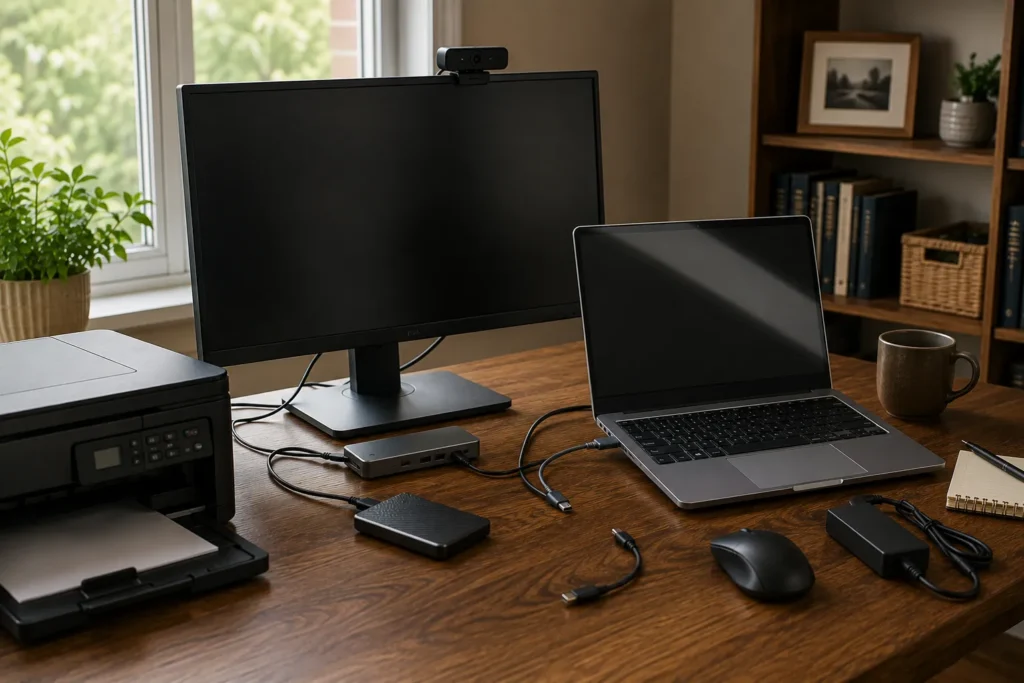
The computer is rarely working alone. Printers, scanners, external drives, monitors, docks, webcams, microphones, label printers, card readers, and other devices may all need to work with the replacement. Note anything connected now that you expect to use with the new machine.
Check whether the new computer has the ports those devices require. A new laptop may have fewer USB ports, different video connections, or rely more heavily on USB-C, which may mean using a dock, adapter, or different cable. Older printers and scanners deserve attention because suitable drivers or software may not exist for the new version of Windows. If a peripheral is essential to daily work, verify compatibility before removing the old computer from service.
Record Anything That Is Easy to Forget
Small settings can be surprisingly annoying to recreate. Useful items to record may include printer names, Wi-Fi details, VPN settings, network drive mappings, shared folders, email signatures, browser extensions, display arrangement, specialist software settings, and remote desktop information. You only need to document the things that would interrupt work if they disappeared.
Screenshots can help with settings that are difficult to describe, such as a multi-monitor arrangement or application preference window. Keep those records somewhere you can access during the new setup. Avoid including passwords, recovery codes, or other sensitive credentials in unsecured screenshots or notes. The goal is to make the setup easier without creating a new security problem.
Check How Much Storage You Are Actually Using
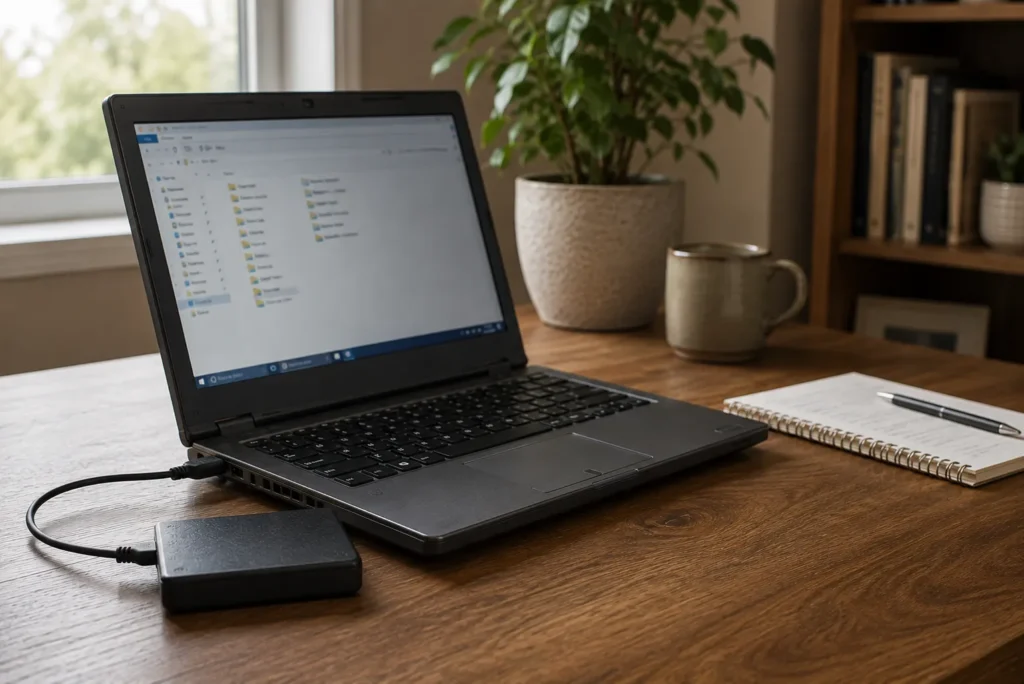
A new computer may have a larger drive than the old one, but storage capacity should still be checked before migration begins. Look at how much space the old computer is using and identify where the largest collections of files are located. If the old system uses 700 GB and the new computer has a 512 GB drive, copying everything directly is going to create an obvious problem.
This is also a good time to decide which files need to remain on the computer and which could live on an external drive, NAS, or cloud storage. Do not delete important data simply to make it fit. Create a storage plan first and clean up only what you no longer need. Knowing the numbers in advance prevents surprises halfway through the move.
Decide What Should Move and What Should Stay Behind
A computer migration does not need to reproduce the old machine perfectly. Years of downloads, abandoned programs, old installers, duplicate photos, and forgotten folders do not automatically deserve a place on the new system. Move what matters deliberately and leave questionable clutter on a backup until you decide whether it is still needed.
Documents, active projects, personal files, business records, required software, browser data, account access, and useful preferences are usually worth transferring. A deliberate move produces a cleaner setup instead of carrying years of unnecessary clutter forward. Keep a separate backup of the old data until the new system has been fully checked. The migration itself should never be the only remaining copy.
Update the Old Computer Before the Transfer
If the old PC is stable, installing pending updates before migration can sometimes help bring cloud synchronization, browser data, and application information up to date. That can make the transition smoother when services rely on current software or a recent synchronization. Updates are reasonable when the machine is stable and the data is protected.
Avoid doing this blindly on a computer that is unstable or showing signs of storage failure. A major update can place additional load on failing hardware, and immediately before a migration is a poor time to experiment with aggressive cleanup utilities or unfamiliar optimization software. The priority is preserving access to the data and applications you already have. If the old computer is failing, focus on backup and recovery first.
Do Not Erase the Old Computer Too Early
Keep the old computer intact until you have confirmed that the new one works properly. Use the new machine for normal tasks, open important files, check email, test printers, sign into key applications, verify browser data, connect external devices, and confirm cloud storage is synchronized. These checks are more useful than assuming a successful copy means the migration is complete.
You may discover something days later that you forgot existed. As long as the old computer remains available, those discoveries are usually manageable. Once it has been wiped, recycled, sold, or given away, recovery becomes much more difficult. There is rarely any benefit in rushing this step.
Check the New Computer Before Committing to the Migration
It is worth confirming that the new machine itself is suitable before transferring everything. Check that the storage capacity matches your needs, the required ports are available, and the computer supports the applications and peripherals you rely on. If it is a laptop, test charging, docking, external monitors, and planned accessories.
A new device can occasionally have a hardware fault or simply turn out to be the wrong configuration. Discovering that before a full migration is easier than finding out after setup. Confirm the basic hardware and workflow first, then commit to moving the rest of your working environment. That keeps the migration reversible if the new computer needs to be exchanged.
Plan for the Actual Transfer
Once the preparation is complete, decide how the files will move. Cloud storage can simplify the process when important folders are already synchronized, while an external drive may suit a direct transfer. Some environments may use network storage or other migration tools depending on the data.
Whatever method you choose, preserve a separate backup during the transfer. Moving files from one computer to another is not a substitute for having another protected copy. Our guide to moving to a new computer without losing important files covers the migration stage in more detail. Preparation should leave you with a clear transfer method before the old computer is altered.
Business Computers Need a Little More Planning
Replacing a home computer and replacing a business computer share many of the same steps, but a business system often has more dependencies. The user may need Microsoft 365, shared drives, accounting software, business applications, printers, scanners, VPNs, cloud services, and company folders to work immediately. There may also be licences to move, security settings to configure, or business access that should remain separate from personal accounts.
Downtime matters as well. A business migration is easier when the replacement is prepared before the old machine leaves daily use. Test the full workflow instead of simply confirming that Windows starts and email opens. A successful business setup means the person can actually perform the work they depend on the computer to do.
When Professional Setup Makes Sense
Many people can set up a new computer themselves, particularly when files are organized in cloud storage and few applications are involved. Professional setup becomes useful when the old computer contains important files, several email accounts, business software, specialist peripherals, or accumulated settings that are difficult to understand. It can also help when the replacement needs to happen with minimal interruption.
A useful setup should begin with understanding what needs to move and what needs to work afterward. East Toronto Tech provides new-device setup and computer migration assistance for Toronto homes, home offices, and small businesses. That can include preparing the new computer, moving appropriate files, reconnecting accounts and peripherals, and checking the setup before the old computer is retired. The objective is a controlled transition rather than simply copying files and hoping everything followed.
Prepare First, Then Move
A good new-computer setup starts before the new computer becomes your main machine. Protect important files, confirm account access, identify the software and peripherals you need, and understand what should move from the old system. Keep the old computer intact until you have tested the replacement under normal conditions.
The process does not need to be complicated, but it should be deliberate. A little preparation can turn a stressful computer replacement into a controlled transition and leave you with a cleaner setup that is ready for the way you actually work. The old computer is most useful during this process while it still gives you a working reference for anything you may have overlooked.