
When Should You Replace an Older Windows PC?
An older Windows computer can be frustrating without necessarily being ready for replacement. A machine that starts slowly or feels sluggish with newer software may still have useful life left, while another of the same age may be unreliable enough that further repairs no longer make sense. Age alone is a poor way to decide.
The better question is whether the computer still performs its job reliably, supports the software you need, receives appropriate security updates, and can be maintained at reasonable cost. For some people, an older PC handles email, web browsing, documents, and printing perfectly well, while others need dependable performance for video calls, large spreadsheets, business software, or several applications at once. Before replacing a computer, separate problems that can be fixed reasonably from signs that the machine has reached the end of its practical life.
Start With What the Computer Actually Needs to Do
A computer should be judged against its workload. Someone using a desktop for email, banking, web browsing, and basic documents does not need the same performance as a home-office user working with many browser tabs, Microsoft Teams, large files, cloud applications, and multiple monitors. A computer can feel old while remaining entirely suitable for lighter use.
The opposite can also happen. A computer that technically still works may no longer be adequate for the way it is being used. Freezing during video calls, long application load times, and poor multitasking can become a meaningful productivity problem even if the machine eventually completes every task. Think about the computer’s actual role before focusing on its age.
Slow Does Not Automatically Mean Replace
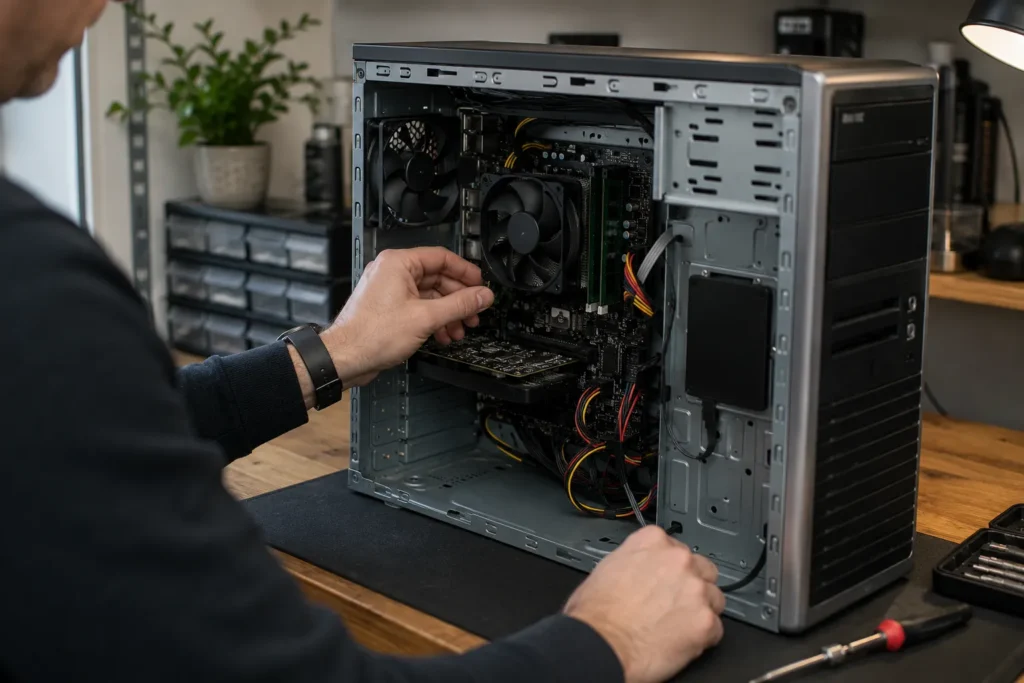
A slow Windows PC may have a straightforward cause. Too many startup programs, insufficient storage space, a failing or slow hard drive, limited memory, background software, malware, browser clutter, or an operating-system problem can make a usable computer feel much worse than it is. Diagnosing the cause first can prevent an unnecessary replacement.
Older PCs that still use a mechanical hard drive can sometimes improve dramatically after moving to a solid-state drive, assuming the rest of the hardware remains suitable. Increasing memory can also help systems that are constantly running short of working space. These upgrades are not automatically worthwhile because a new drive or additional memory does little for a machine with several other limitations. If a reasonably priced repair or upgrade restores dependable performance for the tasks you perform, keeping the computer can make sense.
Pay Attention to Reliability, Not Just Speed
A slow computer can be annoying, while an unreliable computer deserves closer attention. Repeated crashes, unexpected shutdowns, boot failures, corrupted files, unusual drive noises, display problems, or charging faults can interrupt work and may indicate a deeper issue. A computer that regularly stops you from working is telling you more than one that simply takes longer to start.
No technician can guarantee exactly when aging hardware will fail. What matters is recognizing when the computer is becoming difficult to trust and how disruptive an unexpected failure would be. If the machine contains important data, verify the backup before experimenting with repairs or waiting for the next failure. If the data matters, it should exist in more than one place.
Consider the Cost of the Next Repair
One repair does not necessarily make an old computer a bad investment. Replacing a worn battery, installing a new storage drive, cleaning up software problems, or replacing an inexpensive component may extend useful life at reasonable cost. The decision changes when several repairs begin to accumulate.
A laptop that needs a battery, has a damaged charging port, struggles with modern software, and has a flickering display may still be repairable. The combined cost and uncertainty can eventually make replacement more sensible. Spending several hundred dollars on an older entry-level machine may provide poor value compared with putting that money toward a newer system, while the same repair on a higher-quality workstation could be easier to justify. Look at the whole machine rather than evaluating each repair in isolation.
Software Compatibility Can Force the Decision
Sometimes the hardware continues to work while the software world moves on. Applications may require newer versions of Windows or hardware features, and drivers for printers, scanners, specialist business equipment, or other peripherals can become difficult to maintain. This matters especially for home offices and small businesses that depend on specific applications or hardware.
A computer that cannot run a required application reliably may need replacement even if it remains fast enough for general browsing. Before replacing it, identify which requirement is causing the problem and whether an application update, supported alternative, or different workflow solves it. Compatibility becomes a stronger replacement signal when the limitation affects essential work. When the hardware simply cannot meet a required software environment, continued repair may no longer be worthwhile.
Security Support Matters
A computer should be able to run an operating system and software environment that still receives appropriate security updates. An unsupported operating system should not be ignored indefinitely, particularly on a machine used for email, banking, business accounts, customer information, or other sensitive activities. Hardware requirements can sometimes prevent an older PC from moving to a supported version of Windows.
At that point, the choices may include replacement, a supported alternative operating system where appropriate, or another carefully considered solution. Security should be considered alongside the computer’s role, condition, and remaining usefulness. The goal is to avoid relying indefinitely on a machine whose operating environment can no longer be maintained appropriately.
A Failing Battery Does Not Always Mean a Failing Laptop
Laptop batteries wear out and gradually lose capacity. A laptop that once ran for several hours may eventually last only a fraction of that time even when the rest of the machine remains healthy. A poor battery by itself is often a repair issue rather than a reason to replace the computer.
If the laptop performs well, supports current software, and is otherwise in good condition, battery replacement may restore the portability you need at far lower cost than buying a new machine. The decision changes when the battery problem accompanies a damaged hinge, unreliable charging, limited performance, or poor software compatibility. Several weaknesses together can make further investment harder to justify.
Battery swelling is different from ordinary capacity loss. If the case is separating, the trackpad is lifting, or the battery appears swollen, stop using the device and have it assessed promptly. A swollen lithium-ion battery should not be punctured, compressed, or treated as a routine DIY repair. This is a safety issue rather than normal battery aging.
Physical Condition Is Part of the Equation
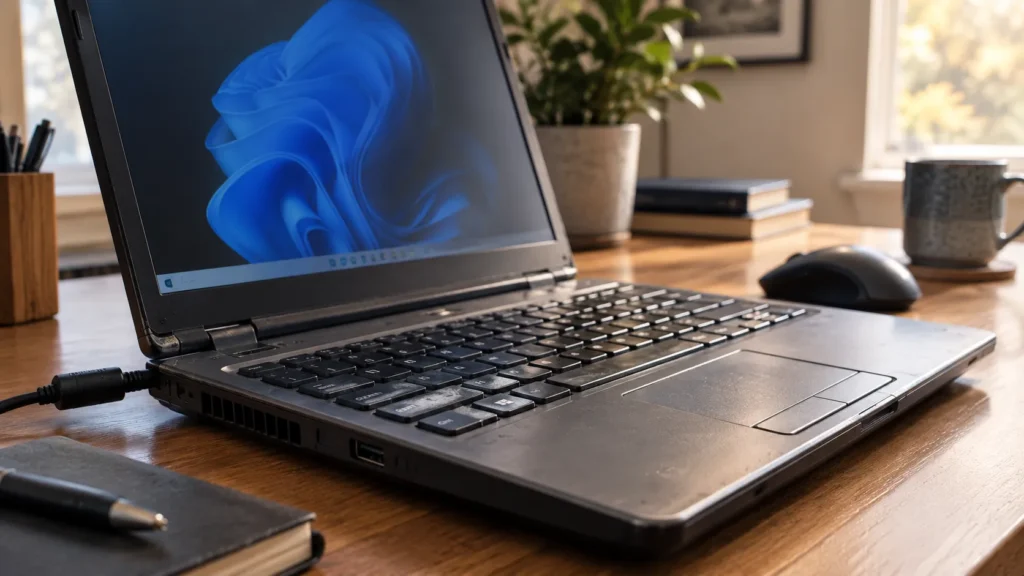
A computer can be electronically functional while becoming physically difficult to use. Loose hinges, damaged charging ports, broken keyboards, cracked displays, unreliable USB ports, noisy fans, and worn power connectors all affect the practical value of keeping a machine. One repair may be straightforward, while several can indicate that maintenance is becoming increasingly frequent.
Desktop computers are often easier to repair selectively because individual components tend to be more accessible. Laptops are more integrated, and replacing certain assemblies can be expensive relative to the value of an older machine. Physical condition should be considered alongside performance, reliability, and software support. A computer that needs several physical repairs while also struggling with its workload may be approaching a sensible replacement point.
Think About the Cost of Downtime
For a home computer, a failure may be inconvenient. For a home office or small business, it can interrupt work and prevent access to important files or applications. This changes how aggressively it makes sense to stretch the life of aging equipment.
If a five-year-old computer works reliably and has a good backup, there may be no urgent reason to replace it. If an older machine shows repeated instability and losing it unexpectedly would stop someone from working, planned replacement can be far less disruptive than waiting for failure. Planning gives you time to choose the right computer, transfer files, reinstall applications, confirm account access, and keep the old machine available while the new setup is verified. Emergency replacement rarely provides the same flexibility.
Make Sure Your Files Are Protected Before the Computer Fails
Computer replacement decisions become easier when important data is already protected. A backup should not begin only when the machine is failing badly because recovering files may already be difficult by then. Important documents, photographs, business records, and other irreplaceable data should exist in more than one place.
Cloud synchronization can be part of that strategy, but it should not automatically be assumed to provide a complete backup of everything on the computer. It is also worth checking that the backup can actually be accessed because recovery is what ultimately matters. If an older computer is becoming less reliable, verify your files before reinstalling Windows, replacing storage, or attempting any repair that could affect the data.
Signs Replacement Is Becoming the Better Choice
There is no universal age at which a Windows PC should be retired. Replacement becomes increasingly reasonable when the computer no longer supports the software or operating system you need, performance remains poor after sensible troubleshooting, reliability problems are frequent, several hardware repairs are approaching, or downtime has become costly. The pattern matters more than any single symptom.
A machine that checks only one of those boxes may still be worth repairing. A machine that checks four or five is giving you a much stronger reason to plan a replacement. Time spent continually managing the computer also has value, especially when recurring problems interrupt work. Replacement makes more sense when maintaining the old machine becomes a regular burden.
When an Upgrade Makes More Sense Than Replacement
Some older computers still have a strong foundation. A desktop with a capable processor, useful expansion options, and reliable hardware may benefit from more memory or faster storage. A business-class laptop with a worn battery but solid performance may remain useful for years after a relatively simple repair.
Model-specific assessment matters because two computers bought in the same year may have very different capabilities, build quality, repairability, and upgrade options. Before purchasing a replacement, it can be worth checking whether the existing system has one clear bottleneck that can be corrected economically. A sensible upgrade should solve a defined limitation and leave the rest of the computer capable of meeting your needs. That avoids replacing a machine that still has useful life while also avoiding repeated investment in one that no longer does.

Plan the Replacement Before You Need It
If replacement is clearly approaching, planning ahead makes the transition easier. Make sure important files are backed up, identify the programs you actually use, and confirm passwords and recovery methods for important accounts. Note any printers, scanners, external drives, specialist devices, or business applications that the new computer will need to support.
A new PC is also an opportunity to avoid carrying years of unnecessary clutter into the next system. Files can be organized, unused software left behind, and account access checked deliberately instead of copying everything without review. Our guide to what to do before setting up a new computer covers this preparation in more detail. A planned migration also allows the old computer to remain available until you have confirmed that the new one is fully functional.
When Professional Help Makes Sense
It is often difficult to judge an aging computer when you do not know whether the problem is minor or fundamental. Professional assessment can be useful when the computer has become noticeably slower, hardware problems are appearing, an upgrade is being considered, or you are unsure whether repair costs are justified. It can also help before replacing a business or home-office computer where files, applications, accounts, and peripherals need to move cleanly.
A useful assessment should consider how the computer is used, what problems are occurring, which upgrades are possible, the value of the machine, and the cost of disruption if it fails. East Toronto Tech provides computer troubleshooting, upgrade guidance, and new-device setup for Toronto homes, home offices, and small businesses. The aim is to determine whether the existing computer still makes sense to keep before recommending replacement. A modest repair can be worthwhile when it solves the real problem, while replacement may be better when several limitations overlap.
Replace the Computer When Keeping It Stops Making Sense
There is no prize for replacing a perfectly useful computer early, and there is little value in keeping an unreliable one simply because it still turns on. Look at performance, reliability, software support, repair costs, physical condition, and the importance of the computer to your daily work. One weakness may be fixable, while several overlapping limitations often make replacement the cleaner decision.
When possible, make that decision while the old computer still works well enough to prepare properly. A planned replacement gives you time to protect your files, choose the right machine, and make the transition calmly instead of handling everything after a failure. The best time to replace an older Windows PC is when keeping it no longer makes practical or financial sense for the work you need it to do.