A Simple Technology Checklist for a Small Business
Small businesses often build technology one decision at a time until the overall environment goes unreviewed. Laptops, shared folders, routers, and cloud services accumulate. A simple checklist helps identify gaps before they become support problems.
The goal is not to create an enterprise IT department. Most need dependable computers, organized accounts, reliable internet, backups, sensible security, and clear ownership. A periodic review confirms that those basics still match the way the company works.
Start With the Computers the Business Depends On
List the laptops, desktops, and specialized workstations employees use regularly. Record the user, approximate age, operating system, and reliability. Give extra attention to computers used for accounting, estimating, design, point-of-sale work, or other functions that would be difficult to replace quickly.
Check Whether Any Computers Are Reaching the End of Their Useful Life
Older computers can remain useful if they are supported, reliable, and capable of running required software. Review performance, storage, battery condition, reliability, and operating-system support, especially when failures appear. Our guide to when an older Windows PC should be replaced goes deeper into the decision.
Make Sure Operating Systems and Applications Are Current
Confirm that operating systems, browsers, Microsoft 365 applications, and other important software are receiving updates normally. Manufacturer firmware and driver updates may also affect docks, Wi-Fi, graphics, and batteries. A predictable update routine is easier to manage than a large backlog that eventually interrupts work.
Know Who Owns the Business Accounts
Important services such as Microsoft 365, Google Workspace, domain registration, hosting, accounting platforms, and backup services should belong to the business. Record the responsible account, administrator, and recovery path for each service. Store passwords separately in an appropriate secure system.
Review Microsoft 365 or Google Workspace
Review active users, licences, shared files, email accounts, groups, administrative access, and former employees. If both platforms are used, give each a clear purpose so files and calendars are not duplicated. Our Microsoft 365 versus Google Workspace guide can help when the business is still deciding which platform should be primary.
Check Whether Microsoft 365 Has Become More Complicated Than Necessary
Microsoft 365 can provide email, Office applications, OneDrive, SharePoint, Teams, security tools, and much more. Confirm employees understand where files, mailboxes, and collaboration belong, and that licences match roles. Our guide to what a small business needs from Microsoft 365 looks at those choices in more detail.
Confirm Business Email Is Properly Structured
Employees who need business email should normally have individual accounts, while shared functions such as info@, sales@, or billing@ should remain company-controlled. Review administrative access, recovery methods, MFA, and domain ownership so email does not depend on shared passwords or personal inboxes. Our business email setup guide covers shared addresses, SPF, DKIM, DMARC, and domain administration in more detail.
Review Multi-Factor Authentication
MFA should be enabled on important business accounts where supported, especially email, cloud storage, domains, administrative portals, password managers, and financial systems. Check what happens when an authentication device is lost or replaced. Strong security should include a reliable recovery process rather than weakening MFA when recovery becomes inconvenient.
Make Sure Passwords Are Not Being Reused
Employees should use unique passwords across business services because one compromised account should not expose several others. A suitable password manager can generate and store them without relying on memory, spreadsheets, or sticky notes. Password management should become a routine part of the business environment.
Review Shared File Locations
Employees should know where shared company information belongs, whether that is SharePoint, Google shared drives, a NAS, or another controlled location. Look for important files stored only on desktops, Downloads folders, USB drives, or personal cloud accounts. Keep the structure simple enough that employees use it.
Check What the Business Is Actually Backing Up
Review computers, shared storage, cloud applications, accounting information, websites, email, databases, and other systems containing important data. New employees or services may have introduced information that the original backup plan never covered. Our guide to what a small business should back up provides a fuller inventory.
Verify the Backup Instead of Trusting the Status Screen
A green check mark does not prove that recovery will work. Confirm recent jobs completed, destinations remain available, storage is not full, and important folders are included, then periodically restore a non-critical file. Our guide to knowing whether a backup is actually working covers this process in more detail.
Review Whether Cloud Storage Has Been Mistaken for Backup
OneDrive and Google Drive provide useful synchronization, version history, and deleted-file recovery. They can still synchronize unwanted changes, and important information may exist outside the folders they protect. Our guide to whether OneDrive or Google Drive is a backup explains where another recovery layer may be appropriate.
Check the Internet Connection
Reliable internet is a core dependency for businesses using cloud applications, email, video meetings, online payments, or remote systems. Review drops, slow periods, poor calls, weak Wi-Fi, and the equipment supporting the connection. Test where employees actually work and consider how much of the business stops when the primary service disappears.
Review the Wi-Fi Layout
Wi-Fi performance depends on router placement, distance, building materials, interference, and the layout of the workplace. Test workstations, meeting areas, and other important locations rather than only standing beside the router. Our Wi-Fi guides cover placement, slow rooms, mesh systems, and other coverage problems in more detail.
Decide Whether Backup Internet Is Worth Having
A cloud-dependent business may justify another path online when the primary connection fails. Options include a phone hotspot, cellular device, automatic failover, or second wired service. Our guide to internet backup options compares these approaches, but the simplest fallback that meets the downtime requirement is usually best.
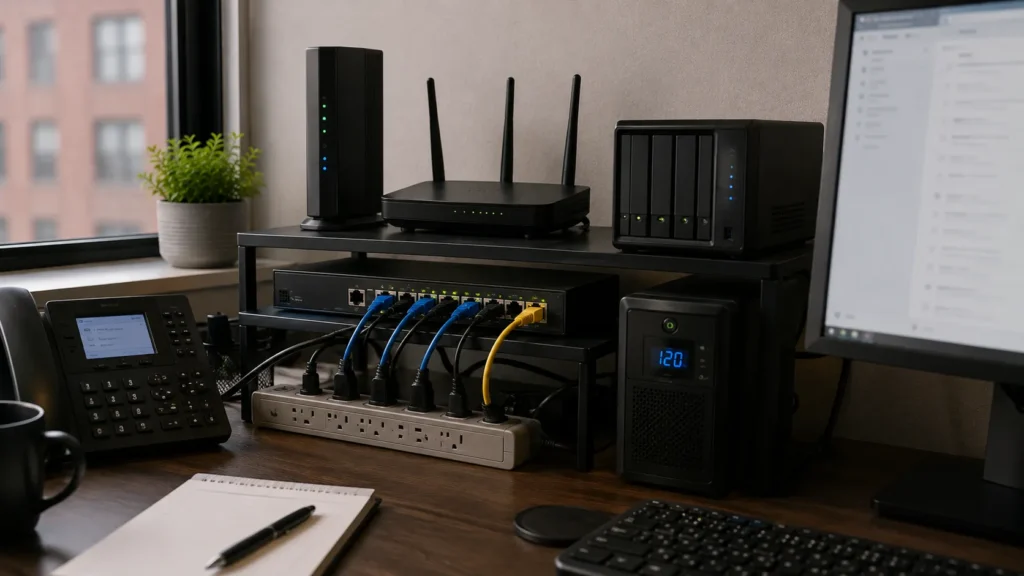
Review Backup Power
A brief power interruption can shut down desktops, routers, switches, and storage devices immediately. Review which equipment needs a UPS, whether batteries remain healthy, and whether high-draw devices stay off battery-backed outlets. Reserve limited battery runtime for equipment that helps the business continue or shut down safely.
Check What Happens to the Internet During a Power Outage
The provider may remain online while local network equipment has lost power. Identify the full connection chain and decide which devices need battery backup to keep internet access usable. Our guide to keeping internet working during a power outage explains why backup power and backup connectivity solve different problems.
Review Printers and Scanners
Check whether printers and scanners remain reliable, supported, and appropriate for the people using them. Test network access and any scan-to-email, network-folder, or computer-based workflows that employees depend on. Our printer guide looks more closely at when repair or replacement makes sense.
Check Employee Onboarding
New employees should receive a consistent setup with updated hardware, business accounts, MFA, required applications, shared files, and tested workflows. A short checklist is more dependable than relying on memory every time someone joins. Our guide to what should happen when a new employee gets a computer provides the complete workflow.
Check Employee Offboarding
When an employee leaves, disable access, end active sessions, recover devices, preserve required email or files, and reassign licences where appropriate. Make sure someone is responsible for starting the process and review old accounts that may still remain active. Offboarding should be as repeatable as onboarding.
Review Employee Access
Employees should have access to the files, mailboxes, applications, and administrative services required for their roles without automatically receiving everything. Review important permissions periodically because access accumulates as responsibilities change. Keep access understandable and role-based where practical instead of creating dozens of exceptions.
Confirm Device Encryption Where It Matters
Portable computers can contain local files, cached email, browser sessions, credentials, and synchronized cloud data. Verify whether device encryption is enabled on supported business laptops where appropriate rather than assuming it is active. Store recovery keys securely under business control so encryption does not create an access problem later.
Review Security Software Without Creating Overlap
Confirm security protection is active, licensed, updated, and not competing with expired trials. More security applications do not automatically create better security and can introduce performance or compatibility issues. Review updates, MFA, passwords, encryption, backups, account administration, and permissions as part of the wider security baseline.
Review Browser Extensions and Unnecessary Software
Business computers gradually collect applications and browser extensions that may no longer serve a purpose. Review them periodically, but verify unfamiliar software before removing manufacturer utilities, drivers, or business components. Browser extensions deserve attention because some can access information employees view or enter online.
Check Remote Access and Remote Support
Review VPNs, remote-access tools, and support applications to confirm they are still required and limited to the people who need them. Tools such as AnyDesk can make troubleshooting efficient when employees understand their purpose and access remains under business control. Remove remote connectivity that no longer serves a current role.
Review the Website and Domain
Confirm the domain renews, website maintenance and backups are current, forms work, and hosting and registrar ownership are known. Submit a real test through important forms and review essential phone numbers, addresses, hours, and service information. A modest website still needs clear ownership and basic maintenance.
Check Software Licences and Subscriptions
Review Microsoft 365 or Google Workspace licences, accounting software, backup services, security products, cloud applications, domains, hosting, and other recurring technology costs. Look for former users, duplicate tools, and subscriptions that no longer serve a business purpose. Identify what each service does before cancelling it so cost cleanup does not remove an important dependency.
Document Important Vendors and Support Contacts
Keep current contact information for critical internet, email, hosting, software, and technology providers. The record should remain accessible if the primary computer is unavailable while sensitive credentials stay in a secure system. Review it periodically so old providers and outdated contact details do not complicate recovery.
Identify Single Points of Failure
A single point of failure might be one computer, internet connection, administrator account, storage device, or employee whose loss would stop an important function. Review major workflows and ask what happens if one critical component disappears. The objective is not to eliminate every possible failure, but to address the dependencies with the greatest business impact.
Build a Simple Continuity Plan
Backups, UPS systems, backup internet, spare hardware, account recovery, and documentation work better when the business understands how they fit together. Decide which operations need to recover quickly and which can wait, then set priorities according to business impact. Our simple business continuity planning guide provides a broader framework without requiring an enterprise-style disaster manual.
Check Whether Someone Else Could Understand the Environment
Ask whether another competent person could identify key providers, accounts, backups, file locations, and network equipment without relying on one employee’s memory. Documentation does not need instructions for every mouse click, but it should describe ownership and critical dependencies. This gives the business control of its own environment when the person who originally set it up is unavailable.
Review Replacement Planning
Computers, networking equipment, UPS batteries, and storage devices eventually need replacement, but arbitrary replacement schedules are unnecessary. Record age, condition, support status, and importance so likely replacements can be budgeted before failure. A reliable older device may remain useful while another deserves earlier replacement because of workload or recurring problems.
Test the Things You Expect to Rely On
Restore a backup file, connect through the backup internet service, confirm critical networking equipment remains powered during a UPS test, and verify important recovery credentials. These checks can happen separately during safe periods and should follow vendor procedures without risking live business data. Fix problems while normal systems remain available because tested recovery paths are more useful than assumptions.

Review the Checklist After Meaningful Changes
A new employee, computer, cloud application, internet provider, office move, website platform, or accounting system can change what the business depends on. Revisit the checklist after significant changes and periodically confirm that accounts, backups, licences, contacts, and recovery plans are still current. Once the environment is organized, most of these checks can be completed quickly.
When a Professional Technology Review Makes Sense
Professional help can be useful when several computers, cloud services, printers, backups, networks, and accounts have accumulated without a clear structure. A practical review should begin with the existing environment and focus on gaps affecting reliability, security, productivity, or recovery. East Toronto Tech provides small-business technology support for Toronto organizations, including Microsoft 365 or Google Workspace, backups, Wi-Fi, employee computers, documentation, and resilience planning.
Keep the Technology Understandable
A small business does not need the most complicated technology environment it can afford. It needs systems employees can use, administrators can recover, and the organization can continue relying on as people and equipment change. Clear ownership, dependable connectivity, secure accounts, tested backups, and basic documentation provide a strong foundation.
Use the checklist to address the gaps with the greatest business impact first. Unsupported computers, unknown accounts, missing backups, recurring internet problems, weak authentication, and undocumented critical services usually deserve attention before another layer of technology is added. The best small-business IT environment is often fairly quiet because the important systems work and somebody knows what to do when they do not.