How to Improve Wi-Fi Coverage in a Toronto Home
Poor Wi-Fi can make a perfectly good internet connection feel unreliable. A laptop works well in the living room but struggles upstairs. Video calls freeze in the home office. Streaming becomes unpredictable in the basement, while phones mysteriously switch to cellular data in certain parts of the house.
The natural response is often to blame the internet plan. Faster service can certainly help when the connection coming into the home is too slow, but it will not necessarily improve Wi-Fi coverage. Your internet provider delivers a connection to your home, while your router or Wi-Fi system has the separate job of distributing that connection to your devices.
This distinction matters because many home Wi-Fi problems are really coverage problems. Toronto homes can present some awkward environments for wireless networking, particularly when a house spans several floors or the internet connection enters the building far from where people actually use their devices. Basements, additions, home offices, masonry, mechanical equipment, and simple distance can all affect the result. Before buying an extender, upgrading your internet package, or replacing a router, it is worth figuring out where the problem actually begins.
Start by Finding the Pattern
A useful Wi-Fi assessment does not need to be complicated. Take the same phone or laptop and use it in several parts of the home, beginning close to the router. Then move through the rooms where you normally experience problems and compare what happens.
If the connection performs well near the router but becomes increasingly unreliable as you move away, coverage is probably part of the problem. If every device is slow even while sitting beside the router, the issue may involve the router itself, the modem, or the internet service. A problem affecting only one laptop or phone points in another direction entirely.
Intermittent problems require a little more observation. Note whether they happen at particular times, during demanding activities such as video calls, or only when using certain devices. You simply want enough information to avoid solving the wrong problem. A new mesh system will not repair a faulty internet connection, just as a faster internet package will not make a poorly positioned router reach the far end of a house.
Look at Where Your Router Actually Lives
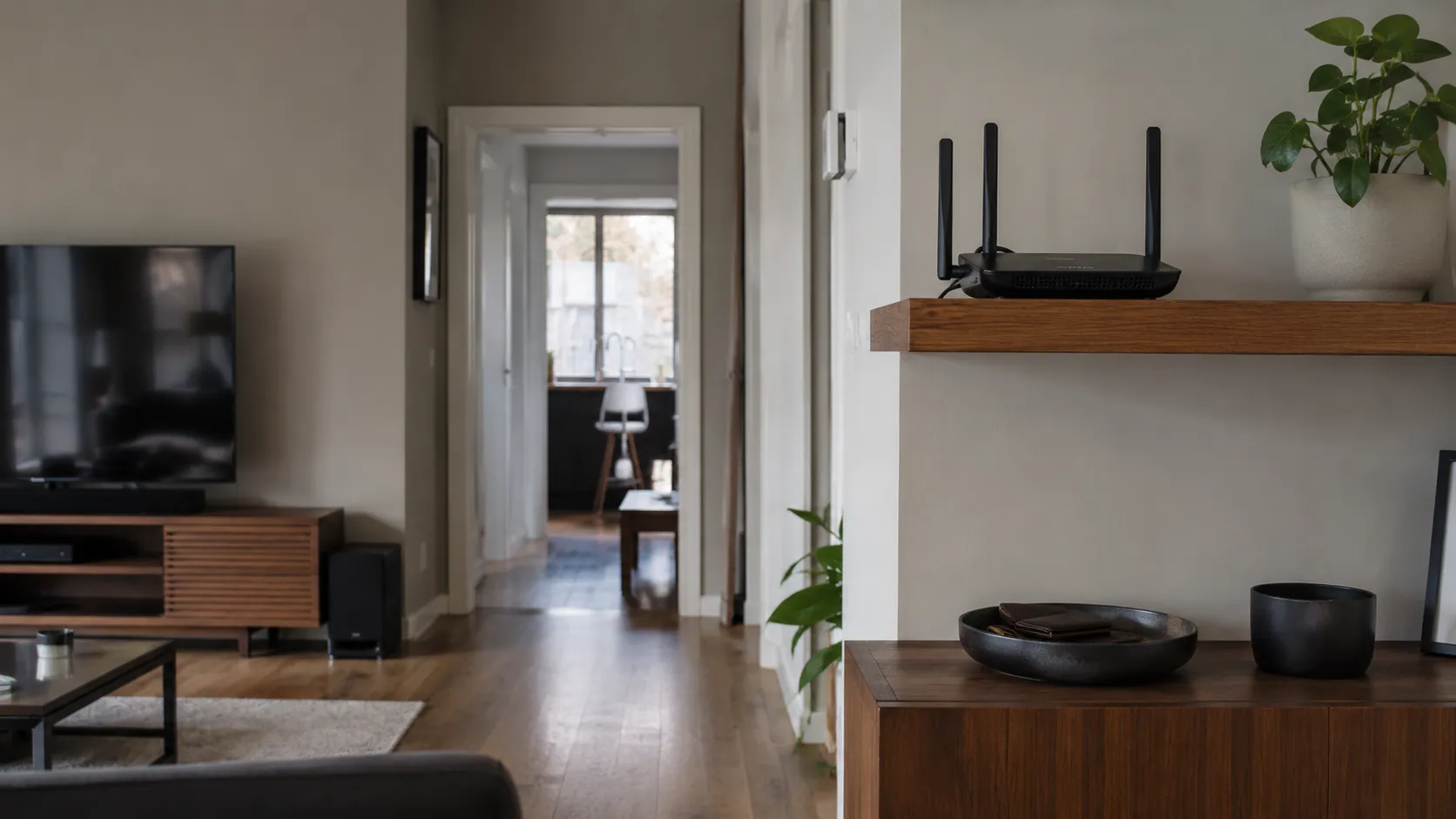
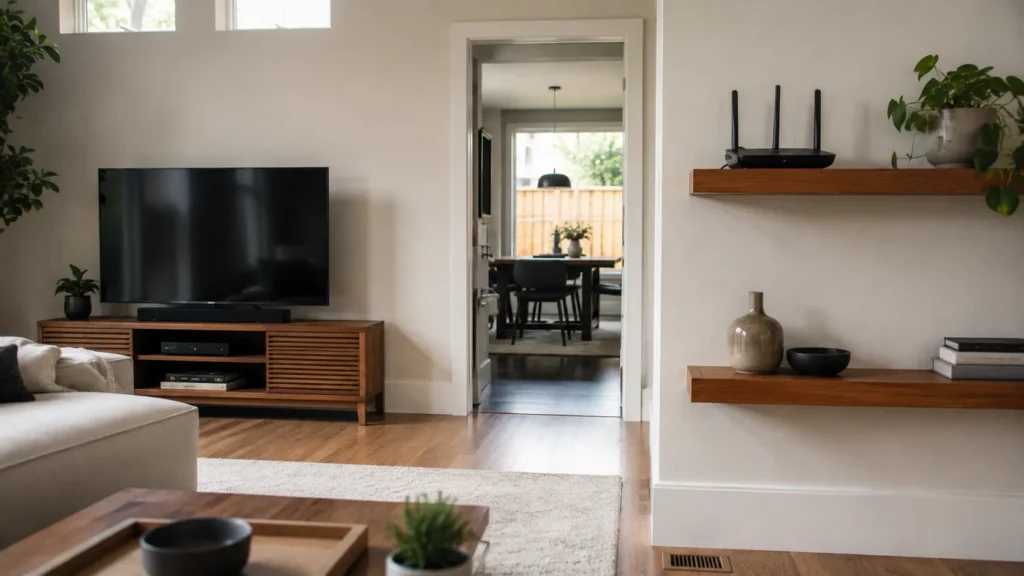
Router placement has a major influence on Wi-Fi coverage, yet the router is often located according to convenience rather than wireless performance. Internet equipment tends to end up wherever the cable or fibre enters the home, where a television was installed, or where somebody found an available electrical outlet years ago. A router generally performs best when it has a reasonably open position near the areas where wireless devices are used. Wi-Fi signals weaken with distance and as they pass through physical obstacles.
Walls and floors matter, but so can masonry, metal, ductwork, large appliances, cabinetry, and other building materials. Even modest changes in position can help. Moving it out of a closed cabinet, raising it from the floor, or shifting it away from a television and other electronics may improve how well the signal travels through the surrounding space.
The layout of the home matters just as much as the router itself. A router installed at the front of the main floor may have a difficult job reaching an office at the back of the basement and a bedroom two floors above. In that situation, endlessly adjusting the router may eventually reach the limits of what one wireless access point can reasonably accomplish. If the equipment cannot be relocated because of the incoming internet connection or existing cabling, leave it where it is until you understand the setup. Extending the network properly may be a better solution than moving cables or disconnecting equipment without knowing what they do.
Make Sure the Internet Connection Is Not the Real Problem
The Wi-Fi symbol on your device tells you about its wireless connection to the network. It does not tell you whether the internet connection beyond the router is performing properly. A laptop can have an excellent Wi-Fi connection to the router while the router itself is receiving a slow or unstable internet connection.
Run a speed test close to the router and compare the result with what you experience in the troublesome areas of the home. If practical, connecting a computer directly to the router with an Ethernet cable provides another useful comparison. Strong performance through Ethernet and near the router, followed by a significant decline elsewhere, points toward the wireless network. Poor performance everywhere suggests that the internet service, modem, router, or another part of the connection deserves attention first.
Keep expectations realistic as well. The maximum speed advertised for an internet package does not mean every wireless device will receive that exact speed in every room. Wi-Fi performance varies with distance, equipment, the capabilities of individual devices, interference, and the physical environment.
Give the Equipment a Proper Restart
Restarting networking equipment is basic troubleshooting, but there is a reason it remains useful. Modems, routers, and Wi-Fi systems operate continuously, and temporary software or connection problems can develop over time. Follow the internet provider’s or manufacturer’s restart procedure when possible. This commonly involves disconnecting power, waiting briefly, reconnecting the equipment, and then allowing several minutes for the network and internet connection to return fully. If you have separate modem and router devices, the recommended sequence may vary.
Be careful not to confuse restarting with performing a factory reset. A factory reset can erase the Wi-Fi name, password, provider settings, custom configuration, and other information needed for the network to operate as expected. It is a much more significant action and should not be used casually as a first troubleshooting step. Pay attention if restarting becomes a routine requirement. Equipment that works properly for a day and then repeatedly needs another restart may have an underlying problem worth investigating.
Consider Whether the Router Still Fits the Household
A router that once served two computers may now be handling phones, tablets, televisions, printers, speakers, cameras, game systems, smart-home devices, work computers, and visitors’ devices. Older equipment is not automatically bad equipment. If the router provides reliable coverage and meets the household’s needs, replacing it simply because a newer model exists accomplishes little. Age becomes relevant when the equipment can no longer provide suitable coverage, performance, reliability, or support for the way the network is being used.
Provider-supplied equipment deserves the same consideration. Internet companies periodically introduce newer gateways and routers, so it can be useful to identify the model currently installed before spending money on separate hardware. The better question is whether the existing equipment suits the home. Consider its layout, the number and type of connected devices, the internet service being delivered, and the importance of reliable connectivity for work or other daily activities.
Decide Whether You Need to Extend the Network
Once you have established that coverage really is the problem, there are several ways to improve it.
A Wi-Fi extender receives an existing wireless signal and rebroadcasts it farther into the home. This can work well when most of the network performs properly and one specific area needs better coverage. Placement is critical because the extender needs a decent signal from the main network before it has anything useful to repeat.
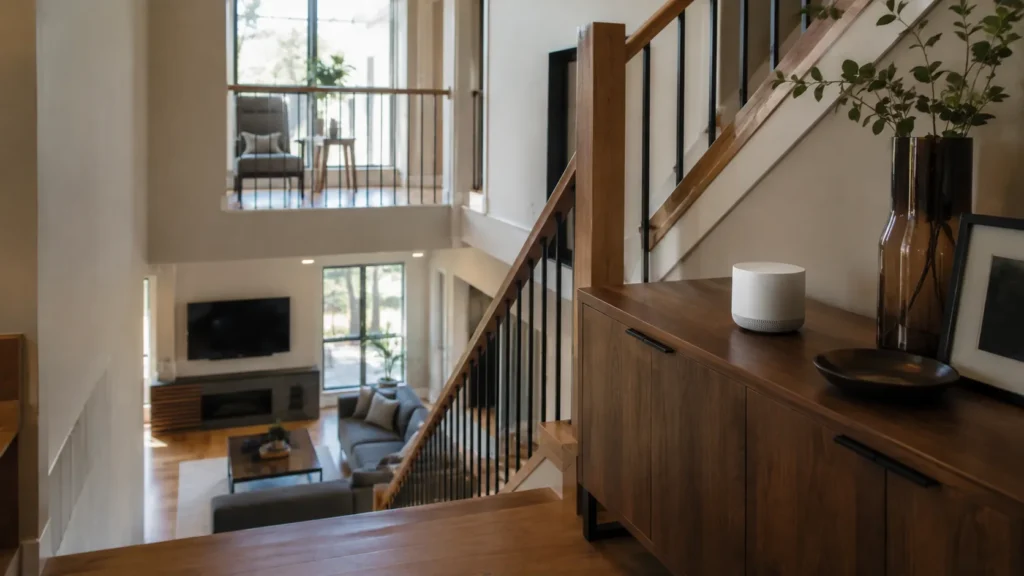
Mesh Wi-Fi takes a different approach. A mesh system uses several coordinated Wi-Fi points, usually called nodes, distributed throughout the home. This can be particularly useful in multi-storey houses or layouts where a single router cannot reasonably serve every important area.
Neither option should be treated as an automatic upgrade. A small home with one troublesome room may not need a complete mesh system, while a house with several dead zones may become unnecessarily complicated if individual extenders are added one at a time. Our guide to Wi-Fi extenders and mesh systems looks more closely at how to choose between the two approaches.
Existing Ethernet Can Change the Equation
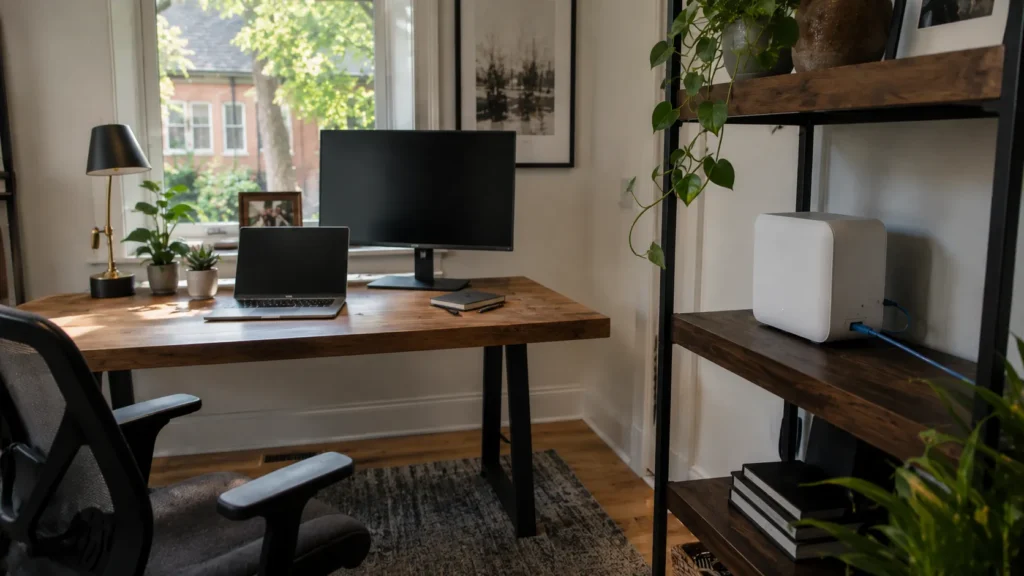
Where Ethernet cabling is available, a wired access point can provide excellent Wi-Fi coverage in another part of the house. The access point connects back to the main network through a cable and creates a local wireless connection for nearby devices. Consider a basement home office that receives a weak signal from a router two floors above. If Ethernet already runs between those locations, an access point in the office does not need to struggle with the same wireless path. It has a wired connection back to the network and can provide Wi-Fi locally.
Some mesh systems can also use Ethernet to connect their nodes. This can combine the convenience of a coordinated mesh network with the reliability of wired connections between locations. Running new Ethernet through a finished home is not always practical, but existing wiring is worth investigating before buying additional wireless equipment. Some homes have useful network cabling that was installed previously and is now sitting disconnected or unused.
Interference and Congestion Can Affect a Good Signal
Wi-Fi uses shared radio frequencies, and your network operates alongside other wireless networks and devices in the surrounding area. This can be particularly noticeable in condos and other environments where many neighbouring Wi-Fi networks operate within a relatively small space. Modern routers are designed to manage much of this automatically, so manually changing advanced wireless settings should not be the first response to every performance problem.
The physical environment still deserves attention. Avoid surrounding the router with electronics or placing it inside a crowded entertainment cabinet. Keep ventilation clear and give the equipment a reasonably open location whenever possible.
There is a temptation to search online for advanced settings and begin changing channels, frequencies, bandwidth options, and other configuration details. Those controls can be useful when there is a specific reason to adjust them, but changing several settings at once can make the original problem harder to identify. Start with the obvious physical and connection issues before moving into more technical configuration.
Test Changes One at a Time
Wi-Fi troubleshooting becomes much easier when you can tell which change produced which result. Moving the router, installing an extender, changing settings, and replacing equipment all at once may improve the network, but you will have no idea which action actually mattered. Make one meaningful change and test again in the same locations. A simple mental map of strong, acceptable, weak, and unreliable areas is often enough. If you want something more systematic, write down the results for the rooms that matter most.
Home-office users should test the network under realistic conditions. Browsing a few websites may appear perfectly normal while a long video call, cloud backup, remote desktop session, or large file transfer exposes instability. Reliable everyday performance matters more than producing an impressive speed-test result while standing beside the router. If a mesh node or extender does not noticeably improve the intended area, you know that the problem still needs investigation rather than simply assuming the new hardware helped.
Avoid Building a Network Out of Years of Quick Fixes
Home networks often grow without anyone deliberately designing them. A provider router is installed first, followed by an extender upstairs. Another extender appears in the basement a few years later. An old router gets repurposed somewhere else, and eventually the house contains several network names and pieces of equipment whose purpose nobody quite remembers.
When a problem occurs, determining which device is responsible becomes much harder. Before adding another piece of networking equipment, identify what is already installed and decide exactly what the new device is supposed to accomplish. Sometimes the best improvement involves removing unnecessary complexity rather than adding another box. For households that depend on their network for remote work, simplicity has another advantage: predictability. A well-understood network is much easier to troubleshoot when something eventually goes wrong.
When Professional Wi-Fi Help Makes Sense
Many coverage problems can be improved with basic troubleshooting. Moving the router, identifying a problem device, restarting equipment, or correcting an obvious placement issue may be all that is required. Professional assistance becomes useful when several floors have inconsistent coverage, a basement or addition is difficult to reach, home-office connectivity remains unreliable, or the existing network has become too complicated to diagnose confidently. It can also help when you are unsure whether installed Ethernet can be reused or whether buying new equipment will actually solve the problem.
A useful Wi-Fi assessment should begin with what you already have. The existing equipment, home layout, available wiring, problem areas, internet connection, and everyday requirements should guide the recommendation. East Toronto Tech provides Wi-Fi and connectivity assistance for Toronto homes and home offices, including troubleshooting existing networks, identifying coverage problems, and recommending improvements where they make practical sense.
Build Wi-Fi Around the Home You Actually Use
A good home network should quietly do its job. You should be able to work, stream, browse, and use connected devices in the parts of the house that matter without routinely thinking about signal strength or wondering whether the connection will hold. Start by identifying the pattern behind the problem.
Check the router location, separate Wi-Fi coverage from internet-service performance, and understand the equipment already in place before buying anything else. From there, the appropriate solution may be a simple placement change, an extender, a mesh system, a wired access point, or replacement equipment. The right solution depends on the house and how the people living in it actually use their connection. A well-planned Wi-Fi network should fade into the background and simply be there when you need it.