Laptop or Desktop for a Home Office: Which Makes More Sense?
Choosing between a laptop and desktop for a home office sounds straightforward until you consider how the computer will actually be used. A laptop offers mobility and a built-in battery, while a desktop can provide more flexibility for monitors, storage, upgrades, and permanent desk setups. Neither is automatically the better home-office computer.
The right choice depends on where you work, whether the computer needs to travel, which applications you use, and how much equipment connects to the workstation. Someone who moves between home, client sites, and meetings will value different things from someone who works at the same desk every day. The useful question is which format introduces the fewest compromises into your normal workflow.
Start With How Often the Computer Needs to Move
Mobility is the clearest reason to choose a laptop. If the computer regularly leaves the home office, travels to meetings, moves between rooms, or needs to work from another location, a desktop becomes difficult to justify as the only machine. A laptop lets the same applications, files, accounts, and settings move with you.
That flexibility can also be useful inside the home. Some people work at a desk most of the day but occasionally move to the kitchen, living room, or another space for a change of environment. If the computer almost never leaves the desk, however, mobility may have little practical value. In that situation, the differences in expansion, repairability, connections, and workstation design become more important.
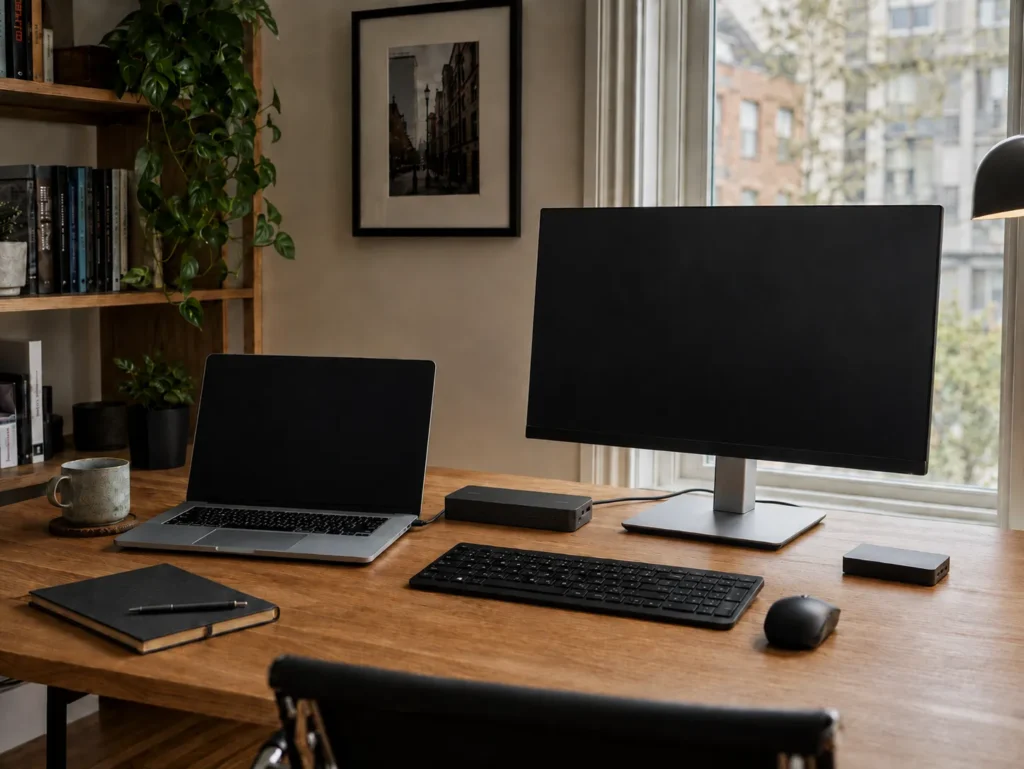
A Laptop Can Still Be a Full Desktop-Style Workstation
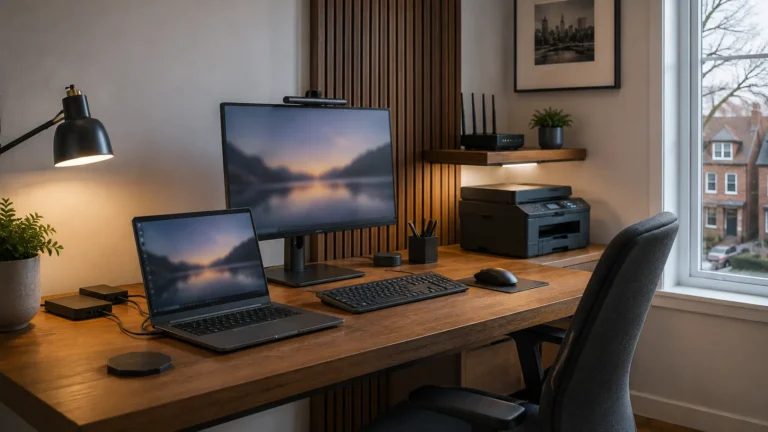
Choosing a laptop does not mean working all day on a small screen with the built-in keyboard. A laptop can connect to external monitors, a full-size keyboard, mouse, Ethernet, storage, speakers, and other peripherals. A dock can make the transition between portable and desk use especially simple.
This arrangement works well for people who want one computer for both mobile and stationary work. At the desk, the laptop functions much like a traditional desktop workstation, then disconnects when it needs to travel. The quality of the dock and connections matters, particularly when several monitors and peripherals depend on one device. Test the full setup under the actual workload rather than assuming it will be reliable simply because all the cables connect.
Desktops Make Sense for Permanent Workstations
A desktop is often a strong choice when the computer will remain in one location. There is little reason to pay for a built-in display, battery, compact chassis, and portability that will rarely be used. More of the system can instead be designed around performance, cooling, storage, and expansion.
Permanent workstations can also be easier to organize around multiple monitors and desk-based equipment. Printers, external drives, specialized USB devices, wired networking, speakers, and other peripherals can remain connected without relying as heavily on docks and adapters. A desktop requires a separate monitor, keyboard, and mouse, but in an established home office that can be an advantage because each component can be chosen and replaced independently.
Performance Depends on the Actual Hardware
The word “desktop” does not automatically mean powerful, and “laptop” does not automatically mean slow. Both formats are available with a wide range of processors, memory, storage, and graphics capabilities. The workload should determine the specifications rather than the case style.
For ordinary office work, either format can provide more than enough performance. Email, Microsoft 365, Google Workspace, web applications, video calls, spreadsheets, and general business software do not inherently require a desktop. More demanding work such as video editing, 3D design, engineering software, large datasets, and virtual machines may benefit from the cooling and higher-power components available in a desktop. Capable mobile workstations also exist, so the decision still comes back to workload and mobility.
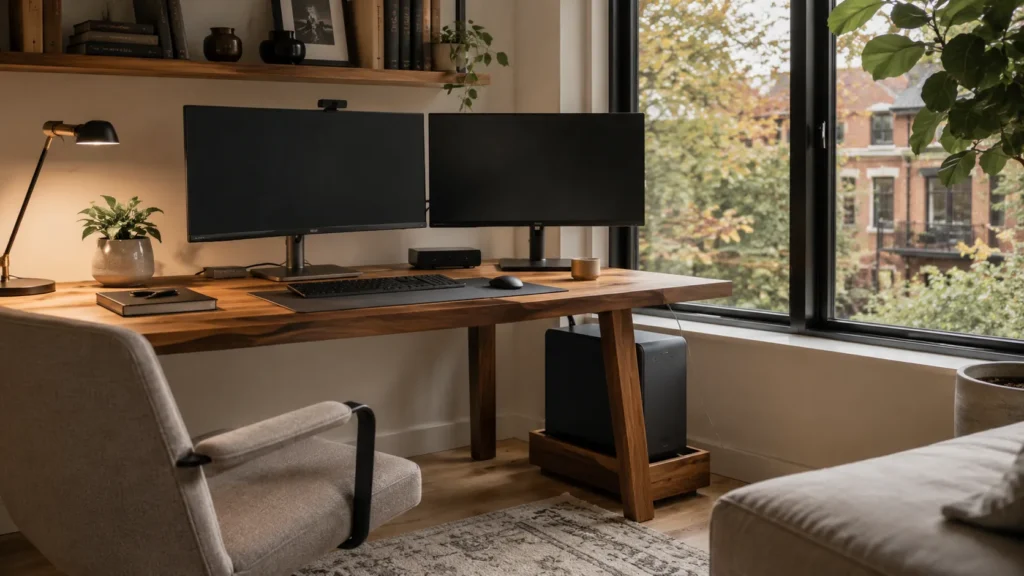
Desktops Usually Offer More Upgrade Flexibility
One traditional advantage of a desktop is that individual components are often easier to replace or upgrade. Depending on the system, memory, storage, graphics hardware, networking cards, power supplies, and other parts may be accessible independently. That can extend the useful life of a well-chosen machine and make certain repairs easier.
Laptops are usually more integrated. Some models allow memory and storage upgrades, while others solder important components to the motherboard or make internal access difficult. Upgradeability should not be overvalued if you are unlikely to use it, since many home-office users replace the entire computer before changing major components. Accessible storage, memory, and replaceable parts can still make modest upgrades and repairs more practical over several years.
Repairability Can Matter Over Several Years
A desktop often provides more options when something fails because major components can be replaced individually. A failed power supply, storage drive, or graphics card may be repairable without replacing the whole machine. This does not guarantee an inexpensive repair, but a modular design usually provides more possibilities.
Laptop failures can be more concentrated because the screen, charging port, hinge, keyboard, battery, and motherboard are integrated into a compact device. Repairs can still be worthwhile on a good-quality system, but model-specific construction matters considerably. This is one reason replacement decisions should be based on condition and economics rather than age alone. Our guide to when an older Windows PC should be replaced looks more closely at reliability, repair costs, software support, and whether further investment still makes sense.
Laptops Have a Built-In Power Advantage
A laptop battery provides short-term protection against a power interruption. If the electricity goes out briefly, the computer can continue running while you save work or finish an immediate task. That can be useful in a home office, especially when the battery is still healthy.
The rest of the office may still shut down. The modem, router, external monitor, dock, network storage, and other equipment normally lose power unless they have their own battery backup. Desktop users can address short interruptions with a UPS, which can also protect selected networking equipment. The broader power-resilience plan matters more than simply whether the computer contains a battery.
Think About the Monitor Setup
Screen space has a major effect on how comfortable a home office feels. A desktop naturally assumes an external monitor, while a laptop gives you the option of using its built-in display alone or connecting one or more additional screens. Both formats can support an excellent desk setup.
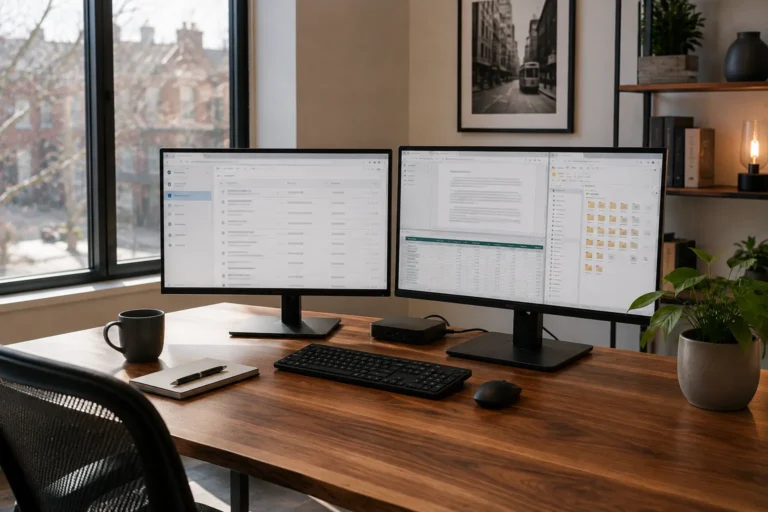
For many home-office users, a laptop paired with a good external monitor provides a useful balance. The larger display can become the main workspace while the laptop screen serves as a second display or remains closed in a suitable docked configuration. A desktop may be cleaner when several large monitors are permanently required because there is no laptop lid or docking arrangement to accommodate. Choose the display setup around the work rather than assuming more screens are automatically better.
Consider the Ports and Peripherals You Use
Modern laptops often have fewer built-in ports than older systems. USB-C can carry power, displays, networking, and peripherals through a small number of connectors, but this may make the workstation dependent on a dock or adapters. For some users that creates a clean setup, while for others it introduces another component that can fail.
A desktop generally offers more direct connections, including multiple USB ports, Ethernet, audio connections, and display outputs. This can be particularly useful when specialized devices need permanent connections. Before choosing either format, make a list of what plugs into the current computer, including monitors, printers, scanners, external drives, webcams, microphones, card readers, and specialist business equipment. Make sure the new computer can support the complete workstation rather than just the applications you plan to run.
Noise and Heat Can Affect the Workspace
Home offices are often quiet enough that computer noise becomes noticeable. A small laptop under sustained load may run its fans aggressively because it has limited space to dissipate heat. That does not mean the machine is defective, but it can become distracting during long working sessions.
Desktops have more physical space for cooling and can often use larger fans at lower speeds. A well-designed desktop may therefore remain relatively quiet under demanding workloads, although high-performance desktops can still be noisy. Heat also affects placement, so laptops need appropriate ventilation at the desk and desktop towers should not be packed into closed cabinets. Cooling should be considered if the computer will spend long periods under heavy load.
Video Calls Work Well on Either
Both laptops and desktops can provide excellent video conferencing. Laptops have an advantage in convenience because the camera, microphone, speakers, and display are usually built in, giving you a basic meeting setup wherever the computer goes. For occasional calls, that may be all that is required.
A permanent desktop setup usually relies on a separate webcam and microphone or headset. That provides more control over camera position and audio quality, which can be useful for people who spend much of the day in meetings. A docked laptop can use the same external equipment, so the distinction becomes smaller at a permanent desk. Call reliability ultimately depends on the network, computer load, audio devices, and meeting software, which our guide to making video calls more reliable at home covers in greater detail.
File Storage Should Not Depend on the Format
A laptop is easier to steal, drop, or damage because it moves around more often, but a desktop can fail just as unexpectedly. Important home-office files need a sensible storage and backup plan regardless of which type of computer sits on the desk. The computer itself should never be the only place irreplaceable work exists.
Cloud storage can make laptop mobility particularly convenient because files remain available across locations. Desktop users benefit from the same services, and both formats can use external drives, network storage, or dedicated backup tools. If the data matters, it should exist in more than one place. The choice between laptop and desktop should not change that principle.
Security Depends More on Setup Than Form Factor
Both laptops and desktops can be configured securely. Supported software, current updates, strong account protection, device encryption where appropriate, multi-factor authentication, and sensible backup practices matter far more than whether the computer is portable. Home-office machines often contain access to business email, financial information, customer files, and cloud services regardless of their physical size.
Laptops introduce additional physical considerations because they leave the home more often. A lost or stolen portable computer can expose locally stored information if the device is not properly protected, making screen locks and encryption particularly important. Desktop computers generally remain in a more controlled physical environment, but that should not lead to weaker account or data protection. Security should reflect the information and services the computer can access.
One Computer or Two?
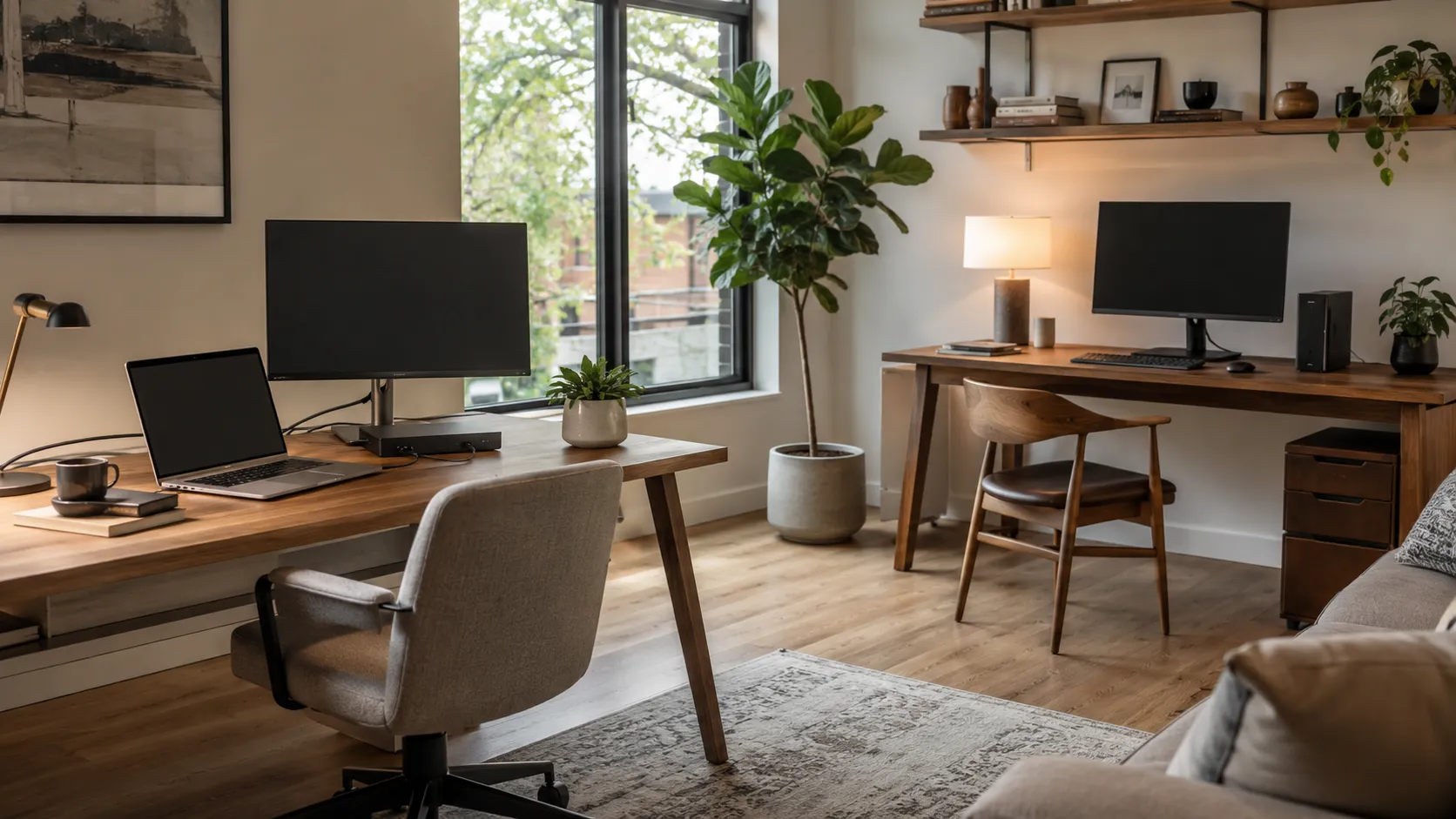
Some home-office users eventually consider keeping both a desktop and a laptop. That can provide excellent flexibility, but it also means maintaining two computers instead of one. Applications, updates, files, licences, settings, and security need to remain organized across both machines.
Cloud storage and account-based applications make this easier than it once was. A desktop can serve as the main workstation while a lighter laptop handles travel, meetings, or occasional work elsewhere. For many people, however, one capable laptop with a reliable dock is simpler. The best answer depends on whether the advantages of two machines justify the additional cost and maintenance.
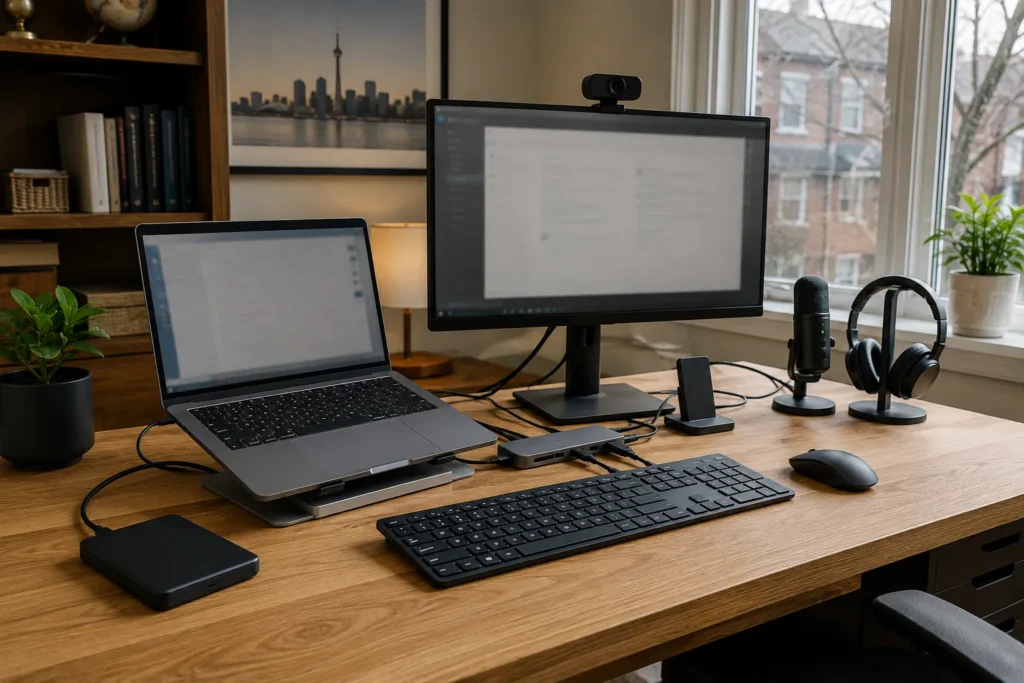
Consider the Cost of the Complete Setup
Comparing the sticker price of a laptop and desktop can be misleading. The useful comparison is the cost of the complete working environment. A desktop may require a monitor, webcam, keyboard, mouse, and possibly speakers before it is ready for work.
A laptop includes most of those functions, but a comfortable permanent setup may still require an external monitor, dock, keyboard, and mouse. Adapters, cables, additional storage, and other peripherals can change the total cost considerably. A less expensive computer can become the more expensive choice once everything needed to make it practical has been added. The best value is the system that performs the work reliably for a reasonable period without unnecessary compromises.
When a Laptop Makes the Most Sense
A laptop is usually the stronger choice when mobility is part of the work. Frequent meetings away from home, travel, working from several locations, or simply wanting the option to move around the house all favour a portable computer. The built-in battery also provides useful short-term resilience during power interruptions.
A laptop can still provide an excellent permanent desk experience when paired with a monitor, keyboard, mouse, and suitable dock. For many professionals, this combination offers enough performance and flexibility that a separate desktop would add little value. If the laptop will spend most of its life docked, prioritize reliable connections, appropriate cooling, and enough performance for the workload rather than choosing solely for thinness or weight.
When a Desktop Makes the Most Sense
A desktop is attractive when the computer will remain at one desk and portability has little value. It can provide easier expansion, more direct peripheral connections, flexible monitor support, and greater repairability depending on the system. Sustained demanding workloads can also favour a desktop design.
It may be the cleaner option for a permanent workstation with several monitors, storage devices, and specialist peripherals. There is no need to repeatedly connect and disconnect equipment, and the workstation can be built around the exact requirements of the job. A desktop becomes especially sensible when another device is already available for occasional mobile work. In that situation, the primary office computer does not need to make compromises for portability.
When Professional Guidance Makes Sense
Computer choices become harder when the software, peripherals, and working environment have specific requirements. It can be useful to review the actual workload before buying, particularly when replacing a primary business machine or building a home office that needs to remain dependable for several years. A useful recommendation should consider applications, monitors, storage, peripheral compatibility, portability, upgrade options, backup strategy, and available workspace.
The most expensive machine is not automatically the most appropriate one. East Toronto Tech provides home-office and computer support for Toronto professionals and small businesses, including device selection guidance, new-computer setup, peripheral planning, and migration from older systems. The aim is to choose equipment around the work rather than add specifications or features that will not provide real value.
Choose the Computer Around the Work
A laptop makes sense when mobility matters and can still become a capable desk workstation. A desktop makes sense when the machine will remain in one place and expansion, repairability, direct connections, or sustained performance matter more than portability. Both can provide an excellent home-office experience when chosen for the right reasons.
Start with the work you need to do, then consider how often the computer moves, what connects to it, and what would become frustrating over several years of daily use. That usually narrows the decision more effectively than comparing product categories in isolation. The better home-office computer is the one that fits into the working day with the fewest compromises.