How to Set Up a Reliable Home Office
A reliable home office is less about impressive equipment and more about removing the small failures that interrupt work. A computer that freezes during a meeting, weak Wi-Fi at the desk, a printer that disappears from the network, or a power outage that shuts everything down can turn a comfortable workspace into a source of frustration. These problems often develop gradually because home offices are usually assembled over time rather than planned as complete working environments.
The best setup supports the work you actually do. That means starting with the essentials, understanding where reliability matters most, and avoiding unnecessary complexity. You do not need enterprise-level equipment to build a dependable home office. You do need a clear idea of what would stop you from working if it failed.
Start With the Work, Not the Equipment
Before choosing hardware or changing the room, think about what happens during a normal working day. Someone who mainly writes documents, answers email, and joins occasional video calls has different requirements from someone who transfers large files, works through a VPN, edits media, or spends most of the day in online meetings. Consider which applications are open together, whether you use one or several monitors, how often you print or scan, and whether you depend on specialist devices.
This keeps the setup focused on real requirements. A home office built around actual work is easier to maintain than one assembled from a collection of technology recommendations that sounded useful but never became part of the workflow. Start with the tasks that matter most and build outward from there.
Give the Office a Dependable Internet Connection
Connectivity is one of the most important parts of a home office because so much modern work depends on services outside the house. Email, Microsoft 365, Google Workspace, cloud storage, video conferencing, remote access, accounting platforms, and other online tools all depend on a stable connection. Start by testing Wi-Fi from the desk where you actually work.
A strong connection elsewhere in the home does not guarantee good performance in the office. Basement rooms, upper floors, converted bedrooms, and additions can sit in difficult locations relative to the router. If Wi-Fi is unreliable only in the office, investigate distance, walls, floors, router placement, and interference before assuming the internet package is too slow.
Our guide to why Wi-Fi can be slow in some rooms explains how to identify those patterns. The broader guide to improving Wi-Fi coverage in a Toronto home covers common ways to address them. Understanding whether the problem is coverage or the internet service itself helps avoid spending money in the wrong place.

Use Ethernet Where It Makes Sense
Wi-Fi is convenient, but a stationary work computer does not always need to use it. If Ethernet cabling is available near the desk, a wired connection can provide a simple and dependable path to the network. This can be especially useful for video calls, remote desktop work, large file transfers, and other activities where consistency matters.
A wired desktop can also reduce the number of important tasks depending entirely on the wireless network. Phones, tablets, and laptops still benefit from good Wi-Fi, so Ethernet does not replace the need for reasonable wireless coverage. Existing cabling is worth investigating before buying extenders or other wireless equipment. A cable already running to the office may solve the problem more cleanly than adding another wireless hop.
Choose a Computer That Fits the Job
A home-office computer should feel comfortably capable during a normal working day. If it slows down whenever several applications are open, struggles during video meetings, or takes excessive time to complete routine tasks, it can become a daily productivity problem. The right computer depends on the workload rather than a particular specification that suits everyone.
Basic office tasks may require relatively modest hardware, while creative work, large datasets, engineering software, or other demanding applications need more capability. Reliability matters as much as raw speed. An older computer that performs consistently can remain useful, while a newer machine with repeated crashes or hardware faults may create more disruption.
If an existing Windows PC is becoming difficult to trust, our guide to deciding when an older Windows computer should be replaced provides a useful way to judge repair, upgrade, or replacement. Look at how the machine performs during your real workload rather than focusing only on its age. A computer is doing its job when it stays out of the way of the work.
Laptop or Desktop Depends on How You Work
A laptop offers flexibility because it can move between rooms, travel to meetings, and continue working through short power interruptions when its battery is healthy. A desktop can provide excellent performance, easier hardware expansion, and a comfortable permanent workstation. It may also offer more flexibility for multiple monitors, storage, and peripherals.
Neither format is inherently better for a home office. Someone who rarely leaves the desk may prefer a desktop, while a professional who moves between locations will usually benefit from a laptop. A laptop connected to a dock, monitor, keyboard, and mouse can also function much like a desktop while remaining portable.
The best choice depends on how often the computer needs to move, which applications it runs, and how much expansion or peripheral support is required. Consider the entire working arrangement rather than the computer alone. The format should suit the way the office is actually used.
Make the Screen and Desk Comfortable for Real Work
A reliable office should also be comfortable enough to use for several hours without creating unnecessary strain. Monitor size, height, viewing distance, keyboard position, mouse placement, and chair adjustment all influence how the workspace feels over a full day. Many people benefit from an external monitor when a laptop is their primary computer.
Two monitors can be useful for certain workflows, but more screens are not automatically better. If the work does not benefit from them, they add cost, cabling, power use, and desk space without solving a real problem. Keep frequently used equipment within comfortable reach and avoid building the desk around a tangle of adapters and extension cords. The technology should support the workspace rather than dominate it.

Treat Video Calls as a System
Reliable video conferencing depends on more than the webcam. The internet connection must remain stable, the computer needs enough resources to run the meeting software comfortably, and the microphone, camera, lighting, and speakers all affect the experience. Looking at the entire chain makes troubleshooting easier when calls are poor.
Place the camera roughly at eye level, make sure your face is reasonably well lit, and use a microphone that produces clear speech without forcing you to lean toward it. Laptop microphones may be perfectly adequate for occasional meetings, while frequent calls can justify a headset or external microphone. Audio problems such as echo, background noise, or unreliable Bluetooth can be more disruptive than imperfect video.
If calls frequently freeze or disconnect, check the network before replacing the camera or microphone. The visible problem may appear inside the meeting application while the underlying cause is weak Wi-Fi or an unstable internet connection. Test calls from the actual desk under normal working conditions.
Keep Printers and Scanners Simple
A home-office printer should be dependable enough that you do not have to think about it. Choose the printer based on the actual workload because someone printing a few colour pages each month has different needs from someone producing hundreds of business documents. If scanning matters, test that workflow as carefully as printing.
Network-connected printers are convenient when several computers need access, but they depend on the network remaining stable. Ethernet can sometimes be preferable when the printer supports it and cabling is available. A multifunction device that prints properly but regularly loses its scanner connection is only partially useful.
If an existing printer is frequently offline, jamming, or becoming expensive to maintain, our guide to common printer problems and when repair is worth it can help with the decision. The objective is dependable printing and scanning rather than accumulating features. Choose equipment that fits the volume and type of work.
Build a Sensible File Storage System
Home-office files can spread quickly when there is no clear structure. Documents may end up across the Desktop, Downloads folder, OneDrive, Google Drive, external drives, email attachments, and application-specific folders. Choose a primary working location for important files and use a folder structure simple enough to maintain.
For many people, cloud storage provides a convenient working environment because files remain available across devices and changes synchronize automatically. That convenience is most useful when everyone involved understands where the active version of a file lives. Several overlapping storage locations can make it easy to edit the wrong copy or lose track of important work.
Cloud synchronization should also be understood correctly. A synchronized folder is not automatically a complete backup strategy. Important files need protection beyond the assumption that they are somewhere online.
Back Up the Work That Matters
A home office can contain information that would be painful or expensive to recreate. Business documents, financial records, client materials, photographs, project files, templates, and years of correspondence may all deserve protection. If the data matters, it should exist in more than one place.
The exact backup arrangement will vary, but the important part is avoiding a single point of failure. One computer, one external drive, or one cloud account should not hold the only copy of important work. A combination of local and cloud protection may make sense depending on the data and how quickly it would need to be recovered.
Backups also need to be checked. Software reporting that a backup completed successfully is useful, but the real objective is being able to recover the files when something goes wrong. Backup planning becomes particularly important before replacing a computer, reinstalling Windows, or changing storage.
Protect the Office From Short Power Interruptions
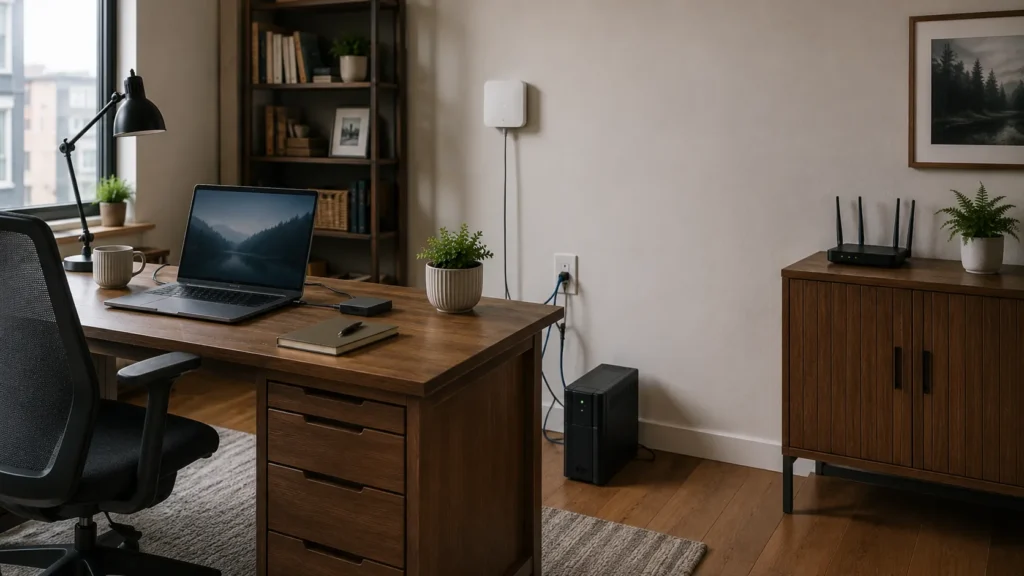
A brief power outage can be surprisingly disruptive to a home office. A laptop may continue working on battery, while the modem, router, monitor, desktop computer, network storage, and other equipment shut down immediately. A UPS, or uninterruptible power supply, can keep selected equipment running temporarily and provide time to save work or shut devices down properly.
Most home-office UPS units are intended for short interruptions and controlled shutdown rather than powering an entire workspace indefinitely. Network equipment deserves particular attention because keeping the computer powered is less useful if the modem and router shut off at the same moment. Decide which devices genuinely need temporary power before choosing what to connect.
Our guide to UPS battery backup for home offices looks more closely at what these units can protect and how to think about sizing them. A small amount of carefully targeted backup power can be more useful than trying to keep every device running. The goal is enough continuity to handle short interruptions safely.
Think About Internet Backup if Downtime Matters
Most home offices can tolerate an occasional internet outage. Others depend on constant remote access, customer calls, cloud applications, or online meetings and may need a fallback connection. The decision should depend on what an outage actually costs you.
A smartphone hotspot can be enough for occasional emergencies when the cellular plan and local signal are suitable. More demanding situations may justify a dedicated cellular backup or another internet connection. Before paying for redundancy, consider how long you can work without the main connection and which tasks would become unavailable.
If internet access is central to earning income, knowing what you will do when it fails is part of a reliable setup. A fallback should match the business impact rather than being added simply because redundancy sounds desirable. Test the backup method occasionally so you know how to use it before an outage.
Organize Power and Cables Deliberately
Home offices often accumulate power bars, chargers, adapters, docks, and cables one device at a time. Eventually, nobody remembers which adapter belongs to which device and the desk becomes difficult to troubleshoot. Keeping power and cabling understandable makes everyday maintenance much easier.
Label unusual adapters where useful and keep important cables accessible. Avoid placing power-bar switches where they can be kicked accidentally or cords where they remain under constant strain. Do not overload outlets or power bars, and remember that high-power appliances and office equipment can have very different electrical requirements.
If you are unsure whether an electrical arrangement is safe, consult a qualified electrician rather than improvising. From a technology perspective, the objective is simply to know what is plugged into what. That makes failures easier to isolate when something suddenly stops working.
Plan for Account Recovery Before You Need It
Passwords and account access are part of home-office reliability. A forgotten password may be inconvenient, while losing access to the email account used to recover every other business service can become far more serious. Use strong, unique passwords and consider a reputable password manager if managing them individually has become difficult.
Multi-factor authentication should be enabled where appropriate, especially on important email, cloud storage, and business accounts. Recovery methods deserve the same attention because backup email addresses and phone numbers can become outdated. Store recovery codes securely where the service provides them.
A reliable home office should be able to recover from a lost phone, forgotten password, or failed device without depending on luck. Review important recovery information before an emergency rather than during one. Account access is part of business continuity even in a one-person home office.
Keep the Setup Understandable
Complexity has a cost. An office with overlapping cloud-storage services, multiple Wi-Fi extenders, old printers, unused software, mystery cables, and several ways of accessing the same files may work for years until something changes. Troubleshooting then becomes difficult because nobody understands how the pieces relate.
Try to keep the environment deliberate. Know which computer is the primary work machine, where important files live, how they are backed up, which network devices provide connectivity, and which accounts control essential services. Document unusual settings when they would be difficult to recreate.
The goal is not perfect documentation. It is being able to answer basic questions when something stops working. A setup you understand is much easier to repair, replace, or expand later.
Test the Things That Would Stop You From Working
A home office can appear reliable until one important component fails. Think about the things that would interrupt work immediately, such as the internet connection, main computer, email account, printer, external monitor, cloud storage, or a particular business application. Those are the areas worth testing periodically.
Confirm that backups can be accessed, the laptop charger and dock still work, and the printer can actually print and scan. Verify account recovery information before an emergency and make sure important external drives or peripherals are still functioning. These checks do not need to become a complicated maintenance routine.
A few simple tests can uncover problems while there is still time to solve them calmly. The purpose is to find weaknesses before they become outages. Reliability improves when important dependencies are known rather than assumed.
When Professional Home-Office Help Makes Sense
A home office does not need to become technically complicated before professional help is worthwhile. Assistance can make sense when Wi-Fi is unreliable, several devices need to work together, a new computer is being introduced, printers or scanners behave inconsistently, backup is unclear, or the workspace has grown through years of incremental changes. The benefit is often as much about simplifying the environment as fixing a specific fault.
A useful assessment should begin with the work being done and the problems that actually interrupt it. The objective is to improve reliability without replacing functioning technology unnecessarily. East Toronto Tech provides home-office technology support for Toronto professionals and small businesses, including Wi-Fi troubleshooting, computer and peripheral setup, backup planning, connectivity improvements, and technology guidance. Recommendations should fit the workload and the existing setup rather than add complexity for its own sake.
Build an Office You Can Depend On
A reliable home office does not require the newest version of everything. It requires a stable internet connection, a computer suited to the workload, sensible file storage and backup, dependable peripherals, and a plan for failures that would otherwise stop work. Start with the parts of the office you depend on most.
Fix the obvious weak points, keep the setup understandable, and add resilience where downtime would genuinely matter. The best home-office technology gradually becomes less noticeable because it supports the work without constantly demanding attention. A dependable office should give you fewer reasons to think about the technology itself.