How to Move to a New Computer Without Losing Important Files
Moving to a new computer should feel like an upgrade, but it can become stressful quickly if files, settings, or accounts are missed along the way. The safest approach is to treat the move as a controlled migration rather than a simple copy-and-paste job. Important data should already be backed up, the old computer should remain intact until the new one has been tested, and each major category of information should be checked deliberately.
Most migration problems come from assumptions. People assume everything is in OneDrive, browser passwords will follow automatically, Outlook mail is stored online, or a folder copied successfully because no error appeared. A little structure prevents most of those problems and makes the transition easier.
Back Up Before You Transfer Anything
A migration is not a backup. If you move the only copy of an important file from the old computer to the new one, you have changed its location without protecting it. Before beginning the transfer, create a separate backup of anything important using an external drive, cloud backup service, network storage, or another reliable destination. If the data matters, it should exist in more than one place.
This is especially important when the old computer is already unstable. A failing drive can become worse during large transfers because reading hundreds of gigabytes places sustained demand on the hardware. If the machine shows signs of serious storage failure, frequent crashes, or files becoming unreadable, stop treating the process as an ordinary migration. Protecting recoverable data becomes the priority.
Know Where Your Files Actually Are
Many users think of their files as simply being “on the computer,” but Windows can store information in several different places. Documents may be in Documents, on the Desktop, inside Downloads, in OneDrive, on another internal drive, or in folders created by specific applications. Photos and business files may also be scattered across local folders and cloud-synchronized locations.
Before transferring anything, review the main user folders and identify where important data actually lives. Check Desktop, Documents, Downloads, Pictures, Videos, Music, OneDrive, Google Drive, manually created project folders, secondary internal drives, and any external drives used regularly. Downloads deserves special attention because it often contains both disposable installers and important files that were never moved elsewhere. Review it rather than copying or deleting it blindly.
Understand the Difference Between Cloud Sync and Local Storage
Cloud services can make a migration much easier, but only if you know what they are syncing. OneDrive, Google Drive, Dropbox, and similar services may already contain much of the data you need, allowing files to reappear after you sign in on the new computer. That does not mean every file on the old machine is stored safely in the cloud.
Some folders may not be included in synchronization, and certain files may exist only locally. Cloud placeholders may represent files that are stored online but not currently downloaded, while other local folders may never have been uploaded at all. Check synchronization status before assuming the cloud copy is complete. For important data, confirm that files can actually be opened from the cloud service or another device.
Decide How You Are Going to Move the Data
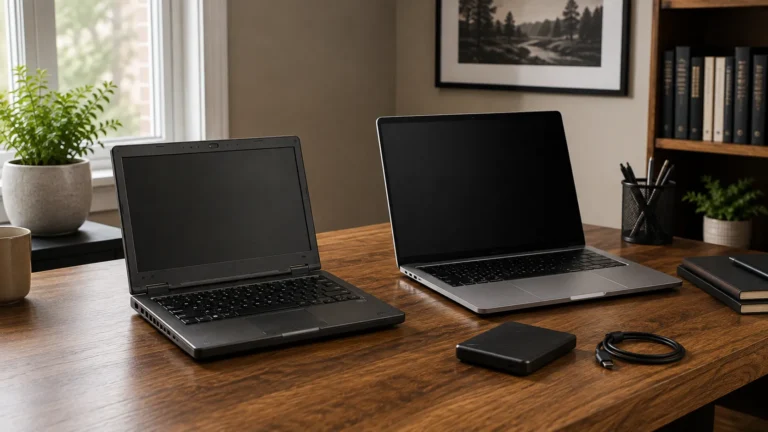
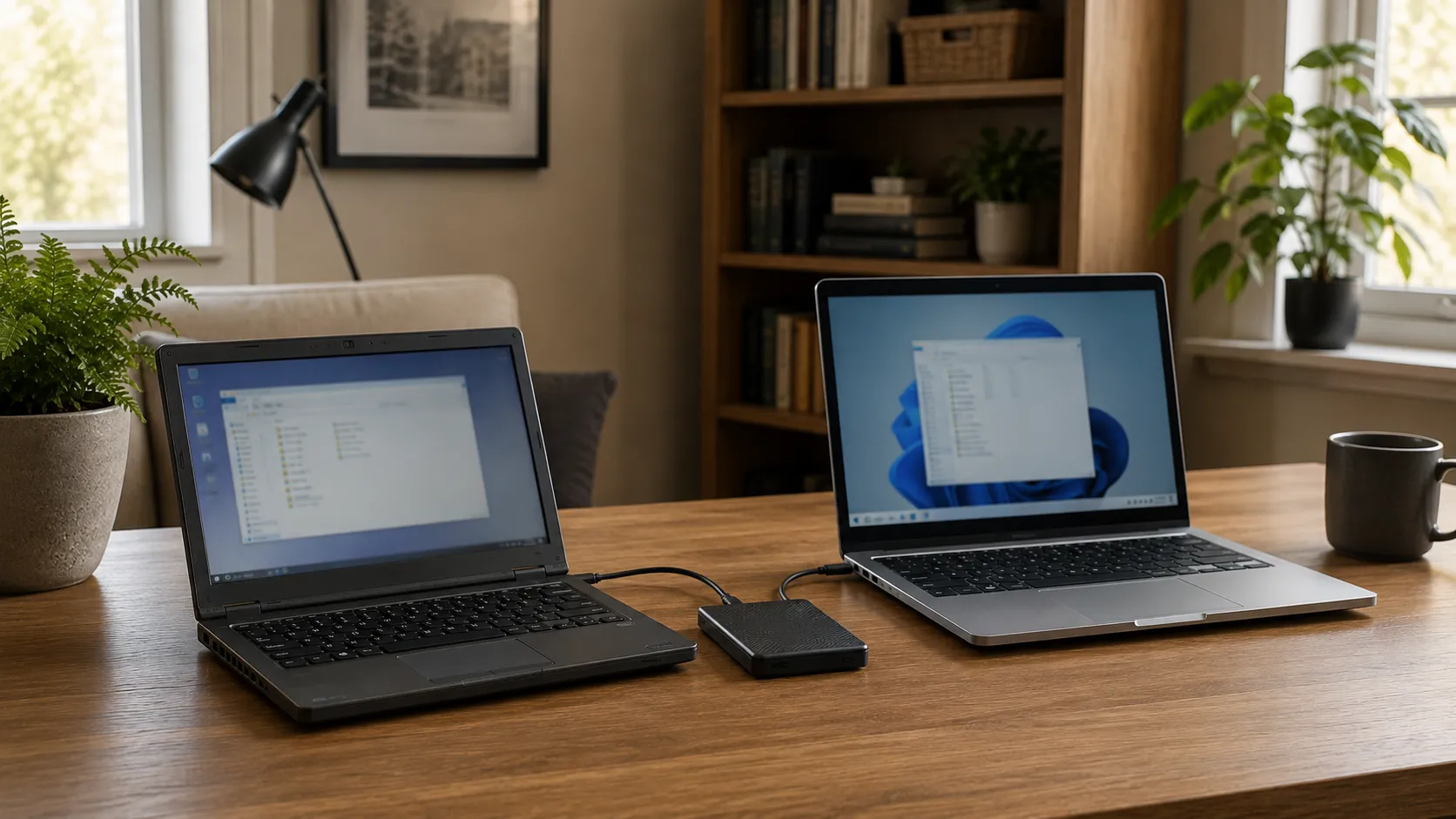
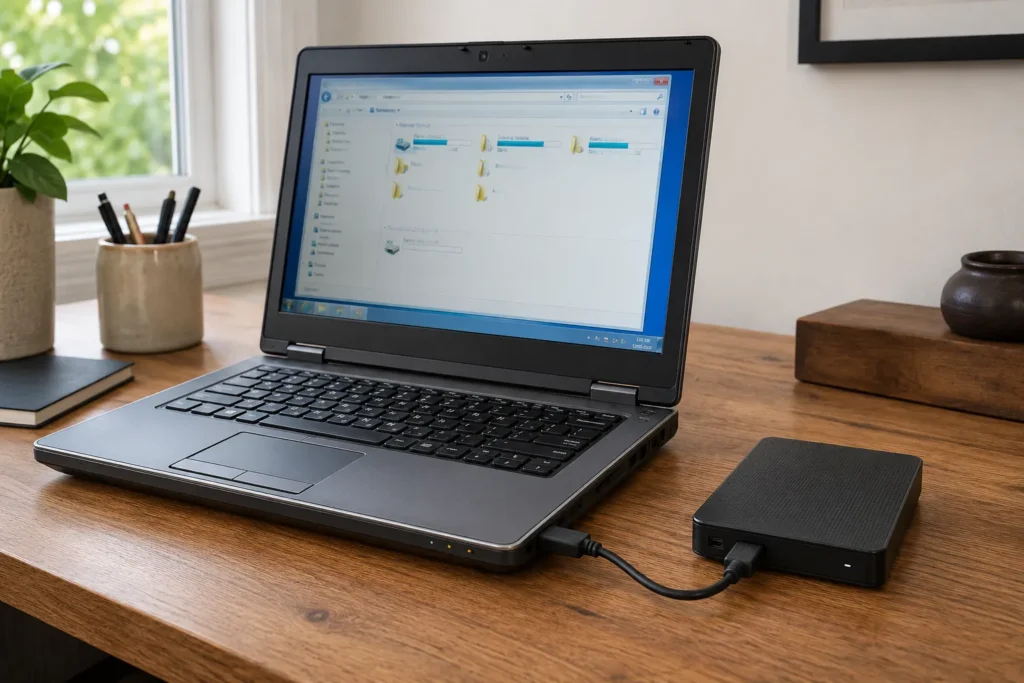
There is no single best transfer method for every computer. Cloud storage works well when important files are already synchronized and the internet connection is suitable, while an external SSD or hard drive can be faster for large local collections. Network storage can make sense in a home office or small-business environment where both computers can access the same location.
Whichever method you choose, copy files rather than immediately removing them from the old computer. Keep the originals in place until the new system has been verified. If you are using an external drive, make sure it has enough capacity before starting. Understanding the size of the migration first is much better than discovering a storage problem halfway through.
Copy Personal Files in Logical Groups
Moving everything at once can make verification difficult. Instead, transfer data in understandable groups such as documents, photos, project folders, financial records, and other major categories. This does not need to become an elaborate filing project, but it should be clear what has already moved and what remains.
Preserving a familiar folder structure usually helps. If you have years of organized project folders, there is little benefit in dumping them all into one new directory simply because the computer is changing. A migration is also a reasonable opportunity to leave obvious clutter behind, including old installers, temporary downloads, and files you are certain are unnecessary. Be conservative when deleting, and keep anything uncertain in the backup until the migration is fully checked.
Browser Data May Follow Your Account
Modern browsers can synchronize a surprising amount of information. Chrome, Edge, Firefox, and other browsers may sync bookmarks, saved passwords, extensions, history, settings, and other data when you sign into the same browser account on the new computer. Before relying on that, confirm synchronization is actually enabled on the old machine.
Open the browser settings and check which categories are included. If important bookmarks exist only locally, export them before retiring the old computer. Saved passwords deserve special care, especially if the browser is your primary password store. Confirm that those credentials are tied to the account and accessible elsewhere rather than assuming an already signed-in browser will reproduce itself perfectly.
Email Needs to Be Checked Carefully
Email migrations can range from nearly automatic to unexpectedly complicated. If your email is hosted through Microsoft 365, Gmail, Outlook.com, or another modern cloud service, messages are usually stored on the provider’s servers and return after synchronization. Older or customized setups may contain important data stored locally.
Outlook users may have local archive files, additional data files, signatures, rules, or folders that are not fully represented online. Some older email configurations may also leave important messages or settings on one computer. Before assuming email is complete, identify the provider and understand how the account is configured. After setup, check sent items, folders, contacts, calendars, archived mail, signatures, and any shared or business mailboxes you use regularly.
Application Files Can Hide Outside Your Documents Folder
Some software stores important data in its own folders instead of Documents. Accounting programs, creative applications, database tools, specialist business software, games, and audio applications may contain local files, templates, presets, libraries, or settings that need separate attention. This is why copying only the main user folders may not be enough.
Think through the applications that matter and identify what information each one depends on. If a program contains years of work, find out where that data is stored before uninstalling anything or wiping the old computer. For business software, follow the vendor’s migration guidance when available. Some programs require an export, backup, licence transfer, database copy, or specific migration utility.
Reinstall Programs Rather Than Copying Their Folders
Most Windows applications should be reinstalled properly on the new computer. Copying a folder from Program Files usually does not recreate the application because installed programs may depend on Windows services, registry entries, shared components, drivers, and other system-level configuration. Download current installers from the software manufacturer or sign into the account associated with the application.
This also reduces the chance of carrying unnecessary components into the new system. Before activating paid software, check licence terms and device limits. Some applications allow several active computers, while others require the old installation to be deactivated first. Keep licence keys and account credentials available until the migration is complete.
Printers and Other Devices Need Their Own Test
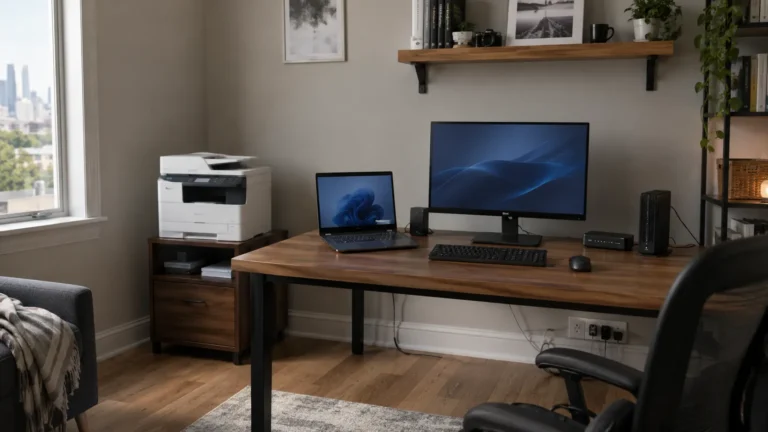
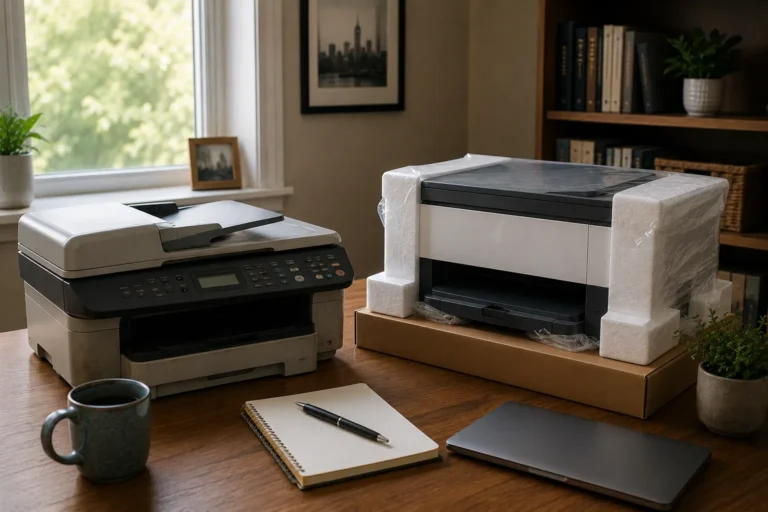
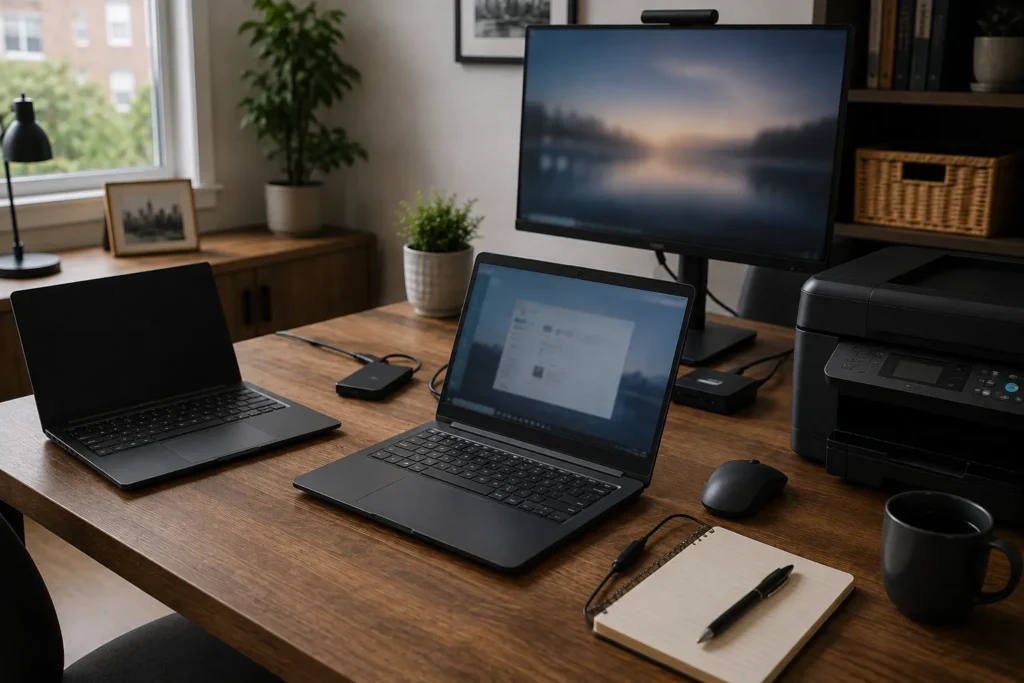
Files are only one part of a working computer. Once the new machine is set up, reconnect the equipment you actually use, including printers, scanners, external drives, monitors, webcams, microphones, docks, label printers, card readers, and specialist devices. Modern Windows systems can configure many peripherals automatically, but older or specialized hardware may require manufacturer software.
A device appearing in Windows is not the same as confirming that it works properly. Print a page, scan a document, test the webcam, connect the external display, or perform the real task the device exists to do. Business users should be especially careful with specialist peripherals. Discovering that an essential scanner or label printer is incompatible after the old computer has been removed can create unnecessary downtime.
Check Account Access on the New Machine
A successful migration includes access to the services you depend on. Sign into email, Microsoft 365 or Google Workspace, cloud storage, password managers, banking services, accounting tools, remote-work applications, and other important accounts. Multi-factor authentication may require additional setup on the new computer, which can expose outdated recovery information or forgotten authentication methods.
If an account asks for verification through a phone number or email address you no longer control, resolve that while the old computer is still available and signed in where possible. Check the accounts that matter before assuming the migration is complete. Account access should be tested just as deliberately as files and software. A computer is not fully ready if the data moved but the services you rely on remain inaccessible.
Verify the Files After the Transfer
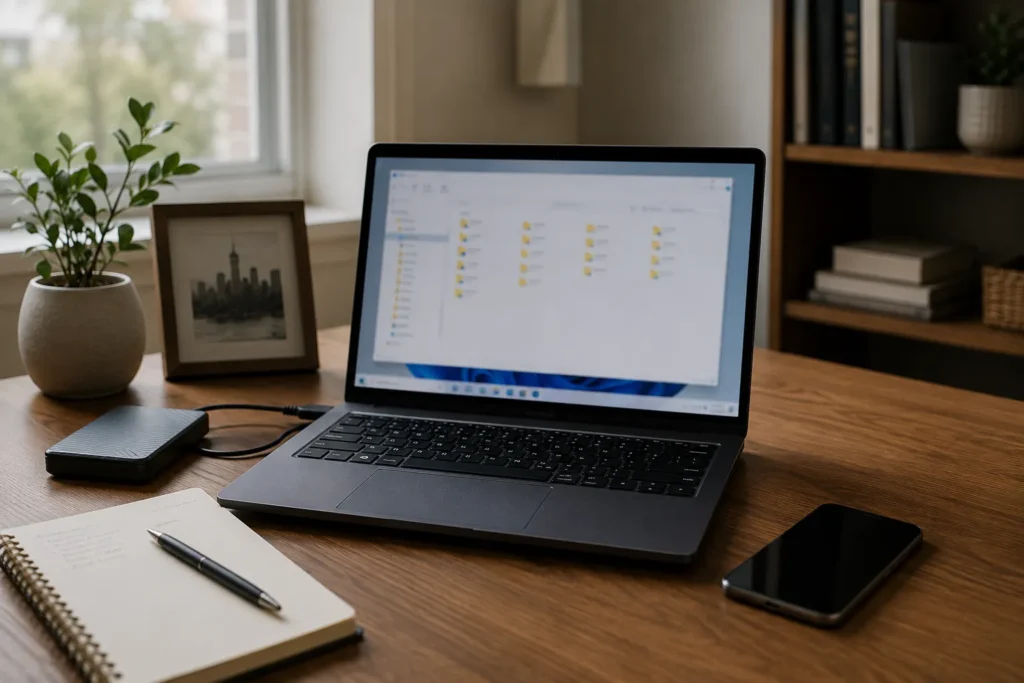
A copied folder appearing on the new computer does not prove that every important file transferred correctly. Open a sample of documents, photos, spreadsheets, PDFs, project files, and other data after the copy is complete. Check especially important folders more carefully, including business records, family photographs, and active project files.
For large migrations, compare folder sizes and file counts where practical. The numbers may not match perfectly if cloud data is organized differently, but significant unexplained differences deserve investigation. Look for the date ranges, subfolders, and recent files you expect to see. The goal is confidence that the new computer contains what you need before the old one becomes unavailable.
Use the New Computer Normally Before Retiring the Old One
Do not wipe the old PC the same day the new one starts working. Use the new computer for normal tasks such as sending email, working on documents, joining a video call, using the printer, opening cloud files, connecting external drives, and running the applications you depend on. This is when forgotten details tend to surface.
A browser extension may be missing, an old email archive may not have transferred, or a specialist application may need another licence file. A folder that seemed unimportant may turn out to contain something you use every month. As long as the old computer remains intact, these discoveries are usually straightforward to fix. Once its drive has been erased or the machine has been sold, donated, or recycled, the options become much narrower.
Do Not Use the Old Computer as Your Only Backup
Keeping the old machine temporarily is useful, but it should not become the permanent backup strategy. Computers fail, and an aging PC that has already been replaced is not a good place to keep the only spare copy of important data. Once the migration is verified, make sure the new computer is included in an ongoing backup plan.
That may involve cloud backup, external storage, network storage, or a combination of methods depending on the importance of the data. The backup should also be checked periodically rather than simply assumed to be working. A system that silently stopped protecting files months ago provides little comfort when recovery is needed. The old computer can be retired once the new setup and its backup have both been verified.
Business Migrations Need Extra Verification
A small-business computer often has dependencies that are easy to miss. The user may need Microsoft 365, shared folders, cloud storage, accounting software, VPN access, printers, scanners, remote-access software, browser extensions, line-of-business applications, and company-specific security settings. A migration is not complete simply because the employee can open email.
Test the actual workflow. Confirm that shared files are available, the correct printer works, the accounting system opens the right company file, the webcam and microphone work for meetings, and remote services are accessible. If the old computer is being reassigned to another employee, do not hand it over with the previous user’s data still present. Business-device reuse needs its own controlled process.
When Professional Migration Help Makes Sense
A straightforward personal computer with well-organized cloud storage can often be migrated without much difficulty. Professional help becomes more valuable when the old computer contains important local data, multiple email archives, specialist applications, business accounts, unusual peripherals, or a large amount of information spread across several locations. It can also reduce downtime when a home office or small business depends on the computer every day.
East Toronto Tech provides new-device setup and computer migration assistance for Toronto homes, home offices, and small businesses. That can include identifying important data, preparing the new machine, transferring appropriate files, reconnecting accounts and peripherals, and verifying the setup before the old computer is retired. The aim is to make the handover controlled and understandable rather than relying on assumptions. A successful migration should leave the new computer ready for normal use while the old one remains available until everything important has been confirmed.
Keep the Old Computer Until the New One Has Earned Your Trust
A good migration is not measured by how quickly the old computer can be unplugged. It is measured by whether the new computer can take over without leaving anything important behind. Back up first, understand where the files live, transfer them as copies, reinstall software properly, and test the services and devices you actually use.
Then spend some real time working on the new machine. Once your files are present, your accounts work, your applications and peripherals have been tested, and a current backup protects the new system, the old computer can be retired with confidence. Taking a little extra time at the end is far easier than trying to recover something important after the original machine is gone.